Azure SQL Database (PaaS) Backup/Restore

This is tricky. Azure PaaS (Platform as Service) SQL Database has master database only. If programmer is taking any advantage of MSDB databases or synonymous, it will not work there directly.

Use Deploy Database to Microsoft Azure SQL Database

The simple method to restore to Azure SQL Database is;
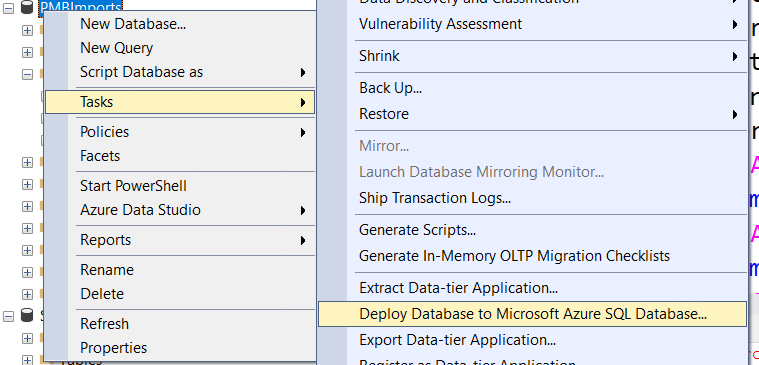
This will create a new database on Azure SQL Server. You can rename it to your actual database.

Migrate to Azure SQL by restoring from Database

This method requires Azure storage account.

Create a blob storage. Upload database backup. From SQL Management Studio, right-click to [YourLOCALDatabase] and open Tasks>Export Data-tier Application. You can export your database to Azure Blob Storage on this wizard. After backup, connect your Azure SQL Server from SQL Management Studio. Go to your [YourREMOTEDatabase], right-click Databases folder from treeview and go to Import Data-tier Application. Choose your backup file from Blob Storage and enjoy!

This will create a new database on Azure SQL Server. You can rename it to your actual database.

Use Azure Data Migration Assistant Tool

This is unlike other methods mentioned above. This is the most efficient tool for migration databases to Azure SQL. This gives you a chance to select individual objects (tables, stored procedures, views, functions etc). Here is the link;

https://www.microsoft.com/en-us/download/details.aspx?id=53595

This does not create a new database but copy schema and data to existing database.

Use 3dr party tool

3rd party tools can be used to backup/restore Azure SQL database. Here is the list;

https://sqlbackupandftp.com/

The tool allows us to create azure backup on local/remote. We can restore those backups on local/remote machine. I have a schedule job on my local that run everyday 10:00AM to create full backup in Azure blob container “myContainer”.

This tool also allows you to backup on your local computer.

Other methods that can be used with Azure SQL Database;

  • SQL Server Import and Export Wizard
    • Simple process
    • Works even with old SQL Server / SSMS
    • Can export data into different file formats
    • Only data is imported, all other objects will be lost
    • Requires SQL Server Management Studio
    • Manual procedure

Use if you need to move data from Azure to a specific destination (e.g. your old SQL Server) or in a particular format (e.g. flat file) with SQL Server Management Studio tools

  • SSIS Tools
    • Can export data into different file formats
    • Can be run unattended/automatically
    • Only data is imported, all other objects will be lost

Similar to SQL Server Import and Export Wizard, but enables automatic process

Use when you need to create BACPAC file with SQL Server Management Studio tools

  • SqlPackage utility
    • Creates the most exact copy of the database
    • Can be run unattended/automatically
    • Requires the latest DAC library installed
    • Creates a specific BACPAC file

Use if you need to create BACPAC file from a command line

  • BCP utility
    • Can export data into different file formats
    • Can be run unattended/automatically
    • Only data is imported, all other objects will be lost
    • Imports only one table at a time

Use if you need to save data from one or several tables in a readable format

  • SqlBackupAndFtp
    • Simple UI
    • Can create scheduled backups
    • Doesn’t require DAC library installed
    • Creates a specific BACPAC file

Use when you need to perform automatic backups into BACPAC file regularly

  • From Azure Portal
    • Everything online, no software installation required
    • Creates a specific BACPAC file
    • Azure storage account is required

Suitable if you only have a browser

Use AzCopy

This tool can be used to transfer data between storage accounts. Here is the link;

https://adamtheautomator.com/azcopy-setup/

Azure Storage Explorer

This is a GUI that can be used to move files between storage accounts and premises. Here is the link;

https://azure.microsoft.com/en-us/features/storage-explorer/
Fix Name Pipes Provider, Error: 40

Today I have received this error on a remote server connecting from my local computer;

A network-related or instance-specific error occurred while establishing a connection to SQL Server. The server was not found or was not accessible. Verify that the instance name is correct and the SQL server is configured to allow remote connections. (provider: Named Pipes, Provider, error:40 – Could not open a connection to SQL Server) (Microsoft SQL Server, Error: 2).

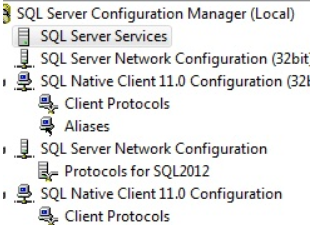
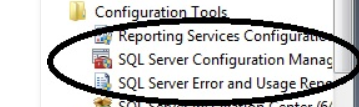
To fix this error goto start menu–> go to  Microsoft Sql Server –> go to configurations folder and click on sql server configuration manager. check below image.

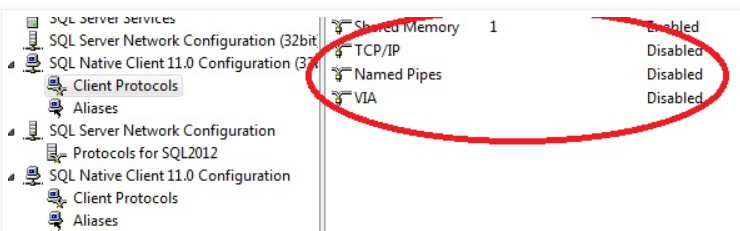
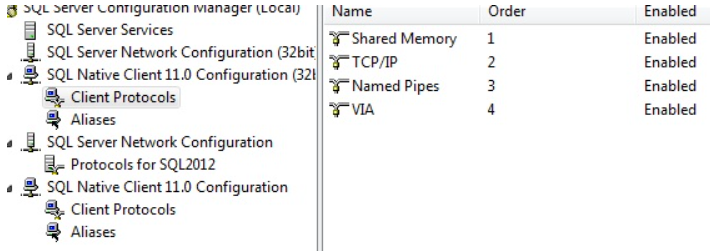
Expand Sql Native client 11.0 Configuration manager. In client protocols you will see TCP/IP, named Pipes,Via disabled, enable those

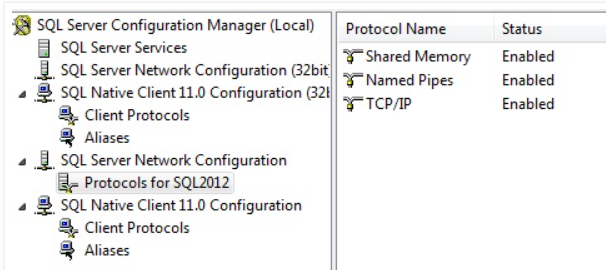
Expand Server Network Configuration In Protocols for Sql Server here  Enable Shared,Named,TCP/IP

Expand Sql Native client 11.0 Configuration manager. In client protocols you will see TCP/IP, named Pipes,Via disabled, enable those  and restart the Sql related services. Now the error fixed.

Resources

https://www.c-sharpcorner.com/article/resolve-error-40-could-not-open-a-connection-to-sql-server/

How to confirm Access Database Engine (ACE Driver) is installed on Database Server

Follow these steps to verify Access Database Engine (ACE Driver) installation;

Double check to make sure you did install the x64 version of Microsoft Access Database Engine here – http://www.microsoft.com/download/en/details.aspx?id=13255.  Please note that only one version x64 –OR– x86 can be installed, not both.

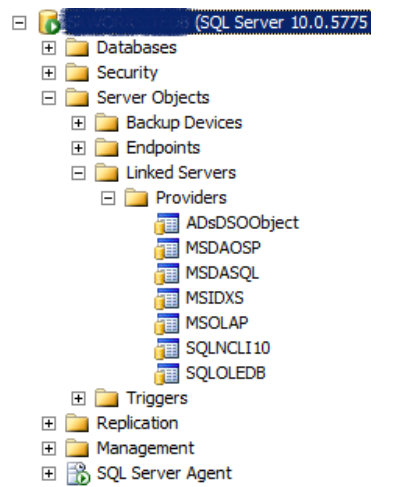
Here is a SQL Server x64 server with the Microsoft Access Database Engine x32 installed – see it does not show up.

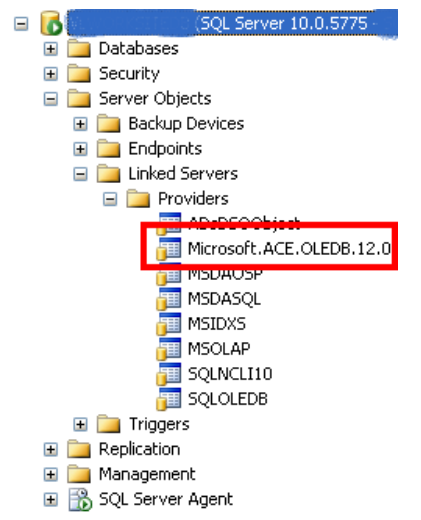
Here is the same server with the Microsoft Access Database Engine x64 installed – see how it shows up.

I do not know of a query to get a list of the providers – however if you look in the registry at

HKEY_LOCAL_MACHINE\SOFTWARE\Microsoft\Microsoft SQL Server\MSSQL10.MSSQLSERVER\Providers and check for the key Microsoft.ACE.OLEDB.12.0

This will tell you that it is installed.  If you have a 32-bit version installed on a 64-bit box you would need to look under the Wow6432Node, that key would be HKEY_LOCAL_MACHINE\SOFTWARE\Wow6432Node\Microsoft\Microsoft SQL Server\MSSQL10.MSSQLSERVER\Providers.

You would have to make sure that both SQL Server and the ODBC/OLEDB driver are the same bitwise either both x64 or x32.

SQL Server Agent configuration to run SSIS Packages

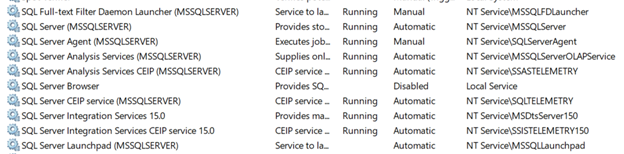
By default, SQL Server services run under these accounts;

Sometimes administrator might have changed these service accounts to window accounts for management reasons. To get them back to default accounts, right click on service and change them to NT Service\[Account Name] where [Account Name] is above listed account without any password. Windows know how to setup the password.

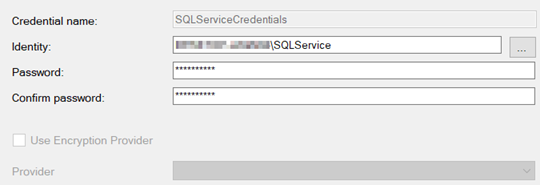
We would like to create a windows proxy account so that we can use it inside SQL server. The intent is to use this account to read/write from windows file system.

I am using my local laptop for this demo but you can use a domain account. The only difference would be to change [ComputerName]\[AccountName] to [DomainName[\[AccountName].

  1. You might have received this user from your domain administrator. If not then create a Windows user “SQLService” on your local computer and make him member of “Users” group only.
  2. Next Open SIMS -> Security -> Login -> New Login.

Server Role -> public.

User Mapping -> msdb -> db_ssisoperator, public

User Mapping -> SSISDB -> ssis admin, public

  • Next  Security -> Credentials -> New Credentials

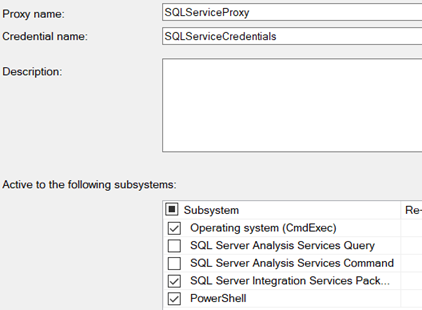
Next SQL Server Agent -> Proxies -> SSIS Package Execution -> New Proxy

I have selected “Operating system (CmdExec) and “PowerShell” additional subsystems. You might not need these.

Under Principals, Select your windows service account;

Deploy your integration service packages. You will be able to see them under SSISDB->[Folder Name]\[Project Name]. Run your package. It will successeded because you are running them under your security context;

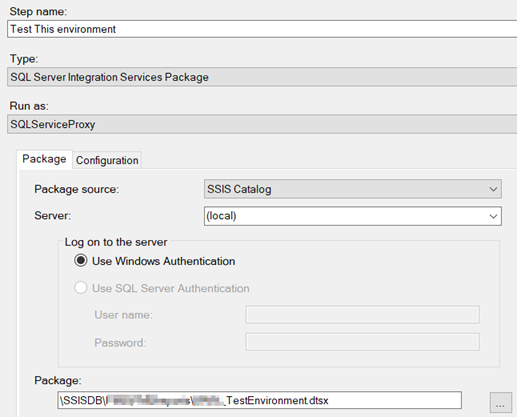
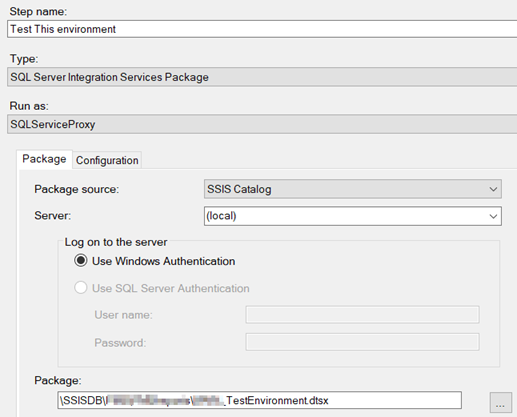
Create a job with a job step in SQL Server Agent. Make sure to change the context “Run as: SQLServiceProxy”;

When you run the job, it will fail. The reason, its running under the context of SQLService account. Connections within integration services are made with integrated security not SQL server.

Since we will be using SQL Login so I am going to change SSIS connection string in environment variables.

Now when you run the package, it will succeed.

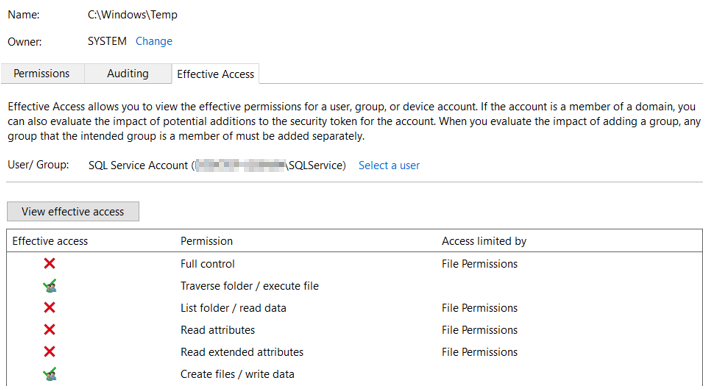
Its time to check file system access. Open c:\windows\temp folder and see effective permission of SQLService account;

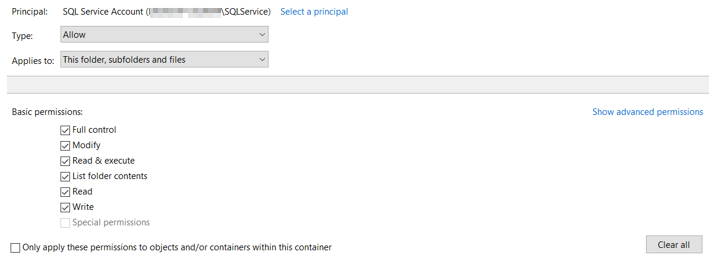
Grant full permission on this folder;

Script tasks require access to this folder for .NET framework and other temporary operations.

Still if you get this error;

The cause, SQLService windows account is not part of “Distributed COM Users” group on the machine where SSIS is installed. Add SQLService account to this windows group. You can read more about this here;

If the package fails again on server and you see this error in windows event viewer;

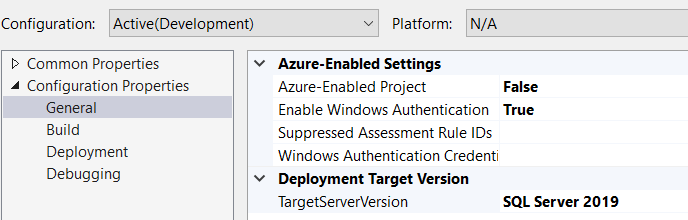
Make sure your SSIS project is targeting correct SQL Server Version. Right Click on your SSIS project -> Properties;

Deploy your project.

For SQL Server 2019 you need to set “False” for Azure-Enabled Project. As of this writing Azure-Enabled Project works with SQL Server 2017 only.

Run the package and everything should be Green now (hopefully :). We are done.

The above setup will work if we are reading/writing files in a domain controller environment or on a single server.

Setting up Azure Storage for reading/writing files

Service accounts are normally not interactive accounts. If we are using Azure Storage for reading/writing files with SAS then we would need to save Azure credentials in Credential Manager. To get to Credential Manager we need to login on server with our service account that will make it interactive.

Follow these steps;

Login to server with [servername]\SQLService account. If you are doing RDP, make sure this account is member of “Remote Desktop users” user’s group. Search for credential manager.

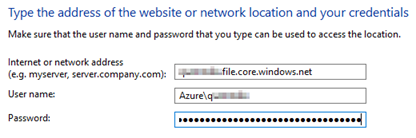
Add these credentials to credential manager;

Make sure you can navigate to network share by doing \\[AzureStorageAccount.file.core.windows.net\ShareName

Remove this account from “Remote Desktop users”. Run agent, still fails.

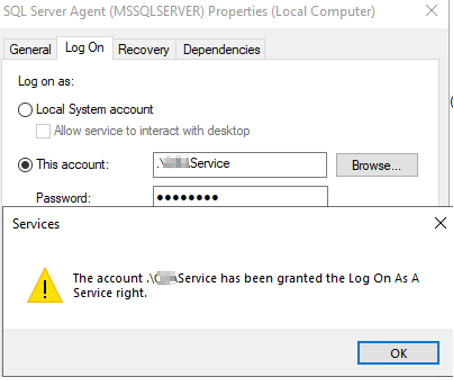
Try to Run SQL Server Agent under windows service account;

This time this started working. This is an alternative approach. We are using service account to run SQL Server agent. If this is the case then we don’t need to setup credentials and proxy accounts in SQL Server.

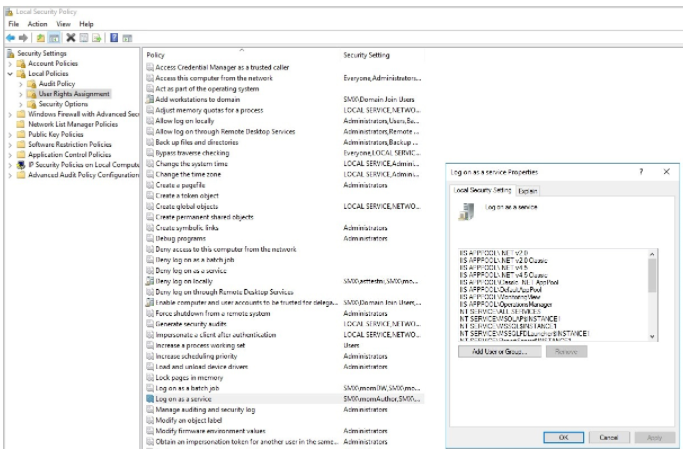
What happened behind the scene. Windows service account is granted “Log on as service permission” by windows. We can verify this following “Enable service log on through a local group policy” section below.

If we want to revert to “NT Service\SqlServerAgent” as service account, simply change your service account from windows service to SqlServerAgent and it would still work.

Follow this to allow an account “Login as service” permission manually if required;

Enable service log on through a local group policy

Follow these steps:

  1. Sign in with administrator privileges to the computer from which you want to provide Log on as Service permission to accounts.
  2. Go to Administrative Tools, click Local Security Policy.
  3. Expand Local Policy, click User Rights Assignment. In the right pane, right-click Log on as a service and select Properties.
  4. Click Add User or Group option to add the new user.
  5. In the Select Users or Groups dialogue, find the user you wish to add and click OK.
  6. Click OK in the Log on as a service Properties to save the changes.

Resources;

https://docs.microsoft.com/en-us/system-center/scsm/enable-service-log-on-sm?view=sc-sm-2019

How to query last restore dates of databases

This simple way to view a single database is;

declare @DB sysname = 'MyDB';
select * from msdb.dbo.restorehistory where destination_database_name = @DB;

To view all databases;

WITH LastRestores AS
(
SELECT
    DatabaseName = [d].[name] ,
    [d].[create_date] ,
    [d].[compatibility_level] ,
    [d].[collation_name] ,
    r.*,
    RowNum = ROW_NUMBER() OVER (PARTITION BY d.Name ORDER BY r.[restore_date] DESC)
FROM master.sys.databases d
LEFT OUTER JOIN msdb.dbo.[restorehistory] r ON r.[destination_database_name] = d.Name
)
SELECT *
FROM [LastRestores]
WHERE [RowNum] = 1

Resource;

https://dba.stackexchange.com/questions/33703/how-to-query-last-restore-date-in-sql-server/33705