How Azure Handles Large File Uploads: From Blob Storage to Event-Driven Processing (and What Breaks at 2AM)

Uploading a large file to Azure sounds simple — until you need to process it reliably, at scale, with retries, alerts, and zero surprises at 2AM.

This article walks through how Azure actually handles large file uploads, using a 10-GB video as a concrete example, and then dives into real-world failure modes that show up only in production.

We’ll cover:

  • How Azure uploads large files safely
  • When and how events are emitted
  • How Functions and queues fit together
  • Why retries and poison queues exist
  • What silently breaks when nobody is watching

Azure Blob Storage: Large Files, Small Pieces

Azure Blob Storage supports extremely large files — but never uploads them in a single request.

Most files are stored as block blobs, which are composed of many independently uploaded blocks.

Block blob limits (the important ones)

  • Max block size: 4 GiB
  • Max blocks per blob: 50,000
  • Max blob size: ~190 TiB

Example: Uploading a 10-GB video

A 10-GB video is uploaded as:

  • Block 1: 4 GB
  • Block 2: 4 GB
  • Block 3: ~2 GB

Each block is uploaded with Put Block, and once all blocks are present, a final Put Block List call commits the blob.

Key insight: Blocks are an upload implementation detail. Once committed, the blob is treated as a single file.

Client tools like AzCopy, Azure SDKs, and Storage Explorer handle this chunking automatically.


When Does Azure Emit an Event?

Uploading blocks does not trigger processing.

Events are emitted only after the blob is fully committed.

This is where Azure Event Grid comes in.

BlobCreated event flow

  1. Final Put Block List completes
  2. Blob Storage emits a BlobCreated event
  3. Event Grid routes the event to subscribers

Important: Event Grid fires once per blob, not once per block.

This guarantees downstream systems never see partial uploads.


Azure Functions: Reacting to Blob Uploads

Azure Functions does not poll Blob Storage in modern designs. Instead, it reacts to events.

Two trigger models (only one you should use)

  • Event Grid trigger (recommended)
    Push-based, near real-time, scalable
  • Classic Blob trigger (legacy)
    Polling-based, slower, less predictable

In production architectures, Event Grid–based triggers are the standard.


Why Queues Are Inserted into the Pipeline

Direct processing works — until load increases or dependencies slow down.

This is why many designs add a queue:

Azure Storage Queue

Blob uploaded
   ↓
Event Grid event
   ↓
Azure Function
   ↓
Message written to queue

Queues provide:

  • Backpressure
  • Retry handling
  • Isolation between ingestion and processing
  • Protection against traffic spikes

Visibility Timeouts: How Retries Actually Work

Storage queues don’t use acknowledgments. Instead, they rely on visibility timeouts.

What is a visibility timeout?

When a worker dequeues a message:

  • The message becomes invisible for a configured period
  • If processing succeeds → message is deleted
  • If processing fails → message becomes visible again

Each retry increments DequeueCount.

This is the foundation of retry behavior in Azure Storage Queues.


Poison Queues: When Retries Must Stop

Retries should never be infinite.

With Azure Functions + Storage Queues:

  • Once maxDequeueCount is exceeded
  • The message is automatically moved to: <queue-name>-poison

Poison queues:

  • Prevent endless retry loops
  • Preserve failed messages for investigation
  • Enable alerting and replay workflows

Failure Modes: “What Breaks at 2AM?”

This is where systems separate happy-path demos from production-ready architectures.

Most failures don’t look like outages — they look like silent degradation.


1️⃣ Event Grid Delivery Failures

Symptom: Blob exists, but processing never starts.

Cause

  • Subscription misconfiguration
  • Endpoint unavailable
  • Permission or auth issues

Mitigation

  • Enable Event Grid dead-lettering
  • Monitor delivery failure metrics
  • Build replay logic

2AM reality: Files are uploaded — nothing processes them.


2️⃣ Duplicate Event Delivery

Symptom: Same file processed twice.

Why
Event Grid guarantees at-least-once delivery, not exactly-once.

Mitigation

  • Idempotent processing
  • Track blob names, ETags, or IDs
  • Reject duplicates at the application layer

2AM reality: Duplicate records, duplicate invoices, duplicate emails.


3️⃣ Function Timeouts on Large Files

Symptom: Processing restarts or never completes.

Cause

  • Large file downloads
  • CPU-heavy transformations
  • Insufficient plan sizing

Mitigation

  • Increase visibility timeout
  • Stream blobs instead of loading into memory
  • Offload heavy work to batch or container jobs

2AM reality: Queue backlog grows quietly.


4️⃣ Queue Backlog Explosion

Symptom: Queue depth grows uncontrollably.

Cause

  • Ingestion spikes
  • Downstream throttling
  • Scaling limits

Mitigation

  • Monitor queue length and age
  • Scale consumers
  • Add rate limiting or backpressure

2AM reality: Customers ask why files are “stuck.”


5️⃣ Poison Queue Flood

Symptom: Many messages land in -poison.

Cause

  • Bad file formats
  • Schema changes
  • Logic bugs

Mitigation

  • Alert on poison queue count > 0
  • Log full failure context
  • Build replay workflows

2AM reality: Work is failing — but nobody is alerted.


6️⃣ Storage Cost Spikes from Retries

Symptom: Azure Storage bill jumps unexpectedly.

Cause

  • Short visibility timeouts
  • Repeated blob downloads
  • Excessive retries

Mitigation

  • Tune visibility timeouts
  • Cache progress
  • Monitor transaction counts, not just data size

2AM reality: Finance notices before engineering does.


7️⃣ Partial or Corrupted Uploads

Symptom: Function triggers but input file is invalid.

Cause

  • Client aborted uploads
  • Corrupted block lists
  • Non-atomic upload logic

Mitigation

  • Validate file size and checksum
  • Enforce minimum size thresholds
  • Delay processing until integrity checks pass

8️⃣ Downstream Dependency Failures

Symptom: Upload succeeds — final destination fails (SharePoint, APIs, DBs).

Mitigation

  • Exponential backoff
  • Dead-letter after max retries
  • Store intermediate results for replay

2AM reality: Azure is healthy — the external system isn’t.


9️⃣ Silent Failure (The Worst One)

Symptom: System is broken — nobody knows.

Fix
Monitor:

  • Function failure rates
  • Queue depth and age
  • Poison queue counts
  • Event Grid delivery failures

Final Takeaway

Large files in Azure Blob Storage are uploaded in blocks, but Event Grid emits a single event only after the blob is fully committed. Azure Functions react to that event, often enqueueing work for durable processing. Visibility timeouts handle retries, poison queues stop infinite failures, and production readiness depends on designing for duplicate events, backlogs, cost creep, and observability — not just the happy path.
When Azure AD Claims Aren’t Enough: Issuing Your Own JWT for Custom Authorization

Modern applications often start with Azure AD (now Microsoft Entra ID) for authentication—and for good reason. It’s secure, battle-tested, and integrates seamlessly with Azure-native services.

But as systems grow, teams frequently hit a wall:

“We can authenticate users, but we can’t express our authorization logic cleanly using Entra ID claims alone.”

At that point, one architectural pattern comes into focus:

Validating the Azure AD token, then issuing your own application-specific JWT.

This post explains when this strategy makes sense, when it doesn’t, and how to implement it responsibly.


The Problem: Identity vs Authorization Drift

Azure AD excels at answering one question:

Who is this user?

It does this using:

  • App roles
  • Group membership
  • Scopes
  • Optional claims

However, real-world authorization often depends on things Azure AD cannot evaluate:

  • Data stored in your application database
  • Tenant-specific permissions
  • Feature flags or subscription tiers
  • Time-bound or contextual access rules
  • Row-level or domain-specific authorization logic

Trying to force this logic into Entra ID frequently leads to:

  • Role explosion
  • Overloaded group membership
  • Fragile claim mappings
  • Slow iteration cycles

This is where many systems start to creak.


The Strategy: Token Exchange with an Application-Issued JWT

Instead of overloading Azure AD, you introduce a clear trust boundary.

High-level flow

  1. User authenticates with Azure AD
  2. Client receives an Azure-issued access token
  3. Your API fully validates that token
  4. Your API issues a new, short-lived JWT containing:
    • Application-specific claims
    • Computed permissions
    • Domain-level roles
  5. Downstream services trust your issuer, not Azure AD directly

This is often referred to as:

  • Token exchange
  • Backend-for-Frontend (BFF) token
  • Application-issued JWT

It’s a well-established pattern in enterprise and government systems.


Why This Works Well

1. Azure AD handles authentication; your app handles authorization

This separation keeps responsibilities clean:

  • Azure AD → Identity proof
  • Your API → Business authorization

You avoid pushing business logic into your identity provider, where it doesn’t belong.


2. You can issue dynamic, computed claims

Your API can:

  • Query databases
  • Apply complex logic
  • Evaluate tenant state
  • Calculate effective permissions

Azure AD cannot do this—and shouldn’t.


3. Downstream services stay simple

Instead of every service needing to understand:

  • Azure tenants
  • Scopes vs roles
  • Group semantics

They simply trust:

  • Your issuer
  • Your claim contract

This dramatically simplifies internal service authorization.


4. Identity provider portability

If you later introduce:

  • Entra B2C
  • A second tenant
  • External identity providers

Your internal JWT remains the stable contract.
Only the validation layer changes.


When This Is Overkill

This pattern is not always the right choice.

Avoid it if:

  • App roles and groups already express your needs
  • Authorization rules are static
  • You don’t have downstream services
  • You want minimal operational overhead

A second token adds complexity—don’t add it unless it earns its keep.


Security Rules You Must Follow

If you issue your own JWT, there are no shortcuts.

1. Fully validate the Azure token

Always validate:

  • Signature
  • Issuer
  • Audience
  • Expiration
  • Required scopes or roles

If you skip any of these, the pattern collapses.


2. Keep your token short-lived

Best practice:

  • 5–15 minute lifetime
  • No refresh tokens (unless explicitly designed)

Azure AD should remain responsible for session longevity.


3. Protect and rotate signing keys

  • Use a dedicated signing key
  • Store it securely (Key Vault)
  • Rotate it regularly
  • Publish JWKS if multiple services validate your token

Your token is only as trustworthy as your key management.


4. Be disciplined with claims

Only include what downstream services actually need.

Avoid:

  • Personally identifiable information
  • Large payloads
  • Debug or “just in case” claims

JWTs are not data containers.


A Practical Mental Model

A simple way to reason about this pattern:

Azure AD authenticates people.
Your application authorizes behavior.

If that statement matches your system’s reality, this approach is not only valid—it’s often the cleanest solution.


Final Thoughts

Issuing your own JWT after validating an Azure AD token is not a workaround or an anti-pattern. It’s a deliberate architectural choice used in:

  • Regulated environments
  • Multi-tenant SaaS platforms
  • Government and municipal systems
  • Complex internal platforms

Like all powerful patterns, it should be applied intentionally, with strong security discipline and a clear boundary of responsibility.

Used correctly, it restores simplicity where identity systems alone fall short.

Architecture Diagram (Conceptual)

Actors and trust boundaries:

  1. Client (Web / SPA / Mobile)
    • Initiates sign-in using Microsoft Entra ID
    • Receives an Azure AD access token
    • Never handles application secrets or signing keys
  2. Microsoft Entra ID (Azure AD)
    • Authenticates the user
    • Issues a standards-based OAuth 2.0 / OpenID Connect token
    • Acts as the external identity authority
  3. Authorization API (Your Backend)
    • Validates the Azure AD token (issuer, audience, signature, expiry, scopes)
    • Applies application-specific authorization logic
    • Queries internal data sources (database, feature flags, tenant configuration)
    • Issues a short-lived, application-signed JWT
  4. Downstream APIs / Services
    • Trust only the application issuer
    • Validate the application JWT using published signing keys (JWKS)
    • Enforce authorization using domain-specific claims

Token flow:

  • Azure AD token → proves identity
  • Application-issued JWT → encodes authorization

This design creates a clean boundary where:

  • Identity remains centralized and externally managed
  • Authorization becomes explicit, testable, and owned by the application

Adding a separate email account as an owner subscription

My friend has created the Azure subscription using this email address, foo.inc@outlook.com. Azure has created a domain fooincoutlook.onmicrosoft.com in Azure Active Directory.

Me and my friend share same subscription with same foo.inc@outlook.com email address to provision services Azure. There are occasional disruptions in my sign-in and I see a login pop up window. It asks me to type-in our shared email address to get a code and authenticate in Azure. I contact my friend and solve login issue. This is a waste of time.

To solve this issue, navigate to Active Directory -> Manage -> User and create a new user;

adam@fooincoutlook.onmicrosoft.com

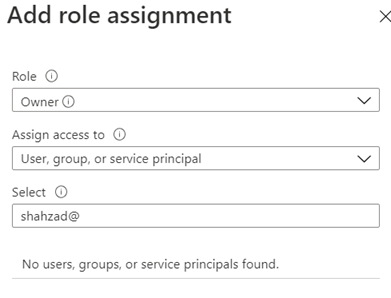
Navigate to Azure subscription -> Access control (IAM) -> Add -> Add role assignment;

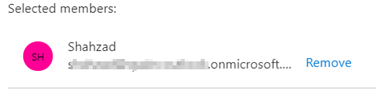
By using adam@fooincoutlook.onmicrosoft.com, We can share a single subscription but can use our own email accounts to provision resources.

There are other ways to manage identities but I have found this an easier and quicker fix.

VM Reserved instance

I have configured Azure VM for development environment from an image and running it for the past 3 weeks. Today, Azure advisor recommended that upgrading Pay-As-You-Go to reserved instance will save us 25% yearly that’s estimated 1,031.67 USD.

Here is how you can do that;

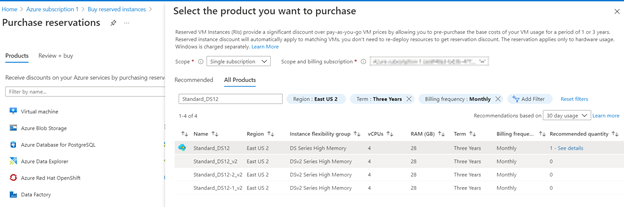
Go to Home -> <Your Subscription> -> Buy reserved instances -> Virtual machine

I came here for one year (25%) discount but if commit for three year i can get 48% discounts. Not bad.

The monthly estimated prices for a 3 years commitment is 130.61 USD.

Does Azure commercial follow FEDRAMP guidelines?

This is the first question that will always be asked if you are setting up Azure for a client that works with government.

Both Azure and Azure Government uses same security controls. They are accessed and authorized at the FedRAMP high impact level. Azure Government provides an additional layer of protection to customers to screened US persons. This is used to store and process data subject to US export control regulation’s such as EAR, ITAR, and DoE 10 CFR Part 810.

Refer to this Microsoft article for details;

https://azure.microsoft.com/en-us/blog/all-us-azure-regions-now-approved-for-fedramp-high-impact-level/

Take time to see which environments meet your needs.  Many people are surprised at how robust the Azure [commercial] compliance space is.  https://www.microsoft.com/en-us/trustcenter/compliance/complianceofferings

Resources;