Azure Networking

Azure Networking can be broken in 4 categories;

Networking – Connectivity

Items under this category are;

a) Virtual Network (VNet)

These are cables, routers, switches in a physical network. In Azure, these are software services and it’s called Virtual Network because it’s all database entries. Microsoft has their own physical devices and they are not plugging/unplugging base of our commands.

b) Virtual WAN

Wide area Networks allow offices to connect to each other being Azure as the middleman.

c) Express Route

Express route is the fastest way to connec over the internet. It cost more but its encrypted and fast.

e) VPN Gateway

If Express route is not an option, then traditional VPN can be used. Their are point to site and site to site VPN. Helps to connect office computer to Azure network securely.

f) Azure DNS

Public and private domain can be managed in the name server in Azure.

g) Peering

Peering is a way for connecting multiple virtual networks together. This help to communicate one region service to a different region. By default, these services are cut off. You will need to configure these.

h) Bastion

This allows you to remote into a server without opening any ports. It’s a more secure version of RDP.

Networking – Security

To restrict unauthorized access, Items under this category are;

a) Network Security groups (NSG)

Very simple Access Control List Style e.g. We can restrict certain IP addresses to connect to Database or VM.

b) Azure Private Link

c) DDoS Protection

e) Azure Firewall

f) Web Application Firewall (WAF)

This can prevent cross site scripting or SQL injection attacks.

g) Virtual Network Endpoints

Networking – Delivery

This is traffic shaping and load balancing. Items under this category are;

a) CDN

b) Azure Front Door

Global load-balancer

c) Traffic Manager

d) Application Gateway

Application level load balancer – This is software level-6 gateway.

e) Load Balancer

Transport level load balancer – This is hardware level-4 device.

Networking – Monitoring

Debug problems, Investigate traffic issues. Items under this list are;

a) Network Watcher

b) ExpressRoute Monitor

c) Azure Monitor

d) VNet Terminal Access Point

Connect your organization to Azure Active Directory

If your organization was created with a Microsoft account, connect your organization to your Azure Azure AD. Sign in to Azure DevOps Services with the same username and password that you use with your Microsoft services. Enforce policies for accessing your team’s critical resources and key assets.

There’s no downtime during this change, but users are affected. Let them know before you begin.

Sign in to your organization https://dev.azure.com/{yourorganization}

Select Organization settings -> Users.

Compare Azure DevOPS email list with your Azure AD email list. Create an Azure AD email address entry for every user who’s in the Azure DevOPS organization and not in the Azure AD.

Connect organization to Azure AD by selecting Azure Active Directory.

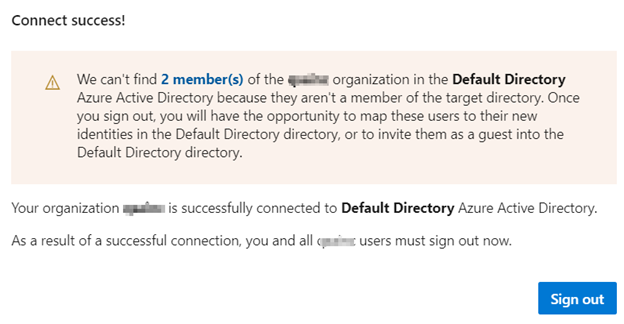
Click on Connect directory;

2 out of 6 members(s) are the members that doesn’t exist in Azure AD. They are guest developers using their hotmai/gmail account. If we want to allow them to use Azure DevOPS, we need to create their accounts as Guest in Azure AD.

Sign out of Azure DevOPS.

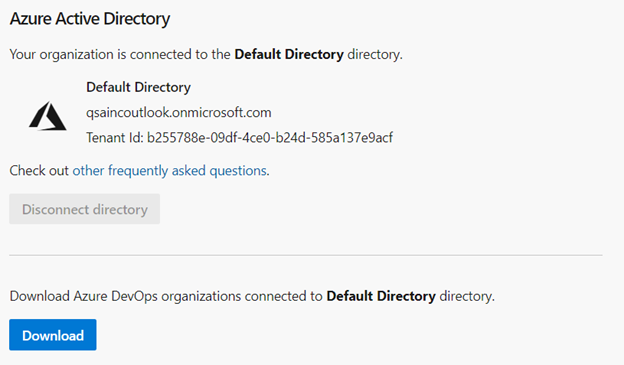
Sign in with your Azure AD account. If you click on Organization Settings -> Azure Active Directory, you will see this page;

Clicking on Download will download your organization info, Azure DevOPS info and Owner of Azure DevOPS environment and any errors in the connect. This ensures that Azure DevOPS is connected with Azure.

Make adam@{yourorganization}.onmicrosoft.com as “Project Collection Administrators”. This role perform all kind a operations.

Test your access on Azure DevOps and Visual Studio. You will be asked to enter your credentials and approval from Microsoft Authenticator.

Resource;

https://docs.microsoft.com/en-us/azure/devops/organizations/accounts/connect-organization-to-azure-ad?view=azure-devops

Azure Virtual Network concepts and best practices

This article describes key concepts and best practices for Azure Virtual Network (VNet) .

VNet concepts

  • Address space: When creating a VNet, you must specify a custom private IP address space using public and private (RFC 1918) addresses. Azure assigns resources in a virtual network a private IP address from the address space that you assign. For example, if you deploy a VM in a VNet with address space, 10.0.0.0/16, the VM will be assigned a private IP like 10.0.0.4.
  • Subnets: Subnets enable you to segment the virtual network into one or more sub-networks and allocate a portion of the virtual network’s address space to each subnet. You can then deploy Azure resources in a specific subnet. Just like in a traditional network, subnets allow you to segment your VNet address space into segments that are appropriate for the organization’s internal network. This also improves address allocation efficiency. You can secure resources within subnets using Network Security Groups. For more information, see Network security groups.
  • Regions: VNet is scoped to a single region/location; however, multiple virtual networks from different regions can be connected together using Virtual Network Peering.
  • Subscription: VNet is scoped to a subscription. You can implement multiple virtual networks within each Azure subscription and Azure region.

Best practices

As you build your network in Azure, it is important to keep in mind the following universal design principles:

  • Ensure non-overlapping address spaces. Make sure your VNet address space (CIDR block) does not overlap with your organization’s other network ranges.
  • Your subnets should not cover the entire address space of the VNet. Plan ahead and reserve some address space for the future.
  • It is recommended you have fewer large VNets rather than multiple small VNets. This will prevent management overhead.
  • Secure your VNet’s by assigning Network Security Groups (NSGs) to the subnets beneath them.

Next steps

To get started using a virtual network, create one, deploy a few VMs to it, and communicate between the VMs. To learn how, see the Create a virtual network quickstart.

Resources;

https://docs.microsoft.com/en-us/azure/virtual-network/concepts-and-best-practices