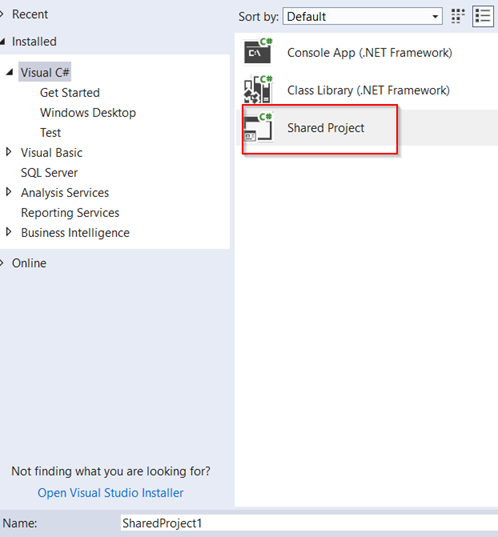
Shared projects are used to facilitate cross platform development. This allows you to reference an entire project as opposed to just a single assembly.
Shared project is a shred bucket of code. At compile time, any project that reference the shared project will have all of the files (including folder structure) and then they will be compiled. You wouldn’t see any separate DLL as you might have seen in PCL (Portable class libraries).
A shared project is not going to be compiled on its own. The code in the shared project is incorporated into assembly that reference it and compiled within that assembly.
Let’s create a shared project;
Create a class Math with a static method Add.
namespace SharedProject1
{
    public class Math
    {
        public static int Add(int x, int y)
        {
#if NETCOREAPP1_1
            return (x + y) + 3;
#else
            return (x + y) + 13;
#endif
        }
    }
}
Add SharedProject reference to your project. If your project is targeting .NET Core 1.1, the relevant piece of code in #if/#endif will run.
Here is some recommendation of using Shared Projects and Portable Class Libraries;
How the code is reused
Shared Projects: Source Code (All source code is available to your reference project)
PCL: Reference is available at Assembly level (for example MyLibrary.dll)
Compile time behavior
Shared Projects: All source code is copied into each referenced project and compiled there
PCL: Nothing new. Its compiled as usuall.
Visual Studio support
Shared Projects: Full Support
PCL: Each plateform is compiled separately. This can be accomplished thru IOC.
#IFDEF Support
Shared Projects: Full Support
PCL: Unsupported
.NET Framework Support
Shared Projects: Full Support
PCL: Limited
The core problem with shared project is difficulty of code testing because of conditional compilation directives. This in turn introduce errors that you wouldn’t know until you have actually compiled your application.
static void CopyObject(SampleClass original)
{
    if (original == null)
    {
        throw new System.ArgumentException("Parameter cannot be null", "original");
    }
}
This is how we can throw an exception in SQL;
BEGIN TRY
	SET NOCOUNT ON;

	SELECT 1/0;

END TRY
BEGIN CATCH
    --SELECT
    --    ERROR_NUMBER() AS ErrorNumber
    --    ,ERROR_SEVERITY() AS ErrorSeverity
    --    ,ERROR_STATE() AS ErrorState
    --    ,ERROR_PROCEDURE() AS ErrorProcedure
    --    ,ERROR_LINE() AS ErrorLine
    --    ,ERROR_MESSAGE() AS ErrorMessage;
    THROW;
END CATCH;
If you don’t want to throw exception, comment “THROW” keyword. This will stop propagating exception to calling method and “catch(SqlException ex)” block will never be able to see it.
Uncomment all other lines. You have to use data reader to get result back and handle exception manually.
Using SmtpClient to send email .NET core is obsolete. The current recommendation is to use the MailKit library . Here is how to use it with the office 365 SMTP servers.
var message = new MimeMessage();
message.From.Add(new MailboxAddress("{from name}", "{from email address}"));
message.To.Add(new MailboxAddress("{to name}", "{to email address}"));
message.Subject = "{subject}";

message.Body = new TextPart("plain")
{
    Text = "{body}"
};

using (var client = new SmtpClient())
{
    await client.ConnectAsync("smtp.office365.com", 587, SecureSocketOptions.StartTls);
    await client.AuthenticateAsync("{from email address}", "{from password}");
    await client.SendAsync(message);
    await client.DisconnectAsync(true);
}