Base class implementing interface

Let’s think it this way;

public interface IBreathing
{
    void Breathe();
}

//because every human breathe
public abstract class Human : IBreathing
{
    abstract void Breathe();
}

public interface IVillain
{
    void FightHumanity();
}

public interface IHero
{
    void SaveHumanity();
}

//not every human is a villain
public class HumanVillain : Human, IVillain
{
    void Breathe() {}
    void FightHumanity() {}
}

//but not every human is a hero either
public class HumanHero : Human, IHero
{
    void Breathe() {}
    void SaveHumanity() {}
}

The point is that the base class should implement interface (or inherit but only expose its definition as abstract) only if every other class that derives from it should also implement that interface. So, with basic example provided above, you’d make Human implement IBreathing only if every Human breaths (which is correct here).

But! You can’t make Human implement both IVillain and IHero because that would make us unable to distinguish later on if it’s one or another. Actually, such implementation would imply that every Human is both a villain and hero at once.

Conclusion

  1. There are no risks of base class implementing an interface, if every class deriving from it should implement that interface too.
  2. It is always better to implement an interface on the sub-class, If every class deriving from base should also implement that interface, it’s rather a must
  3. If every class deriving from base one should implement such interface, make base class inherit it. If not, make concrete class implement such interface.

Model binding for HTTP GET requests

We are going to learn how to pass data in ASP.NET Core using Model binding for HTTP GET request. The GET method is generally used for less complex and non-sensitive data transfer.

The model binding refers to converting the HTTP request data (from the query string or form collection) to an action methods parameter. These parameters can be of primitive type or complex type.

We will be using Visual Studio 2022 for this test. We are going to use following modal in this exercise;

    public class Project
    {
        public int Id { get; set; }

        public ProjectIdentity? ProjectIdentity { get; set; }
    }

    public class ProjectIdentity
    {
        public int Id { get; set; }

        public int ModificationId { get; set; }
    }

First test case – Primitive Type

The HTTP GET request embeds data into a query string. MVC framework automatically converts a query string to the action method parameters provided their names are matching.

For example;

Create a new project using MVC template in Visual Studio. Don’t make any changes to the default; Make sure jQuery works. Add following to index.cshtml page;

@section scripts {
    <script type="text/javascript">
    var sample;

    $(function () {
        console.log("ready!");
    });
    }
    </script>
}

Run the project. You should be seeing “ready!” in browser console window. We are ready to do our Get Tests now using jQuery Ajax.

Add an HTML button with onclick event;

<div><button type="button" class="btn btn-primary" onclick="sample.OnButtonClick();">Get Request</button></div>

Create Sample class with onclick event and an instance of Sample class in jQuery ready function;

class Sample
 {
     constructor() { }

     OnButtonClick()
     {
             $.ajax({
                 type: 'GET',
                 url: "@Url.Action("GetInfoPrimitive", "Home")",
                 dataType: 'json',
                 contentType: 'application/json',
                 data: {"ProjectId":"1"},

                 success: function (result) {
                     alert('Data submitted.');
                     console.log(result);
                 },
                 failure: function (result) {
                     alert("Something went wrong. Plese contact System Administrator.");
                     console.log(result);
                 }
             });
     }
 }

Our complete jQuery function would look like this;

@section scripts {
    <script type="text/javascript">
    var sample;

    $(function () {
        console.log("ready!");
        sample = new Sample();
    });

    class Sample
    {
        constructor() { }

        OnButtonClick()
        {
                $.ajax({
                    type: 'GET',
                    url: "@Url.Action("GetInfoPrimitive", "Home")",
                    dataType: 'json',
                    contentType: 'application/json',
                    data: {"ProjectId":"1"},

                    success: function (result) {
                        alert('Data submitted.');
                        console.log(result);
                    },
                    failure: function (result) {
                        alert("Something went wrong. Plese contact System Administrator.");
                        console.log(result);
                    }
                });
        }
    }
    </script>
}

We need to create a method on server side that will be called by Ajax method;

[HttpGet]
        public int GetInfoPrimitive(int projectId)
        {
            Console.WriteLine($"Incoming parameter value: {JsonSerializer.Serialize(projectId)}");
            return projectId;
        }

Put a breakpoint on “return projectId” line. Run the app and click on Get Request button.

The debugger should stop on “return projectId” statement and console results would be like this;

Click continue to resume the application. There is no problem with this method.

Second test case – Binding to Complex Type

Model binding also works on complex types. It will automatically convert the input fields data on the view to the properties of a complex type parameter of an action method in HttpGet request if the properties’ names match with the fields on the view.

For example;

The only change in earlier example code is that we are going to pass an object to the view and would use that object to submit Get request;

        public IActionResult Index()
        {
            var request = new ProjectIdentity();
            return View(request);
        }
       [HttpGet]
       public ProjectIdentity GetInfoComplex(ProjectIdentity request)
       {
           Console.WriteLine($"Incoming parameter value: {JsonSerializer.Serialize(request)}");
           return request;
       }

This is the change on Javascript side;

OnButtonClick()
 {
         $.ajax({
             type: 'GET',
             url: "@Url.Action("GetInfoComplex", "Home")",
             dataType: 'json',
             contentType: 'application/json',
             data: {"Id":"1", "ModificationId": "100"},

             success: function (result) {
                 alert('Data submitted.');
                 console.log(result);
             },
             failure: function (result) {
                 alert("Something went wrong. Plese contact System Administrator.");
                 console.log(result);
             }
         });
 }

Put a breakpoint on “return request;” and run the app. Here is the output;

Third test case – Binding to nested Complex Type

Let’s add a nested class inside parent class and run the same method;

//here is the problem. GET request will ignore nested object mapping
        [HttpGet]
        public Project GetInfo(Project request)
        {
            Console.WriteLine($"Incoming parameter value: {JsonSerializer.Serialize(request)}");
            return request;
        }
   

Change on client side;

OnButtonClick()
       {
               $.ajax({
                   type: 'GET',
                   url: "@Url.Action("GetInfo", "Home")",
                   dataType: 'json',
                   contentType: 'application/json',
                   data: { "Id": "1", "ProjectIdentity": { "Id": "11", "ModificationId": "100" } },

                   success: function (result) {
                       alert('Data submitted.');
                       console.log(result);
                   },
                   failure: function (result) {
                       alert("Something went wrong. Plese contact System Administrator.");
                       console.log(result);
                   }
               });
       }

The output would be;

So how we can fix this problem in GET request? Auto mapping will not work and in this case we need to be implicit to map the properties. Here is how;

       //this is how to solve for GET request
       [HttpGet]
       public Project GetInfoFixed(
               [FromQuery(Name = "Id")] int ProjectId,
               [FromQuery(Name = "ProjectIdentity[Id]")] int ProjectIdentityId,
               [FromQuery(Name = "ProjectIdentity[ModificationId]")] int? ProjectModificationId)
       {
           var response = new Project() { Id = ProjectId, ProjectIdentity = new ProjectIdentity() { Id = ProjectIdentityId, ModificationId = ProjectModificationId.Value } };
           Console.WriteLine($"Incoming parameter value: {JsonSerializer.Serialize(response)}");
           return response;
       }
        

Client side change;

OnButtonClick()
        {
                $.ajax({
                    type: 'GET',
                    url: "@Url.Action("GetInfoFixed", "Home")",
                    dataType: 'json',
                    contentType: 'application/json',
                    data: { "Id": "1", "ProjectIdentity": { "Id": "11", "ModificationId": "100" } },

                    success: function (result) {
                        alert('Data submitted.');
                        console.log(result);
                    },
                    failure: function (result) {
                        alert("Something went wrong. Plese contact System Administrator.");
                        console.log(result);
                    }
                });
        }

Here is the result;

We are able to create full object graph this time.

Conclusion

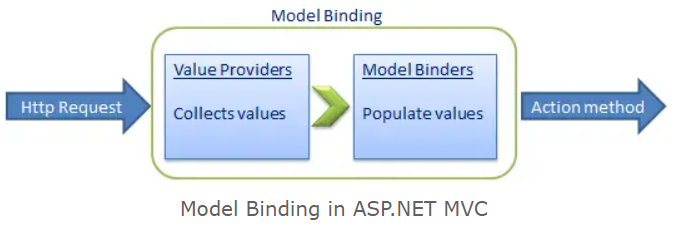
As you have seen, that the ASP.NET MVC framework automatically converts request values into a primitive or complex type object. Model binding is a two-step process. First, it collects values from the incoming HTTP request, and second, it populates primitive type or a complex type with these values.

Value providers are responsible for collecting values from requests, and Model Binders are responsible for populating values.

By default, the HTTP methods GETHEADOPTIONS, and DELETE do not bind data implicitly from the request body. To bind data explicitly from the request body, marked as JSON, for these methods, we can use the [FromBody] attribute. Also, we can use the [FromQuery] attribute.

Use POST for destructive actions such as creation (I’m aware of the irony), editing, and deletion, because you can’t hit a POST action in the address bar of your browser. Use GET when it’s safe to allow a person to call an action. So a URL like:

http://myblog.org/admin/posts/delete/357

Should bring you to a confirmation page, rather than simply deleting the item. It’s far easier to avoid accidents this way.

Resources

https://learn.microsoft.com/en-us/aspnet/core/mvc/models/model-binding?view=aspnetcore-7.0#simp7

Clean Shave: Razor Pages for Web Forms Developers

If you’re an ASP.NET Web Forms developer and you’re unsure of how to take your skills to the future of the .NET platform (e.g., .NET Core or .NET 6), there’s hope. Although Microsoft won’t port Web Forms, you can apply your existing skillset to a similar framework, called Razor Pages. You’ll still need to think about this new platform differently, but if you take the time, I think you’ll find a similarly powerful and easy to use tool to create web applications.

Where You’re Coming From

Back in the early 2000s, I was a C++ developer and was one of these “you’ll have to take my pointers out of my cold dead hand” guys. But once I was introduced to how garbage collection worked in .NET, I was a convert. In those early days, I was writing ASP.NET (after my time writing components for ASP projects).

The reality was that I didn’t understand how the web actually worked, but I was tasked with creating websites and web apps using ASP.NET. Microsoft came to my rescue by introducing Web Forms. Nowadays, Web Forms gets quite a lot of hate from many directions about how un-web-like it was. But it helped people like me dip my toe in the web world without the fear that comes from something new. Microsoft successfully turned desktop developers into web developers. But it wasn’t without inherent risks.

Web Forms introduced drag-n-drop designing to web development. Under the covers, it was trying to hide the details of the web and feel like the server-side code was something akin to a stateful development solution. Add in ViewState and Session State, and lots of developers were able to accomplish a lot of value for their companies and employers.

But it’s now 2023. We’ve been through a world of change since those early days. For many Web Forms developers, it can be overwhelming to be asked to learn JavaScript on the client, separate concerns into Controllers and Views, and write code that is truly stateless. But that’s where we are now. There isn’t a perfect upgrade path to ASP.NET Core for Web Forms developers. But there are some ways to apply our existing knowledge without throwing out the baby with the bathwater. In comes Razor Pages.

Introducing Razor Pages

As an answer to Web Pages, Microsoft introduced ASP.NET MVC as a Model-View-Controller framework that separated (and simplified testability) views and logic. This has been the prevailing framework for many projects, although it never did replace Web Forms. After .NET Core was introduced, Razor Pages was introduced to have a model closer to a page-by-page solution instead of complete separation. Now with Blazor, another solution has been added to the quiver of tools. For this article, I’m going to focus on Razor Pages themselves as I think it’s the most straightforward migration path for Web Forms developers.

… this article is continued online. Click here to continue.

Reading XmlDocument fragment

I would like to loop through following collection of authors and for each author  retrieve its first and last name and put them in a variable strFirst and  strLast?

<Authors>  
  <Author>  
    <FirstName>Jon</FirstName>  
    <LastName>Doe</LastName>  
  </Author>  
  <Author>  
    <FirstName>Shahzad</FirstName>  
    <LastName>Khan</LastName>  
  </Author>  
</Authors>  

We’ll use XmlDocument class to parse this XML fragment;

using System;    
using System.Xml;    
public class XMLApp    
{    
    public void YourMethod(String strFirst, String strLast)    
    {    
        // Do something with strFirst and strLast.    
        // ...    
        Console.WriteLine("{0}, {1}", strLast, strFirst);    
    }    
    public void ProcessXML(String xmlText)    
    {    
        XmlDocument _doc = new XmlDocument();    
        _doc.LoadXml(xmlText);    
        // alternately, _doc.Load( _strFilename); to read from a file.    
        XmlNodeList _fnames = _doc.GetElementsByTagName("FirstName");    
        XmlNodeList _lnames = _doc.GetElementsByTagName("LastName");    
        // I'm assuming every FirstName has a LastName in this example, your requirements may vary. //     
        for (int _i = 0; _i < _fnames.Count; ++_i)    
        {    
            YourMethod(_fnames[_i].InnerText,    
            _lnames[_i].InnerText);    
        }    
        public static void Main(String[] args)    
        {    
            XMLApp _app = new XMLApp();    
            // Passing XML text as a String, you can also use the    
            // XMLDocument::Load( ) method to read the XML from a file.    
            //    
            _app.ProcessXML(@" <Authors>    
            <Author>    
              <FirstName>John</FirstName>    
              <LastName>Doe</LastName>    
            </Author>    
            <Author>    
              <FirstName>Shahzad</FirstName>    
              <LastName>Khan</LastName>    
            </Author>    
            </Authors> ");    
        }    
    }// end XMLApp    
}  

Resources

https://learn.microsoft.com/en-us/dotnet/api/system.xml.xmldocument?view=net-7.0