.NET and SQL Server have always come up short when it comes to handling date and time data. To be fair, most other languages and databases do as well. Although there have always been ways to cover the inadequacies, the work-arounds have always felt clumsy to me. We deal with them so often in our daily lives to the point that they seem rather simple and intuitive to us, yet dates and times are complicated concepts. Initially, both .NET and SQL Server set out to handle some of the most complicated aspects for us, each with its own DateTime data type.
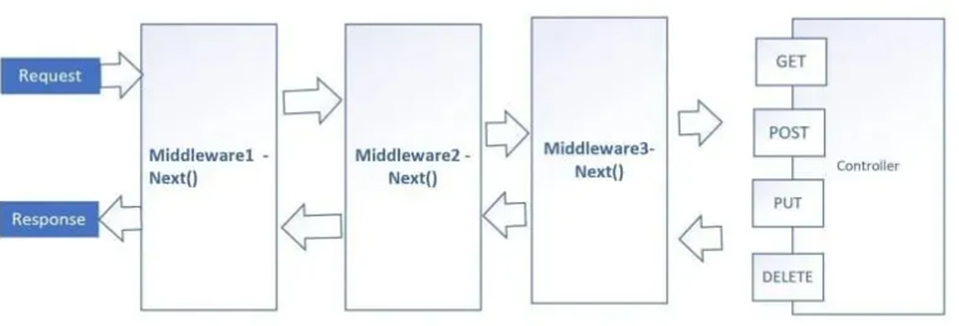
How do we access the configuration settings in the Middleware component in ASP.NET Core applications?
As we know middleware is a component that is used in the application pipeline to handle requests and responses which can help perform pre and post-operation within the request and response API pipeline.
We will be using two approaches, one with simple configuration and second with IOptions pattern. You can read more about it here;
public class CustomMiddleware
{
   private readonly RequestDelegate _next;

   public CustomMiddleware(RequestDelegate next)
   {
       _next = next;
   }

   public async Task InvokeAsync(HttpContext httpContext)
   {
       try
       {
           await _next(httpContext);
       }
       catch (Exception ex)
       {
           throw ex;
           //_logger.LogError($"Something went wrong: {ex.Message}");
       }
   }
}
Approach 1- Using IConfiguration to load the Config settings in Middleware
This approach does not require any custom interface. When CreateDefaultBuilder runs, it load application configuration by default from appsettings.json. This is available to any component in the application.
We are going to inject RequestDelegete and IConfiguration from the constructor in middleware;
public class MiddlewareWithIConfiguration
    {
        private readonly RequestDelegate _next;
        private readonly IConfiguration _configurationSettings;

        public MiddlewareWithIConfiguration(RequestDelegate next, IConfiguration optionsSettings)
        {
            _next = next;
            _configurationSettings = optionsSettings;
        }
Implement InvokeAsync (assuming we need asynchronous middleware behavior) method.
public async Task InvokeAsync(HttpContext httpContext)
        {
            try
            {
                var customerKeyUrl = _configurationSettings["GlobalConfigurationSettings:CustomerConfig:CustomerKeyurl"];
                Console.WriteLine($"Middleware using IConfiguration {customerKeyUrl}");
                await _next(httpContext);
            }
            catch (Exception ex)
            {
                throw ex;
                //_logger.LogError($"Something went wrong: {ex.Message}");
            }
        }
Add this line to Startup.cs file;
public void Configure(IApplicationBuilder app, IWebHostEnvironment env)
{

            app.UseMiddleware<MiddlewareWithIConfiguration>();
}
Approach 2 – Using IOption to load the Config settings in Middleware
We need to add and configure IOptions in Startup.cs file;
public void ConfigureServices(IServiceCollection services)
        {
            //Add functionality to inject IOptions<T>
            services.AddOptions();
            services.Configure<GlobalConfigurationSettings>(Configuration.GetSection("GlobalConfigurationSettings"));
}
We need a custom class to load configuration settings;
    public class GlobalConfigurationSettings
    {
        public string LowerEnvironment { get; set; }
        public CustomerConfig CustomerConfig { get; set; }
    }

    public class CustomerConfig
    {
        public string CustomerKeyurl { get; set; }
        public string CustomerdetailsUrl { get; set; }
        public Agency Agency { get; set; }
    }
Finally, we will be injecting RequestDelegete and IOptions from the constructor in middleware;
public class MiddlewareWithIOptions
    {
        private readonly RequestDelegate _next;
        private readonly GlobalConfigurationSettings _configurationSettings;

        public MiddlewareWithIOptions(RequestDelegate next, IOptions<GlobalConfigurationSettings> optionsSettings)
        {
            _next = next;
            _configurationSettings = optionsSettings.Value;
        }
And InvokeAsync method;
        public async Task InvokeAsync(HttpContext httpContext)
        {
            try
            {
                var lowerEnvironment = _configurationSettings.LowerEnvironment;
                var customerKeyUrl = _configurationSettings.CustomerConfig.CustomerKeyurl;
                Console.WriteLine($"Middleware using IOptions {lowerEnvironment} - {customerKeyUrl}");
                await _next(httpContext);
            }
            catch (Exception ex)
            {
                throw ex;
                //_logger.LogError($"Something went wrong: {ex.Message}");
            }
        }
Add this line to Startup.cs file;
public void Configure(IApplicationBuilder app, IWebHostEnvironment env)
{

            app.UseMiddleware<MiddlewareWithIOptions>();
}
If we want to restrict URL segment, we can write InvokeMethods like this;
       public async Task Invoke(HttpContext context)
        {
            if (context.Request.Path.StartsWithSegments("/swagger")
                && !context.User.Identity.IsAuthenticated)
            {
                context.Response.StatusCode = StatusCodes.Status401Unauthorized;
                return;
            }

            await _next.Invoke(context);
        }
For an example in controllers, refer to this article;
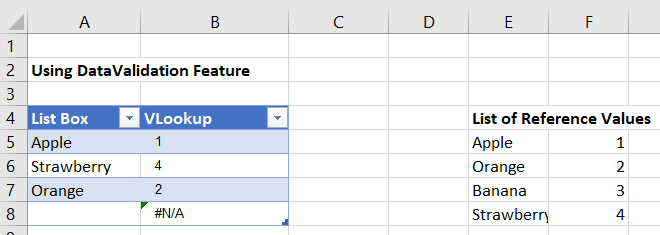
There is a list option in Data validation. If this is combined with a VLOOKUP formula you would be able to convert the selected value into a number.
The steps in Excel 2010/2019 are:
Create your list with matching values.
On the Data tab choose Data Validation
The Data validation form will be displayed
Set the Allow dropdown to List
Set the Source range to the first part of your list
Click on OK (User messages can be added if required)
In a cell enter a formula like this
=VLOOKUP(A5,$E$5:$F$8,2,FALSE)
which will return the matching value from the second part of your list.
Form control drop down
Alternatively, Form controls can be placed on a worksheet. They can be linked to a range and return the position number of the selected value to a specific cell.
If you don’t see Developer tab in Excel ribbon, follow this link;
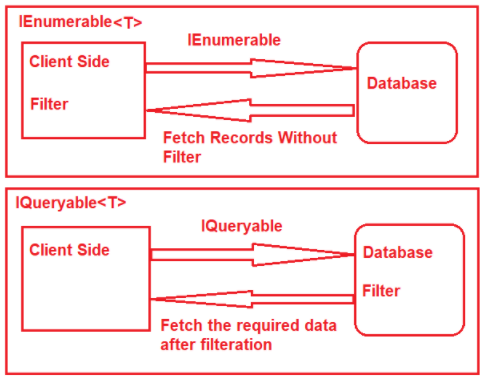
The IEnumerable and IQueryable are used to hold a collection of data and also used to perform data manipulation operations such as filtering, Ordering, Grouping, etc.