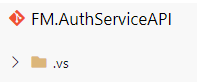
Recently I came across an issue where existing projects were showing .vs folder checked-in and being tracked. Developers were having code conflict problems and were not able to create PR request.
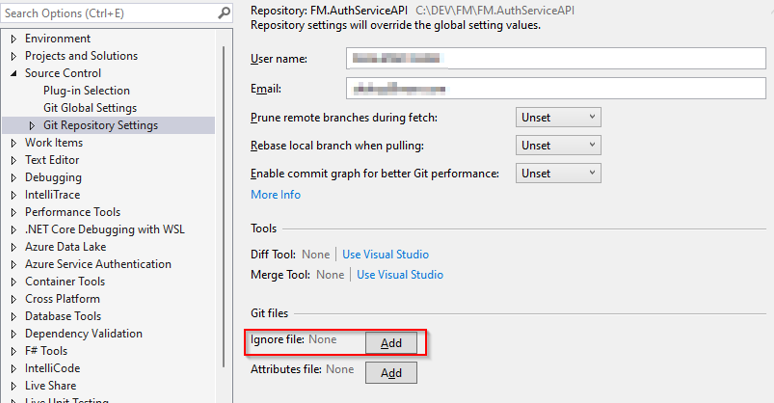
Here is the work around to add gitignore file in existing solution using Visual Studio.
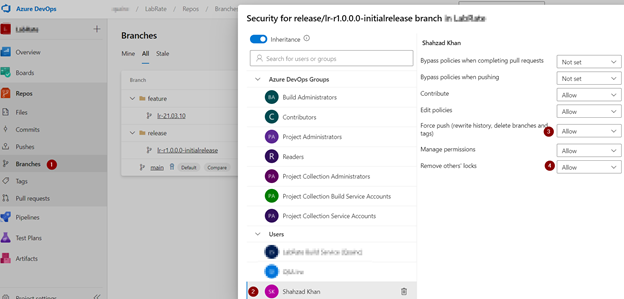
Remove .vs folder from main branch and working branch. If there are PR policy in place, disable that for fixing this. After .vs folder removal, enable PR policy.
Open Visual Studio and make sure it’s connected to Git branch. Click on Git->Settings.
This will add gitignore file in the root of project folder. Switch to Git changes window in your working branch and commit / sync your changes.
Now we need to stop tracking all .vs folder changes that’s been created on developer machines to build and run the project. Use these magic commands, one time only;
For added piece of mind, sync your main branch and do a merge from main branch to work branch locally. Resolve any cache files and conflicts. You might need to run above three command again.
After this, Create PR and it should merge with main branch. This will take your pain away.
My problem, I was opening a solution from the internet and the original author had forgotten to remove the TFS bindings, so every time I open the solution I’d get an annoying popup saying “binding…”.
To get rid of this, I deleted the .suo next to the .sln file, and then opened the .sln file in Notepad and deleted this entire section:
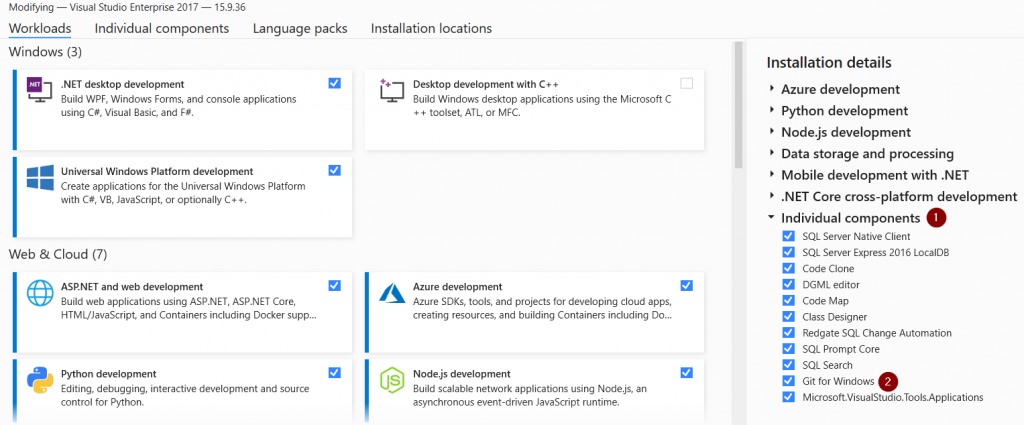
One of my developer started getting Git Credential Manager for windows popup and received Authentication failure message. The work around was;
Check the Git for Windows in the Tools – Get Tools and Features…), go to “Individual Item” tab, check “Git for Windows”, and click “Modify”. Then it will ask you to update vs2017 to latest version, for example 15.9.36.
Azure File Storage is an easy and active service. We can access it programmatically and through UI. This article is focused on Azure DevOps Release pipeline and Release deployment to Azure File Storage. We can use Azure Storage Explorer (UI) to move builds around different environment or locations.
I am assuming that you already have crated a project and build pipeline.
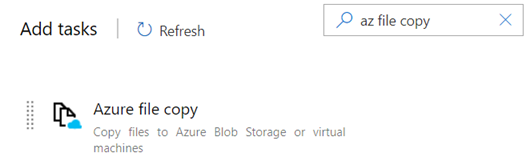
Azure DevOps already offers a task to release the code to Azure storage. This task is Azure file copy.
The difference between Azure Blob is [https] storage and Azure File [smb] storage. We don’t have any default task to release the code to Azure File Share.
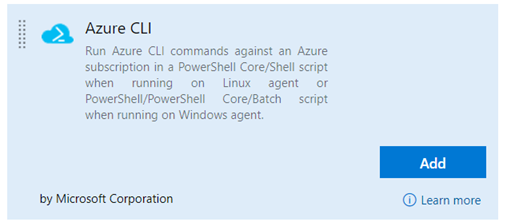
What should we do then? Azure CLI can be used to copy files to Azure File storage. Here is the task that can be used;
To keep things simpler, I am not using YAML. I will be using simple UI.
Build a Release Pipeline
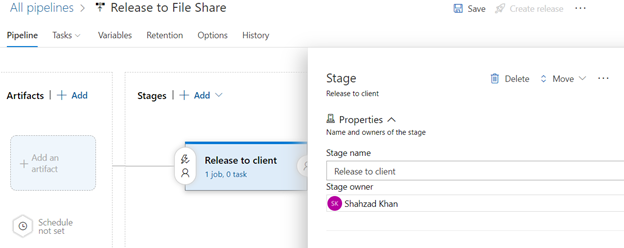
Click on “Release -> New Pipeline -> Empty” as show below;
Rename pipeline to a meaningful name “Release to File share”.
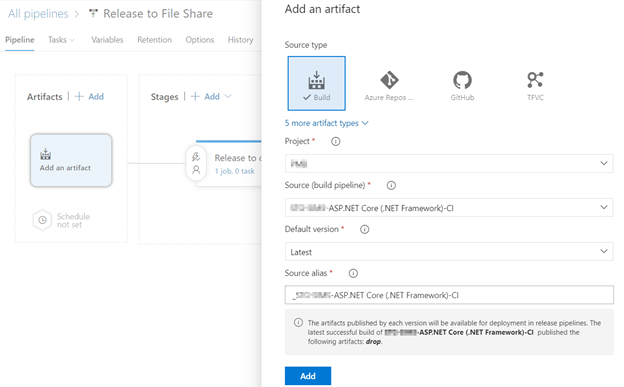
Map incoming build output as input to release pipeline. Click on “Add an Artifact” option in Artifacts box and select the source type as Build. It will list the latest build automatically. Select this option as show below;
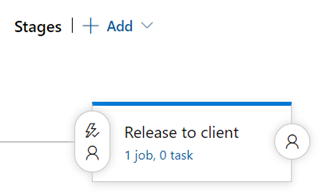
Save your changes. Under the stages in the second box ,you should see text like “1 job, 0 task”.
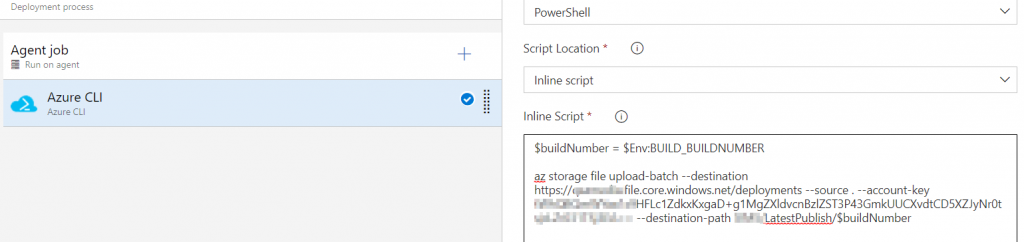
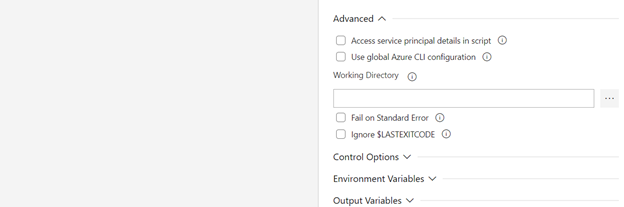
Click on it. Click on “+” sign against Agent job tile. Select Azure CLI from the task and click on Add. Here is how it looks;
This is the PowerShell inline script;
$buildNumber = $Env:BUILD_BUILDNUMBER

az storage file upload-batch --destination https://[share name].file.core.windows.net/deployments --source . --account-key [share first key] --destination-path LatestPublish/$buildNumber
Create a release. Open Azure Storage Explorer, Navigate to your share and LatestPublish folder. Here is the build output;
The build is deployed with the last build number. Inside build number we can see build alias at drop location that we have defined in build pipeline. If you run the release pipeline again, it will overwrite the contents of file share.
This is the first attempt. We can optimize this process by introducing variables for builds, builds number etc.