Release pipeline for Azure Storage

Azure File Storage is an easy and active service. We can access it programmatically and through UI. This article is focused on Azure DevOps Release pipeline and Release deployment to Azure File Storage. We can use Azure Storage Explorer (UI) to move builds around different environment or locations.

I am assuming that you already have crated a project and build pipeline.

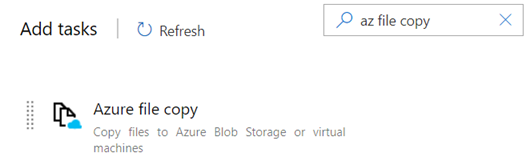
Azure DevOps already offers a task to release the code to Azure storage. This task is Azure file copy.
https://docs.microsoft.com/en-us/azure/devops/pipelines/tasks/deploy/azure-file-copy?view=azure-devops

However, this task does not deploy to Azure Files storage. It does deploy to Azure Blob and Virtual Machines only.

An example of copying data from a local directory to a blob container using SAS token;

azcopy copy "C:\local\path" "https://account.blob.core.windows.net/mycontainer1/?sv=2018-03-28&ss=bjqt&srt=sco&sp=rwddgcup&se=2019-05-01T05:01:17Z&st=2019-04-30T21:01:17Z&spr=https&sig=MGCXiyEzbtttkr3ewJIh2AR8KrghSy1DGM9ovN734bQF4%3D" --recursive=true

The difference between Azure Blob is [https] storage and Azure File [smb] storage. We don’t have any default task to release the code to Azure File Share.

What should we do then? Azure CLI can be used to copy files to Azure File storage. Here is the task that can be used;
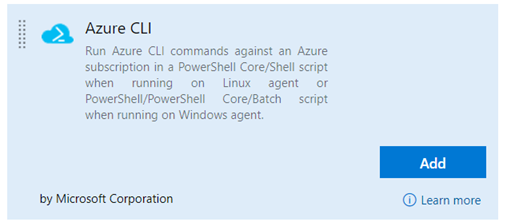
To keep things simpler, I am not using YAML. I will be using simple UI.

Build a Release Pipeline

Click on “Release -> New Pipeline -> Empty” as show below;
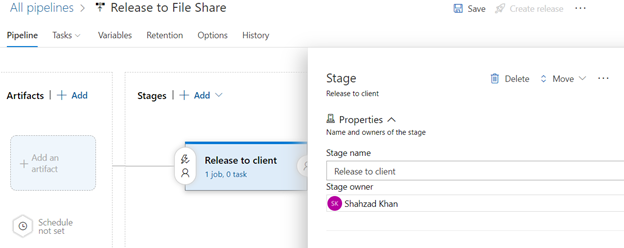
Rename pipeline to a meaningful name “Release to File share”.

Map incoming build output as input to release pipeline. Click on “Add an Artifact” option in Artifacts box and select the source type as Build. It will list the latest build automatically. Select this option as show below;
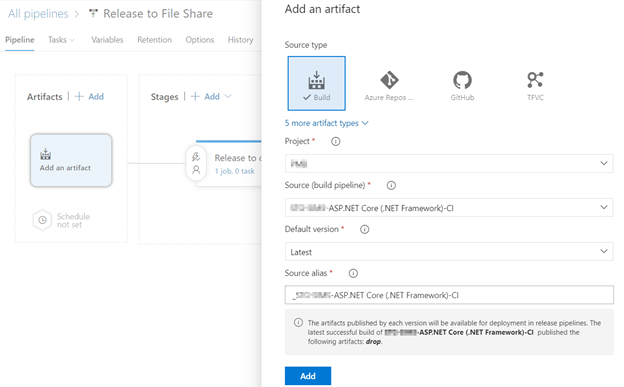
Save your changes. Under the stages in the second box ,you should see text like “1 job, 0 task”.
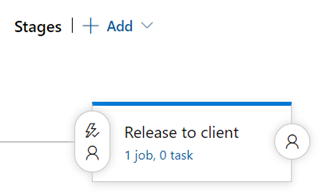
Click on it. Click on “+” sign against Agent job tile. Select Azure CLI from the task and click on Add. Here is how it looks;
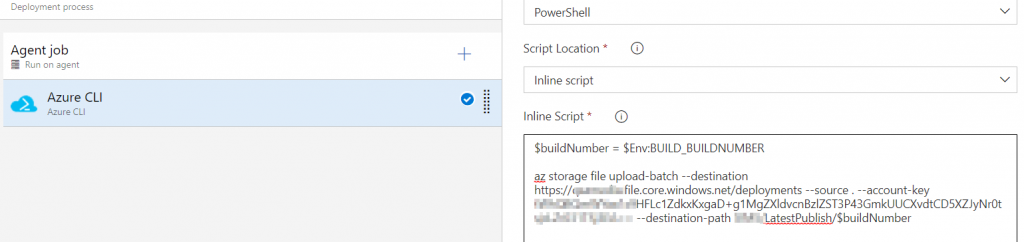
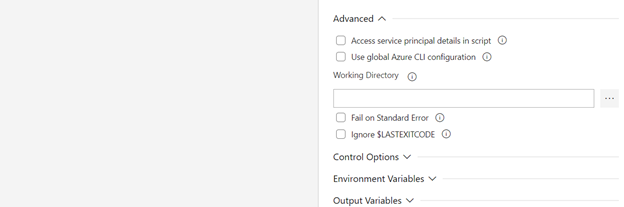
This is the PowerShell inline script;

$buildNumber = $Env:BUILD_BUILDNUMBER

az storage file upload-batch --destination https://[share name].file.core.windows.net/deployments --source . --account-key [share first key] --destination-path LatestPublish/$buildNumber

Create a release. Open Azure Storage Explorer, Navigate to your share and LatestPublish folder. Here is the build output;

The build is deployed with the last build number. Inside build number we can see build alias at drop location that we have defined in build pipeline. If you run the release pipeline again, it will overwrite the contents of file share.

This is the first attempt. We can optimize this process by introducing variables for builds, builds number etc.

Resources

https://docs.microsoft.com/en-us/cli/azure/storage/file?view=azure-cli-latest

https://docs.microsoft.com/en-us/cli/azure/storage/file?view=azure-cli-latest#az_storage_file_upload_batch

https://docs.microsoft.com/en-us/azure/devops/pipelines/process/variables?view=azure-devops&tabs=yaml%2Cbatch

https://www.sanganakauthority.com/2019/09/azure-devops-build-and-release-pipeline.html

https://stackoverflow.com/questions/27722205/new-azurestoragecontext-is-not-recognized

Creating Repo and adding project using UI

Create a repo using Azure DevOPS UI;

Project Settings -> Repositories -> Create

Name Repository “Demo”.

Open command prompt.

git clone https://myOrg@dev.azure.com/[orgName]/[projectName]/_git/Demo

Create a project for example Demo in a separate folder;

Copy project file from separate folder to clone folder;

Open solution in clone folder. Commit changes and you are good to go.

Related links

Send Email after Release Deployment in Azure DevOps

Azure DevOPS sends an email notification to team member after the compilation succeeds or fails. This is default behavior. We are more concerned when the deployment is complete so that manual or automated testing can be started.

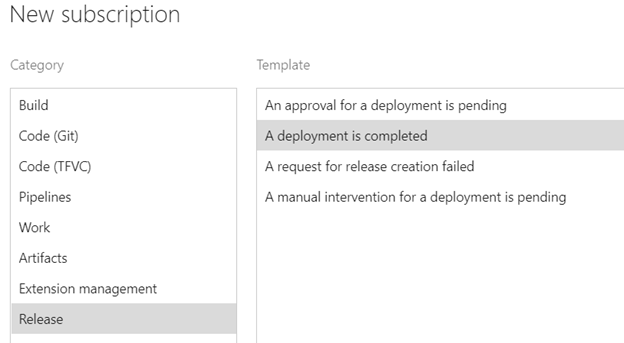
Click on Project settings –> Notifications –> New Subscriptions –> Release –> A deployment is completed

The default settings are to send mail to all members of the current project when the deployment is complete. Specific settings can be changed according to project needs.

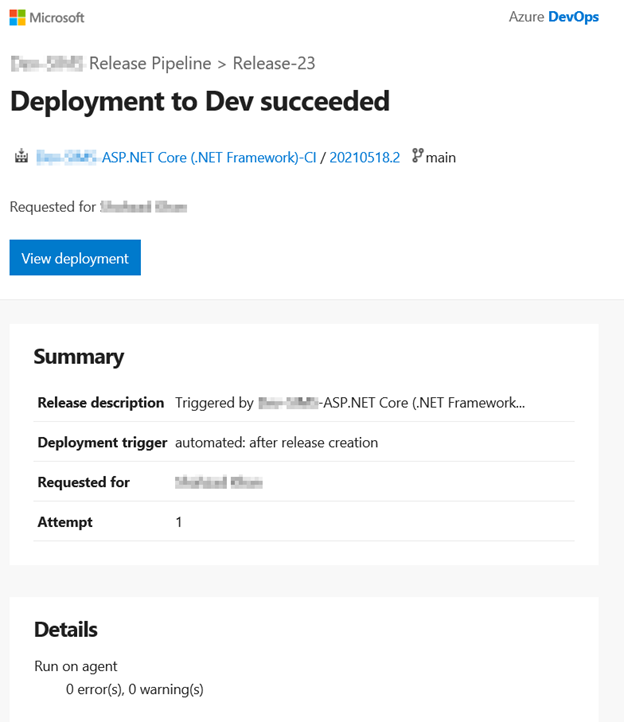
Now, trigger a deployment. If all goes well, you should be able to receive a similar email notification. I currently have two environments, and according to the configuration just now, any deployment on both environment will be notified.

Copy an existing pipeline

The easiest way is to clone existing pipeline through Azure DevOps portal. Click on Pipelines -> Your pipeline à Click the ellipse in the upper right corner (three vertical dots), then click clone.

If clone is not available due to any reason, you can create a new pipeline based on an existing yaml file which is basically cloning.

Pipelines -> New Pipeline -> Configure (3rd page of the wizard) -> Select “Existing Azure Pipelines YAML file”.

Here you can select the branch and the file you want to use. However, this does not copy the variables set in the pipelines.

Above solution will work within same project. If you want to clone/import pipeline from a different project, Select “Export to YAML” from source project pipeline. This will download a YAML file on your local. Open file, make changes and import to your new project repo.

Resources

https://docs.microsoft.com/en-us/azure/devops/pipelines/create-first-pipeline?view=azure-devops&tabs=java%2Ctfs-2018-2%2Cbrowser#clone-a-pipeline

https://stackoverflow.com/questions/57827447/is-there-a-way-to-clone-or-copy-an-existing-ci-cd-pipeline-in-azure-devops

Branching flow using UI

Follow these steps;

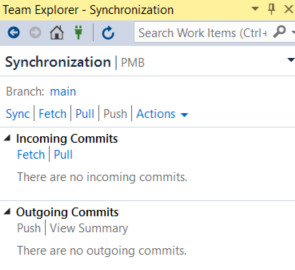
Click on Manage Branches. Select main branch. Select Sync to sync your local branch.

Everything looks good. Move on with creating a new branch.

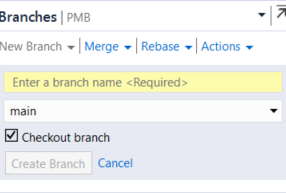
Click on Manage Branch and New Branch.

Your view would be changed to newly created branch.

Start work. Change something in about.cshtml page, Save and commit; If that’s all you need to work on then push your local branch to remote. Click on Home icon; Click Sync.

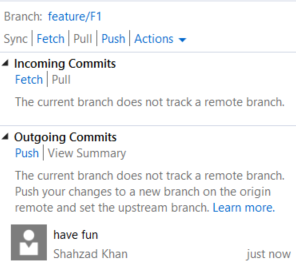
You can see there are no incoming changes on this branch. there are outgoing changes that you have made. There is a message that’s telling you that this branch does not exists on remote server.

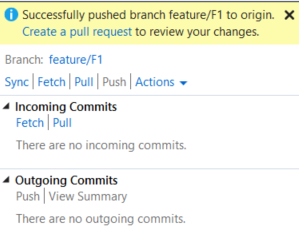
Click Push. You will see this view;

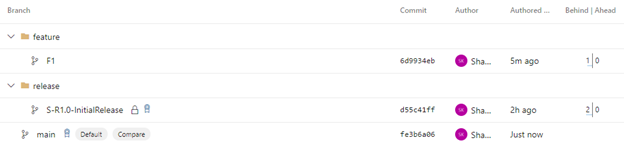
Click on “Create a pull request”. Create/Approve and complete your pull request on Azure DevOps UI. Your branches view would be;

Your merge is completed. Do a sync here.

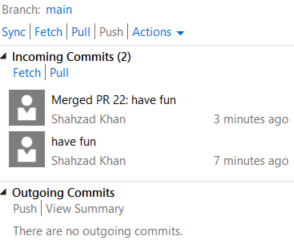
Switch to main branch. do a sync here. You will see this;

There are two commits went into main branch. first one is the pull request merge and second one is the change you made. Click on Sync. It will pull remote commits to your local.

Your main branch is up to date for your next branch work.