
TLS on a Simple Dockerized WordPress VM (Certbot + Nginx)

This note documents how TLS was issued, configured, and made fully automatic for a WordPress site running on a single Ubuntu VM with Docker, Nginx, PHP-FPM, and MariaDB.

The goal was boring, predictable HTTPS — no load balancers, no Front Door, no App Service magic.


Architecture Context

  • Host: Azure Ubuntu VM (public IP)
  • Web server: Nginx (Docker container)
  • App: WordPress (PHP-FPM container)
  • DB: MariaDB (container)
  • TLS: Let’s Encrypt via Certbot (host-level)
  • DNS: Azure DNS → VM public IP
  • Ports:
    • 80 → HTTP (redirect + ACME challenge)
    • 443 → HTTPS

1. Certificate Issuance (Initial)

Certbot was installed on the VM (host), not inside Docker.

Initial issuance was done using standalone mode (acceptable for first issuance):

sudo certbot certonly \
  --standalone \
  -d shahzadblog.com

This required:

  • Port 80 temporarily free
  • Docker/nginx stopped during issuance

Resulting certs live at:

/etc/letsencrypt/live/shahzadblog.com/
  ├── fullchain.pem
  └── privkey.pem

2. Nginx TLS Configuration (Docker)

Nginx runs in Docker and mounts the host cert directory read-only.

Docker Compose (nginx excerpt)

nginx:
  image: nginx:alpine
  ports:
    - "80:80"
    - "443:443"
  volumes:
    - ./wordpress:/var/www/html
    - ./nginx/default.conf:/etc/nginx/conf.d/default.conf
    - /etc/letsencrypt:/etc/letsencrypt:ro

Nginx config (key points)

  • Explicit HTTP → HTTPS redirect
  • TLS configured with Let’s Encrypt certs
  • HTTP left available only for ACME challenges
# HTTP (ACME + redirect)
server {
    listen 80;
    server_name shahzadblog.com;

    location ^~ /.well-known/acme-challenge/ {
        root /var/www/html;
        allow all;
    }

    location / {
        return 301 https://$host$request_uri;
    }
}

# HTTPS
server {
    listen 443 ssl;
    http2 on;

    server_name shahzadblog.com;

    ssl_certificate     /etc/letsencrypt/live/shahzadblog.com/fullchain.pem;
    ssl_certificate_key /etc/letsencrypt/live/shahzadblog.com/privkey.pem;

    root /var/www/html;
    index index.php index.html;

    location / {
        try_files $uri $uri/ /index.php?$args;
    }

    location ~ \.php$ {
        fastcgi_pass wordpress:9000;
        include fastcgi_params;
        fastcgi_param SCRIPT_FILENAME $document_root$fastcgi_script_name;
    }
}

3. Why Standalone Renewal Failed

Certbot auto-renew initially failed with:

Could not bind TCP port 80

Reason:

  • Docker/nginx already listening on port 80
  • Standalone renewal always tries to bind port 80

This is expected behavior.


4. Switching to Webroot Renewal (Correct Fix)

Instead of stopping Docker every 60–90 days, renewal was switched to webroot mode.

Key Insight

Certbot (host) and Nginx (container) must point to the same physical directory.

  • Nginx serves:
    ~/wp-docker/wordpress → /var/www/html (container)
  • Certbot must write challenges into:
    ~/wp-docker/wordpress/.well-known/acme-challenge

5. Renewal Config Fix (Critical Step)

Edit the renewal file:

sudo nano /etc/letsencrypt/renewal/shahzadblog.com.conf

Change:

authenticator = standalone

To:

authenticator = webroot
webroot_path = /home/azureuser/wp-docker/wordpress

⚠️ Do not use /var/www/html here — that path exists only inside Docker.


6. Filesystem Permissions

Because Docker created WordPress files as root, the ACME path had to be created with sudo:

sudo mkdir -p /home/azureuser/wp-docker/wordpress/.well-known/acme-challenge
sudo chmod -R 755 /home/azureuser/wp-docker/wordpress/.well-known

Validation test:

echo test | sudo tee /home/azureuser/wp-docker/wordpress/.well-known/acme-challenge/test.txt
curl http://shahzadblog.com/.well-known/acme-challenge/test.txt

Expected output:

test

7. Final Renewal Test (Success Condition)

sudo certbot renew --dry-run

Success message:

Congratulations, all simulated renewals succeeded!

At this point:

  • Certbot timer is active
  • Docker/nginx stays running
  • No port conflicts
  • No manual intervention required

Final State (What “Done” Looks Like)

  • 🔒 HTTPS works in all browsers
  • 🔁 Cert auto-renews in background
  • 🐳 Docker untouched during renewals
  • 💸 No additional Azure services
  • 🧠 Minimal moving parts

Key Lessons

  • Standalone mode is fine for first issuance, not renewal
  • In Docker setups, filesystem alignment matters more than ports
  • Webroot renewal is the simplest long-term option
  • Don’t fight permissions — use sudo intentionally
  • “Simple & boring” scales better than clever abstractions

This setup is intentionally non-enterprise, low-cost, and stable — exactly what a long-running personal site needs.
Rebuilding My Personal Blog on Azure: Lessons From the Trenches

In January, I decided to rebuild my personal WordPress blog on Azure.

Not as a demo.
Not as a “hello world.”
But as a long-running, low-cost, production-grade personal workload—something I could realistically live with for years.

What followed was a reminder of why real cloud engineering is never about just clicking “Create”.


Why I Didn’t Use App Service (Again)

I initially explored managed options like Azure App Service and Azure Container Apps. On paper, they’re perfect. In practice, for a personal blog:

  • Storage behavior mattered more than storage size
  • Hidden costs surfaced through SMB operations and snapshots
  • PHP versioning and runtime controls were more rigid than expected

Nothing was “wrong” — but it wasn’t predictable enough for a small, fixed budget site.

So I stepped back and asked a simpler question:

What is the most boring, controllable architecture that will still work five years from now?


The Architecture I Settled On

I landed on a single Ubuntu VM, intentionally small:

  • Azure VM: B1ms (1 vCPU, 2 GB RAM)
  • OS: Ubuntu 22.04 LTS
  • Stack: Docker + Nginx + WordPress (PHP-FPM) + MariaDB
  • Disk: 30 GB managed disk
  • Access: SSH with key-based auth
  • Networking: Basic NSG, public IP

No autoscaling. No magic. No illusions.

Just something I fully understand.


Azure Policy: A Reality Check

The first thing that blocked me wasn’t Linux or Docker — it was Azure Policy.

Every resource creation failed until I added mandatory tags:

  • env
  • costCenter
  • owner

Not just on the VM — but on:

  • Network interfaces
  • Public IPs
  • NSGs
  • Disks
  • VNets

Annoying? Slightly.
Realistic? Absolutely.

This is what production Azure environments actually look like.


The “Small” Issues That Matter

A few things that sound trivial — until you hit them at 2 AM:

  • SSH keys rejected due to incorrect file permissions on Windows/WSL
  • PHP upload limits silently capped at 2 MB
  • Nginx + PHP-FPM + Docker each enforcing their own limits
  • A 129 MB WordPress backup restore failing until every layer agreed
  • Choosing between Premium vs Standard disks for a low-IO workload

None of these are headline features.
All of them determine whether the site actually works.


Cost Reality

My target budget: under $150/month total, including:

  • A static site (tanolis.us)
  • This WordPress blog

The VM-based approach keeps costs:

  • Predictable
  • Transparent
  • Easy to tune (disk tier, VM size, shutdown schedules)

No surprises. No runaway meters.


Why This Experience Matters

This wasn’t about WordPress.

It was about:

  • Designing for longevity, not demos
  • Understanding cost behavior, not just pricing
  • Respecting platform guardrails instead of fighting them
  • Choosing simplicity over abstraction when it makes sense

The cloud is easy when everything works.
Engineering starts when it doesn’t.


What’s Next

For now, the site is up.
Backups are restored.
Costs are under control.

Next steps — when I feel like it:

  • TLS with Let’s Encrypt
  • Snapshot or off-VM backups
  • Minor hardening

But nothing urgent. And that’s the point.

Sometimes the best architecture is the one that lets you stop thinking about it.

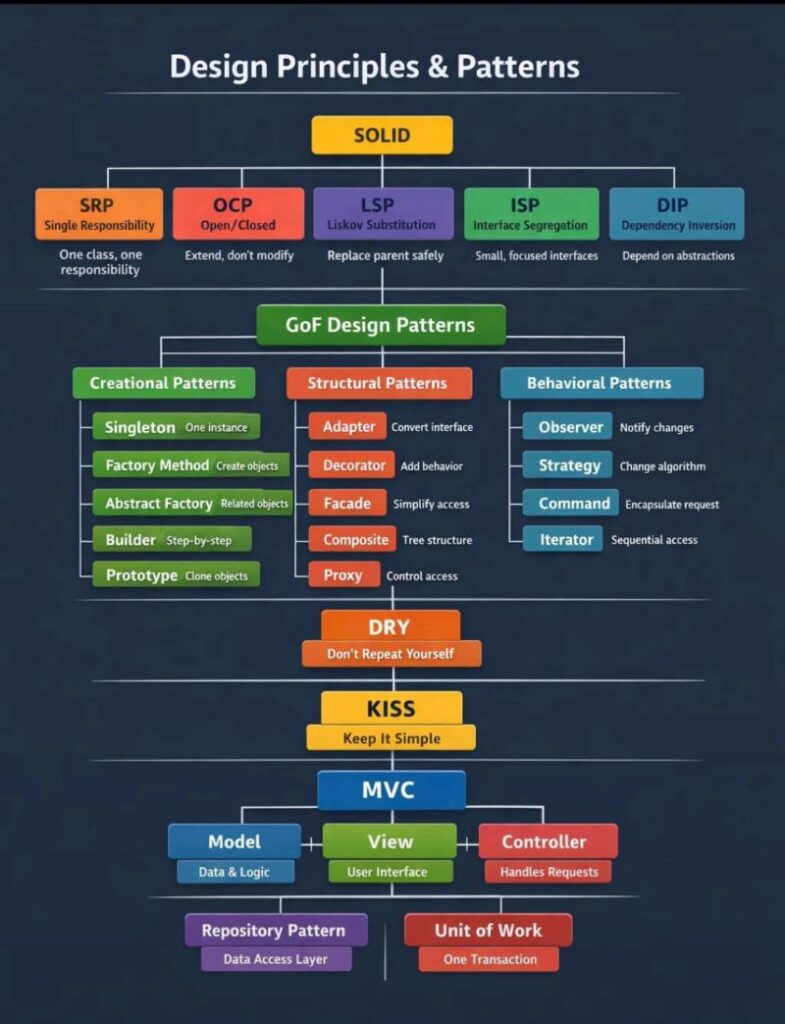
Design Principles and Patterns

Great software is not written.
It’s designed.

Most systems don’t fail because of bad developers.
They fail because of bad design decisions made early — and scaled blindly.

This is the foundation every serious engineer and tech leader must master 👇

Design Principles & Patterns

🔹 SOLID

SRP – One class, one reason to change
OCP – Extend, don’t modify
LSP – Substitutions must be safe
ISP – Small, focused interfaces
DIP – Depend on abstractions, not concretes

SOLID isn’t theory. It’s how you avoid rewriting your system every 6 months.

🔹 GoF Design Patterns

1) Creational → Control how objects are created (Factory, Builder, Singleton)
2) Structural → Control how objects are composed (Adapter, Facade, Proxy)
3) Behavioral → Control how objects communicate (Strategy, Observer, Command)

Patterns are not “fancy code.”
They are battle-tested solutions to recurring problems.

🔹 DRY – Don’t Repeat Yourself
Duplication is a silent killer.
It multiplies bugs and slows teams.

🔹 KISS – Keep It Simple
Complexity is not intelligence.
Simplicity is.

🔹 MVC + Repository + Unit of Work
Clean separation of concerns.
Predictable codebases.
Scalable teams.

Reality check:

Frameworks change.
Languages change.
Trends change.

Principles don’t.

If you want to build:

Systems that scale
Teams that move fast
Products that survive years

Master the fundamentals.

Everything else is noise.

Git Branching Strategies

In essence, a Git branch is a movable pointer to a specific commit in the repository’s history. When you create a new branch, you’re creating a new line of development that diverges from the main line. This allows you to make changes without directly affecting the stable codebase.

Let’s understand how this works. I assume you have Git installed and have basic working knowledge of Git.

Read more on code site

Export SonarQube issues (community edition) in Excel File

SonarQube community edition has no direct way to export issues to excel file. Here are the steps to export;

  1. Install Python from here

https://www.python.org/downloads

Go through custom installation. Specify a manual path e.g. c:\Python313. Check all checkboxes.

Verify installation using “Python –version” in python console.

Clone following repository from GitHub;

https://github.com/talha2k/sonarqube-issues-export-to-excel

open “sonarqube-issues-export-to-excel” in python IDE (IDLE) and edit SonarQube URL, Project_Key and Token. Save file.

Run the script

python sonar-export.py

The script will fetch the issues and save them to an Excel file named sonarqube_issues.xlsx.

Hope this will help someone.