enabling / disabling xp_cmdshell

I am not getting into the discussion of pros and cons of xp_cmdshell. This command helps you to run broad level features inside your SQL server. You can run OS level commands, SSIS packages etc.

Here is how you can enable, disable and use.

To check, if xp_cmdshell is enabled and available to use;

SELECT CONVERT(INT, ISNULL(value, value_in_use)) AS config_value
FROM sys.configurations
WHERE name = 'xp_cmdshell';

Turn on xp_cmdshell

EXEC sp_configure 'show advanced options', 1;
RECONFIGURE;
EXEC sp_configure 'xp_cmdshell', 1;
RECONFIGURE

Turn off xp_cmdshell

EXEC sp_configure 'show advanced options', 1;
RECONFIGURE;
EXEC sp_configure 'xp_cmdshell', 0;
RECONFIGURE

Here is a simple use case;

EXEC xp_cmdshell 'dir c:\'

Here is how you can enable it, use it and disable;

DECLARE @originalSetting INTEGER = 0;
SELECT @originalSetting = CONVERT(INT, ISNULL(value, value_in_use))
FROM  sys.configurations
WHERE  name = 'xp_cmdshell' ;
 
IF @originalSetting = 0
BEGIN
    EXEC sp_configure 'show advanced options', 1;
    RECONFIGURE;
    EXEC sp_configure 'xp_cmdshell', 1;
    RECONFIGURE;
END
 
EXEC xp_cmdshell 'dir c:\';
 
IF @originalSetting = 0
BEGIN
    EXEC sp_configure 'show advanced options', 1;
    RECONFIGURE;
    EXEC sp_configure 'xp_cmdshell', 0;
    RECONFIGURE;
END

You can create a stored procedure and use;

CREATE PROCEDURE sp_SuperCmdShell
(
    @commandToRun VARCHAR(1000)
)
AS
BEGIN
    -- check to see if xp_cmdshell is enabled, if its not
    --   then enable it and run the command then set it back
    --   to not enabled.
    DECLARE @originalSetting INTEGER = 0;
    SELECT @originalSetting = CONVERT(INT, ISNULL(value, value_in_use))
    FROM  sys.configurations
    WHERE  name = 'xp_cmdshell' ;
 
    IF @originalSetting = 0
    BEGIN
        EXEC sp_configure 'show advanced options', 1;
        RECONFIGURE;
        EXEC sp_configure 'xp_cmdshell', 1;
        RECONFIGURE;
    END
 
    EXEC xp_cmdshell @commandToRun;
 
    IF @originalSetting = 0
    BEGIN
        EXEC sp_configure 'show advanced options', 1;
        RECONFIGURE;
        EXEC sp_configure 'xp_cmdshell', 0;
        RECONFIGURE;
    END
 
END
GO
exec #sp_SuperCmdShell 'dir c:\';

This is not a new feature. It came out with early release of SQL server. If you see the usage command, they are OS level command. With the super privileged access any body can run a “format c:\” OS command and leave your database server in unrecoverable state. My suggestion would be to use it with least privileged proxy account.

Login is from an untrusted domain and cannot be used with integrated authentication

if you are using this connection string in SSIS using windows authentication

Data Source=myserver;Initial Catalog=mydb; Integrated Security=SSPI;Connect Timeout=15;

You will be able to develop your package and run. When it’s get deployed to SQL Server and someone try to run the package, they will get this error.

The reason, windows computer is not joined with Active Directory.

If you still want to run your SSIS package on server, use SQL Server authentication and use this connection string;

Data Source=myserver;Initial Catalog=mydb;User Id=myuser;password=mypassword;Connect Timeout=15;

Hope this will help

Run an SSIS package from SSMS with Transact-SQL

This quickstart demonstrates how to use SQL Server Management Studio (SSMS) to connect to the SSIS Catalog database, and then use Transact-SQL statements to run an SSIS package stored in the SSIS Catalog.

SQL Server Management Studio is an integrated environment for managing any SQL infrastructure, from SQL Server to SQL Database. For more info about SSMS, see SQL Server Management Studio (SSMS).

Prerequisites

Before you start, make sure you have the latest version of SQL Server Management Studio (SSMS). To download SSMS, see Download SQL Server Management Studio (SSMS).

An Azure SQL Database server listens on port 1433. If you’re trying to connect to an Azure SQL Database server from within a corporate firewall, this port must be open in the corporate firewall for you to connect successfully.

Supported platforms

You can use the information in this quickstart to run an SSIS package on the following platforms:

You cannot use the information in this quickstart to run an SSIS package on Linux. For more info about running packages on Linux, see Extract, transform, and load data on Linux with SSIS.

For Azure SQL Database, get the connection info

To run the package on Azure SQL Database, get the connection information you need to connect to the SSIS Catalog database (SSISDB). You need the fully qualified server name and login information in the procedures that follow.

  1. Log in to the Azure portal.
  2. Select SQL Databases from the left-hand menu, and then select the SSISDB database on the SQL databases page.
  3. On the Overview page for your database, review the fully qualified server name. To see the Click to copy option, hover over the server name.
  4. If you forget your Azure SQL Database server login information, navigate to the SQL Database server page to view the server admin name. You can reset the password if necessary.

Connect to the SSISDB database

Use SQL Server Management Studio to establish a connection to the SSIS Catalog on your Azure SQL Database server.

  1. Open SQL Server Management Studio.
  2. In the Connect to Server dialog box, enter the following information:TABLE 1SettingSuggested valueMore infoServer typeDatabase engineThis value is required.Server nameThe fully qualified server nameIf you’re connecting to an Azure SQL Database server, the name is in this format: <server_name>.database.windows.net.AuthenticationSQL Server AuthenticationWith SQL Server authentication, you can connect to SQL Server or to Azure SQL Database. If you’re connecting to an Azure SQL Database server, you can’t use Windows authentication.LoginThe server admin accountThis account is the account that you specified when you created the server.PasswordThe password for your server admin accountThis password is the password that you specified when you created the server.
  3. Click Connect. The Object Explorer window opens in SSMS.
  4. In Object Explorer, expand Integration Services Catalogs and then expand SSISDB to view the objects in the SSIS Catalog database.

Run a package

Run the following Transact-SQL code to run an SSIS package.

  1. In SSMS, open a new query window and paste the following code. (This code is the code generated by the Script option in the Execute Package dialog box in SSMS.)
  2. Update the parameter values in the catalog.create_execution stored procedure for your system.
  3. Make sure that SSISDB is the current database.
  4. Run the script.
  5. In Object Explorer, refresh the contents of SSISDB if necessary and check for the project that you deployed.

SQLCopy

Declare @execution_id bigint
EXEC [SSISDB].[catalog].[create_execution] @package_name=N'Package.dtsx',
    @execution_id=@execution_id OUTPUT,
    @folder_name=N'Deployed Projects',
	  @project_name=N'Integration Services Project1',
  	@use32bitruntime=False,
	  @reference_id=Null
Select @execution_id
DECLARE @var0 smallint = 1
EXEC [SSISDB].[catalog].[set_execution_parameter_value] @execution_id,
    @object_type=50,
	  @parameter_name=N'LOGGING_LEVEL',
	  @parameter_value=@var0
EXEC [SSISDB].[catalog].[start_execution] @execution_id
GO

Reference

https://docs.microsoft.com/en-us/sql/integration-services/ssis-quickstart-run-tsql-ssms?view=sql-server-ver15

How to run ssis package in asp.net core application?

You can package the assembly into a nuget package, Create a Lib folder inside your solution to hold the nuget package, then, create a nuget.config file to set the package sources to include the Lib folder inside your solution.

The following links contains more details about creating nuget package and hosting it locally:

Alternate Method – 1

To run SSIS package you need below DLLs in the code

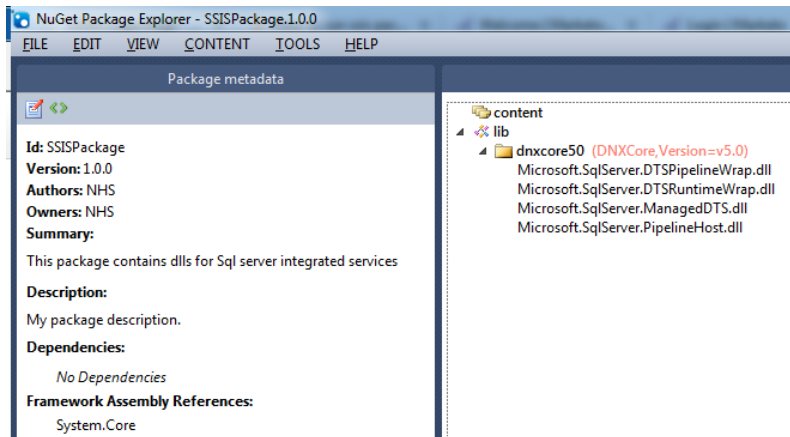
  1. Microsoft.SqlServer.ManagedDTS.dll
  2. Microsoft.SqlServer.PipelineHost.dll
  3. Microsoft.SqlServer.DTSRuntimeWrap.dll
  4. Microsoft.SqlServer.DTSPipelineWrap.dll

It is easy to add DLLs in MVC projects, however in asp.net core it needs to be in form of a Nuget package.

So nuget package can be easily created using nuget package explorer. Below is the link

https://docs.nuget.org/create/using-a-gui-to-build-packages

In the nuget package explorer add a lib folder, inside that add a .net folder dnxcore50 and add the above DLLs. Click on tools analyse package and save the nuget.

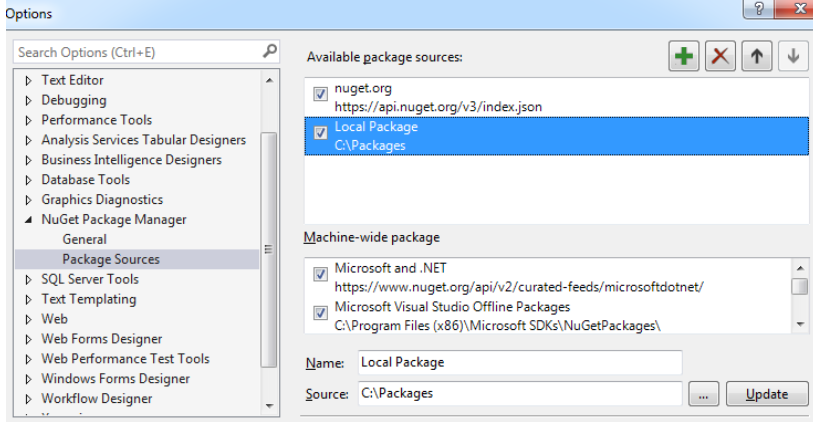
In the visual studio 2015 solution, you can refer local packages. Tools – Nuget Package Manager – Package Manager Settings – Package source add the local package path.

After which you will be able to add the nuget package using nuget package manager and select local package as source

"dependencies": {
"Microsoft.AspNet.Hosting": "1.0.0-rc1-final",
"Microsoft.NETCore.Portable.Compatibility": "1.0.1-rc2-24027",
"SSISPackage": "1.0.0"
 }

"frameworks": {
"netcoreapp1.0": {
  "imports": [
    "dotnet5.6",
    "portable-net45+win8",
    "dnxcore"
  ]
  }
}

After which you will be able to use code to run SSIS package similar to MVC projects.

Application app = new Application();
        Package package = null;
        try
        {
            package = app.LoadPackage(@"C:\Files\Package.dtsx", null);
            Variables vars = package.Variables;
            vars["status"].Value = "ACTIVE";

            DTSExecResult results = package.Execute();

        }
        catch
        {
            return false;

        }
        finally
        {
            package.Dispose();
            package = null;
        }

Alternate Method – 2

You may now reference the dlls ( one from each) directly in your .net core project from the below locations to run ssis packages now

C:\Windows\Microsoft.NET\assembly\GAC_MSIL\Microsoft.SqlServer.ManagedDTS
C:\Windows\Microsoft.NET\assembly\GAC_MSIL\Microsoft.SqlServer.PipelineHost
C:\Windows\Microsoft.NET\assembly\GAC_64\Microsoft.SqlServer.DTSRuntimeWrap
C:\Windows\Microsoft.NET\assembly\GAC_MSIL\Microsoft.SqlServer.DTSPipelineWrap

you no longer need to create a nuget package

Reference

https://stackoverflow.com/questions/38791987/how-to-run-ssis-package-in-asp-net-core-application