A Simple 2-Column Layout in Razor

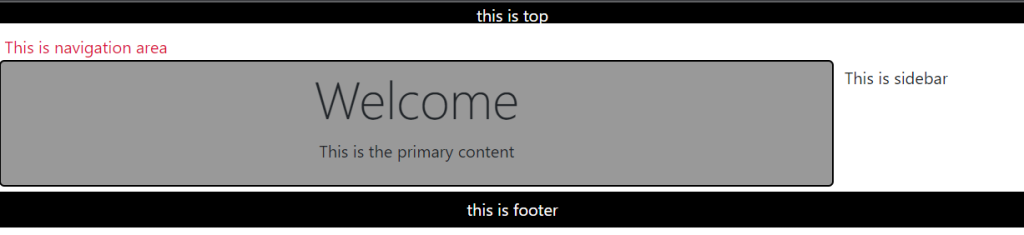
2 column layouts are rather popular on the web, and there are 1,001 ways to make them work. The approach you choose really depends on the type of content you have, and how you want images and backgrounds to work. What I’ll show is the Razor _Layout and CSS to achieve the following look:

The Razor _Layout file can rely on partial views to handle each of the primary sections: top, navigation, sidebar, and footer. RenderBody will produce the primary content area.

<!DOCTYPE html>
<html>
<head>    
    <title>@ViewBag.Title</title>    
    <link href="@Url.Content("~/Content/Site.css")" 
          rel="stylesheet" type="text/css" />
</head>

<body>
    @Html.Partial("_top")
    @Html.Partial("_navigation")
    @Html.Partial("_sidebar")                               
    <div id="body">
        @RenderBody()      
    </div>    
    @Html.Partial("_footer")   
</body>
</html>

A quick note on Html.Partial. If any sections, like the sidebar and navigation sections, require some logic or model information to build their piece of the UI, then use Html.Action instead of Html.Partial. Html.Action allows you to setup a little sub-request inside the current request and allow a controller action to build a model and select a view.

The CSS coming up assumes each partial view will render inside an element with an id matching it’s purpose (so the _top view renders a div with an id of top).

<div id="top">
    This is the top content
</div>

Then finally, add some styles to the CSS file:

#top {
    height: 20px;
    text-align: center;
    background-color: black;
    color: white;   
}

#navigation {
    height: 25px;
    margin: 5px;
    padding: 5px;
    color:crimson;
}

#sidebar {
    margin: 5px;
    padding: 5px;
    position: absolute;
    top: 50px;
    left: 314px;
}

#body {
    width: 300px;
    padding: 5px;
    margin: 5px;
    background-color: #999999;
    border-radius: 5px;
    border: 2px black solid;
}

#footer {
    padding: 5px;
    text-align: center;
    background-color: black;
    color: white;
}

The trick is to use absolute positioning on the sidebar content, which is possible because we know the exact amount of space taken by the 2 sections at the top of the page, and we know the exact width of the content area (it is set explicitly in the CSS). You’ll probably want to give the body more space than the 300px given in the sample above (which was constrained so the screenshot would fit on this page).

Resources

https://dev.to/codeply/bootstrap-5-sidebar-examples-38pb

Expression Design – tips and tricks

This post will show you how to create graphics using free Microsoft Expression Design 4 tool.

So, we want to crate two kind of graphics:

  • With fixed background color

With transparent background color

First of all, I would like to mention that this tool is for creating vector graphics. Why it is so important? Well, if you create something for instance for 99×99 px and then rescale it to 300×300 px, quality of the graphics would be unchanged.  So lets start.

Case 1: Create the same graphics in different resolution with specific background color

First target is to create two same graphics in png format in different resolutions. We want to create:

  • ApplicationIcon.png which need to be 99×99 pixels (to fit to all WP resolutions)
  • 300×300.png for Catalogue Image on the Windows Phone Store

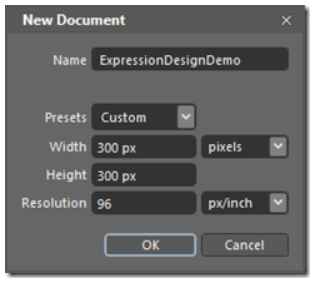
First we will create new project:

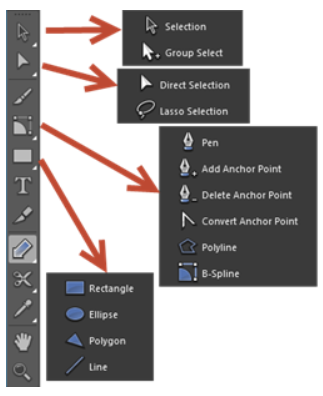
You can use various tools in Expression Design to make your vector graphics or you can import some image (File –> Import Image…) and draw over it. In that case B-Spline would be very helpful tool.

Detailed steps would be:

  • Create main rectangle
  • Draw graphic with Expression Design tools
  • Create slice and set slice properties
  • Export graphics into files

Create main rectangle

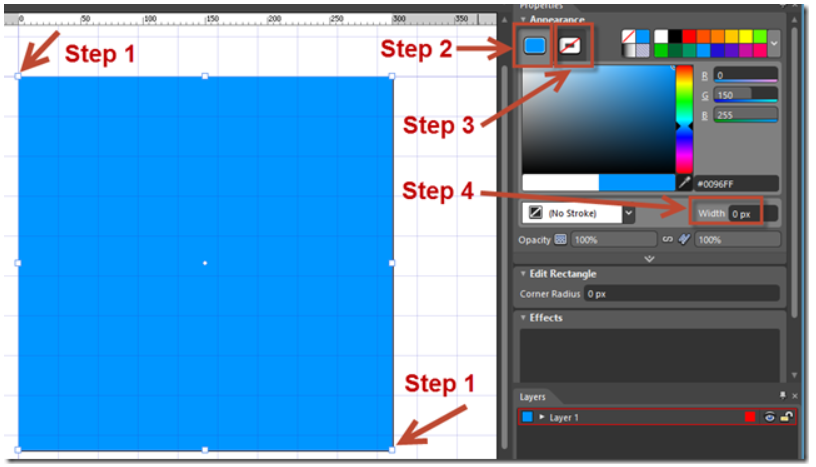
First, you need to draw rectangle in full space of the created document 300x300px. Use Rectangle tool and drag rectangle from left upper corner to the right down corner of the document border.

Step 1: Draw rectangle

Step 2: Choose Fill color

Step 3: Choose No Stroke (we don’t need boxed rectangle)

Step 4: Put zero Width for rectangle

Fill color can be any color that you want. Later you can change it to desired color on no color (transparent – more details later).

Draw graphic with Expression Design tools

Now we need to draw some wonderful drawing that represent Windows Phone app. We will draw just one white circle with 15px width in the middle of the blue rectangle (Let your imagination do the rest when creating graphics for you app).

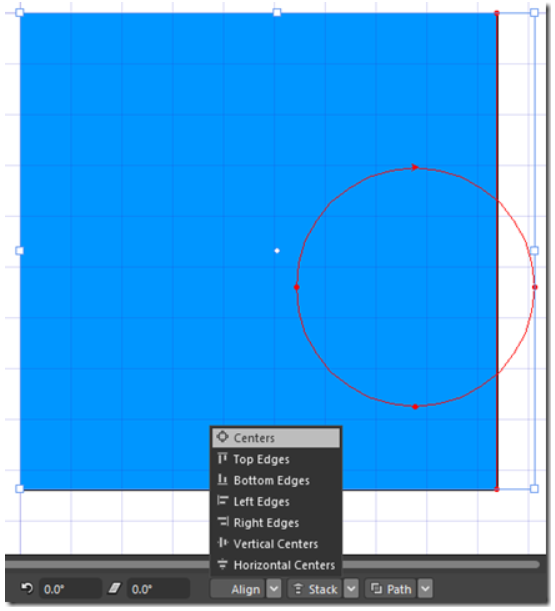
Tips: If you want to align object to another object you need to know that Expression Design use Z-order. So, you can’t do tricks with selecting one object1 (rectangle) first and then object2 (circle) second and hoping that circle would be center aligned with rectangle. The point is that top object would be the main. You need to send circle back (right click on circle and then use Arrange –> Send to Back). Then use Align –> Centers and rearrange order again by sending blue rectangle back.

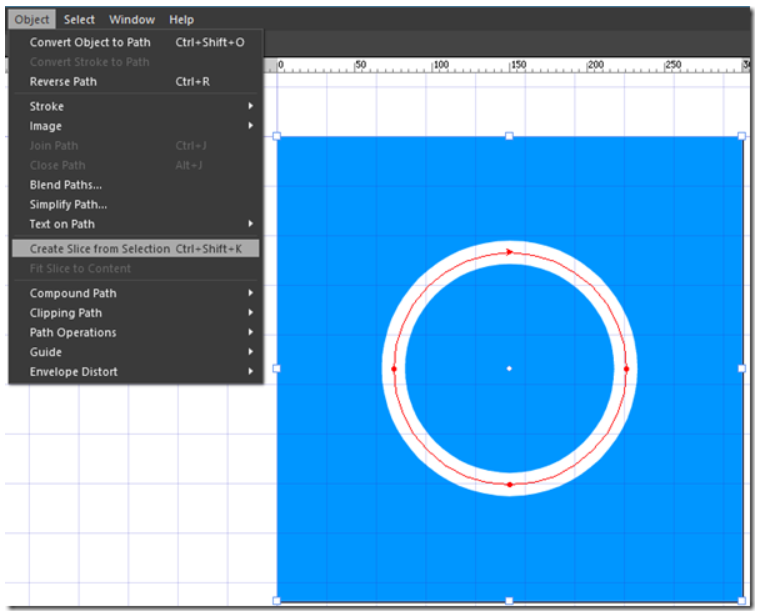
After using tips recommendation we’ll get final drawing:

Create slice and set slice properties

After we create graphics we need to export it as png or jpg files. So, the next step is to create Slice from the selection. Select full rectangle and use Ctrl+Shift+K or use Object menu and Crate Slice from Selection.

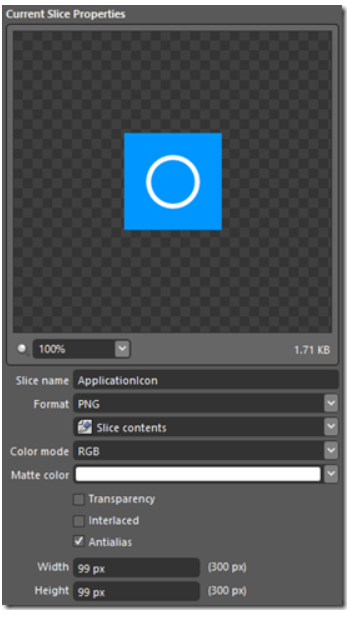
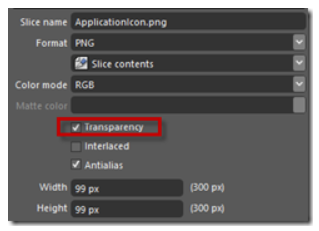
Then we need to set slice properties such as slice name, format and final width and height.

After this, we can use the same procedure to select whole document again, create new slice and set parameters for 300×300 px slice with name 300×300.png.

Export graphics into files

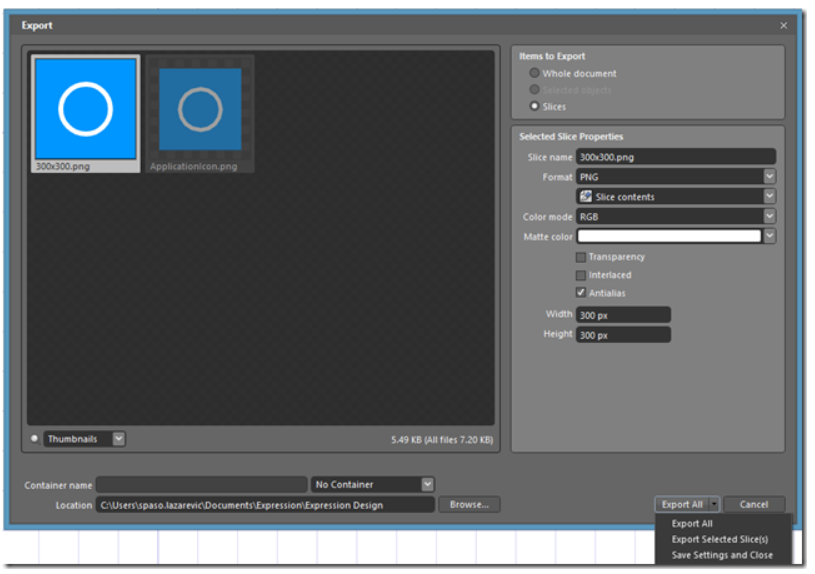
And finally, we need to export slice to png file. For that purpose use Export item from File menu item. Choose desired location and if you have more slices use Export All item in right-down corner.

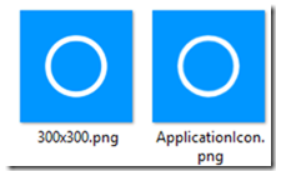
And that’s it, we just created two png files for our app with blue color as background with two sizes.

Case 2: Use transparent background

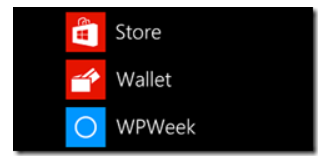
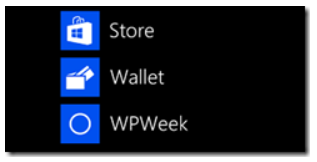
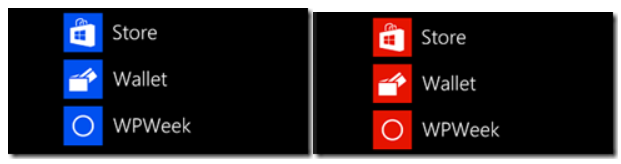
But what if you want to create ApplicationIcon for you app and use background color as transparent. So when use different Accent color on your phone background change to that accent color, not fixed blue color as in our first example.

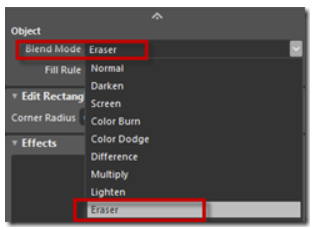
The trick is before creating slice we need to select blue rectangle and set it as Eraser.

Then use standard procedure to create slice with Ctrl+Shift+K and in slice properties set to use Transparent (check box).

And that is all. Export this graphic and you’ll get ApplicationIcon with transparent background.

Remarks: only png file can be transparent, not jpg files.

As a result if we change accent color, our background would change appropriately:

And that is all. Install Microsoft Expression Design 4.0 and be author of graphics for your apps.

Reference

Simple Image cropping in Expression Design

Adding custom shading and highlighting to graphics 

Joining Operator: GroupJoin

The GroupJoin operator performs the same task as Join operator except that GroupJoin returns a result in group based on specified group key. The GroupJoin operator joins two sequences based on key and groups the result by matching key and then returns the collection of grouped result and key.

GroupJoin requires same parameters as Join.

let’s understand GroupJoin using following Student and Standard class where Student class includes StandardID that matches with StandardID of Standard class.

public class Student{ 
    public int StudentID { get; set; }
    public string StudentName { get; set; }
    public int StandardID { get; set; }
}

public class Standard{ 
    public int StandardID { get; set; }
    public string StandardName { get; set; }
}

Consider the following GroupJoin query example.

IList<Student> studentList = new List<Student>() { 
    new Student() { StudentID = 1, StudentName = "John", StandardID =1 },
    new Student() { StudentID = 2, StudentName = "Moin", StandardID =1 },
    new Student() { StudentID = 3, StudentName = "Bill", StandardID =2 },
    new Student() { StudentID = 4, StudentName = "Ram",  StandardID =2 },
    new Student() { StudentID = 5, StudentName = "Ron" } 
};

IList<Standard> standardList = new List<Standard>() { 
    new Standard(){ StandardID = 1, StandardName="Standard 1"},
    new Standard(){ StandardID = 2, StandardName="Standard 2"},
    new Standard(){ StandardID = 3, StandardName="Standard 3"}
};

var groupJoin = standardList.GroupJoin(studentList,  //inner sequence
                                std => std.StandardID, //outerKeySelector 
                                s => s.StandardID,     //innerKeySelector
                                (std, studentsGroup) => new // resultSelector 
                                {
                                    Students = studentsGroup,
                                    StandarFulldName = std.StandardName
                                });

foreach (var item in groupJoin)
{ 
    Console.WriteLine(item.StandarFulldName );

    foreach(var stud in item.Students)
        Console.WriteLine(stud.StudentName);
}

Reference

https://learn.microsoft.com/en-us/dotnet/api/system.linq.enumerable.groupjoin?view=net-7.0

Action, Func and Expression

Most times you’re going to want Func or Action if all that needs to happen is to run some code. You need Expression when the code needs to be analyzed, serialized, or optimized before it is run. Expression is for thinking about code, Func/Action is for running it.

In C#, passing a function as a parameter to another method or function is a powerful feature that allows for increased flexibility and code reusability. This technique, often referred to as “higher-order functions” or “function pointers,” enables you to treat functions as first-class citizens in your code.

Using Action Delegate

The Action delegate is a predefined delegate type provided by C# that represents a method that does not return a value but can accept up to sixteen input parameters.

Define the function signature that matches the action delegate you want to use. The action delegate represents a method that does not return a value and can accept up to 16 input parameters. For example, if you have a function with two input parameters of type int and string, the signature would be Action.

Create a method that takes an action delegate as an argument to use this delegate. The parameter should have the same signature as the function you want to pass. Inside the method, you can invoke the passed action delegate and use it just like any other function.

Here’s an example that demonstrates how to pass a function using the action delegate:

 // Define the function signature that matches the Action delegate
        static internal void MyFunction(int param1, string param2)
        {
            Console.WriteLine($"Action delegate demo - Parameters: {param1}, {param2}");
        }

        // Create a method that accepts a Action delegate as a parameter

        static internal void ProcessAction(Action<int, string> action)

        {
            // Invoke the passed action
            action(10, "Hello");
        }

        static void Main()
        {
            //usage example
            ProcessAction(MyFunction);
        }

In this example, we have a MyFunction method that matches the signature of the Action<int, string> delegate, and it does not return a value and only accepts two parameters: an int and a string.

The ProcessAction method accepts an Action<int, string> delegate as a parameter. It invokes the passed function using the delegate by calling action(10, “Hello”).

In the Main() method, we demonstrate the usage by calling ProcessAction and passing MyFunction as the argument. This will invoke MyFunction inside ProcessAction and output the parameters passed to it.

Using Func Delegate

The Func delegate is another predefined delegate type in C# that represents a method that takes input parameters and returns a value.

So to use this delegate, define the function signature that matches the Func delegate you want to use. The Func delegate can handle functions with up to 16 input parameters and a return type as the last type parameter. For example, if you have a function with two input parameters of type int and string that returns a bool, the signature would be Func<int, string, bool>.

A method that takes a Func delegate as a parameter should then be created, and the parameter’s signature should match that of the function you intend to pass. Inside the method, you can invoke the passed Func delegate and use it just like any other function. Here’s an example that demonstrates how to pass a function using the Func delegate:

 // Define the function signature that matches the Func delegate
        static internal bool MyFunction(int param1, string param2)
        {
            Console.WriteLine($"Function delegate deom - Parameters: {param1}, {param2}");
            return true;
        }


        // Create a method that accepts a Function delegate as a parameter

        static internal void ProcessFunc(Func<int, string, bool> func)
        {
            // Invoke the passed func and get the result
            bool result = func(10, "Hello");
            // Process the result
            Console.WriteLine($"Result: {result}");
        }

        static void Main()
        {
            // Usage example
            ProcessFunc(MyFunction);
        }

In this example, we have a MyFunction method that matches the signature of the Func<int, string, bool> delegate. It receives two parameters—an int and a string—and outputs a bool.

The ProcessFunc method accepts a Func<int, string, bool> delegate as a parameter. It invokes the passed function using the delegate and stores the result in the result variable. Finally, it processes the result by printing it to the console.

Using Expression

An expression simply turns a delegate into a data about itself. So a => a + 1 becomes something like “On the left side there’s an int a. On the right side you add 1 to it.” That’s it. You can go home now. It’s obviously more structured than that, but that’s essentially all an expression tree really is–nothing to wrap your head around.

So, in other words, an Expression contains the meta-information about a certain delegate.

An expression tree is a data structure that represents some code. It isn’t compiled and executable code. If you want to execute the .NET code represented by an expression tree, you must convert it into executable IL instructions. Executing an expression tree may return a value, or it may just perform an action such as calling a method.

You would convert an expression into a delegate using the following code:

Expression<Func<int>> add = () => 1 + 2;
var func = add.Compile(); // Create Delegate
var answer = func(); // Invoke Delegate
Console.WriteLine(answer);

Reference

https://learn.microsoft.com/en-us/dotnet/csharp/advanced-topics/expression-trees/expression-trees-execution

https://stackoverflow.com/questions/793571/why-would-you-use-expressionfunct-rather-than-funct

https://www.daveaglick.com/posts/using-expression-trees-to-get-class-and-member-names

Pivot C# Array or DataTable: Convert a Column To a Row with LINQ

My Previous post explains how to convert a column to row in JavaScript array. In this post, we will do the same thing but with C# Array and DataTable using the power of LINQ or Lambda expression. For simplicity, I am using the same data.

C# Array To Pivot DataTable:

Here is the C# array object:

var data = new[] { 
              new { Product = "Product 1", Year = 2009, Sales = 1212 },
              new { Product = "Product 2", Year = 2009, Sales = 522 },
              new { Product = "Product 1", Year = 2010, Sales = 1337 },
              new { Product = "Product 2", Year = 2011, Sales = 711 },
              new { Product = "Product 2", Year = 2012, Sales = 2245 },
              new { Product = "Product 3", Year = 2012, Sales = 1000 }
          };

On Googling, I found the following generic method in StackOverflow thread.

public static DataTable ToPivotTable<T, TColumn, TRow, TData>(
    this IEnumerable<T> source,
    Func<T, TColumn> columnSelector,
    Expression<Func<T, TRow>> rowSelector,
    Func<IEnumerable<T>, TData> dataSelector)
        {
            DataTable table = new DataTable();
            var rowName = ((MemberExpression)rowSelector.Body).Member.Name;
            table.Columns.Add(new DataColumn(rowName));
            var columns = source.Select(columnSelector).Distinct();
 
            foreach (var column in columns)
                table.Columns.Add(new DataColumn(column.ToString()));
 
            var rows = source.GroupBy(rowSelector.Compile())
                             .Select(rowGroup => new
                             {
                                 Key = rowGroup.Key,
                                 Values = columns.GroupJoin(
                                     rowGroup,
                                     c => c,
                                     r => columnSelector(r),
                                     (c, columnGroup) => dataSelector(columnGroup))
                             });
 
            foreach (var row in rows)
            {
                var dataRow = table.NewRow();
                var items = row.Values.Cast<object>().ToList();
                items.Insert(0, row.Key);
                dataRow.ItemArray = items.ToArray();
                table.Rows.Add(dataRow);
            }
 
            return table;
        }

You can create a static class for extension methods and put it there.
To convert Year values to columns and get Pivot DataTable:

var pivotTable = data.ToPivotTable(
              item => item.Year, 
              item => item.Product,  
              items => items.Any() ? items.Sum(x=>x.Sales) : 0);

You will get the following output:

C# Array to Pivot Dynamic Array:

You might want to get the List<dynamic> or dynamic[] instead of getting DataTable after converting columns to rows. It is handy in ASP.NET Web API to return JSON response.

To do it, I updated the extension method to get the dynamic object. use following extension method:

public static dynamic[] ToPivotArray<T, TColumn, TRow, TData>(
this IEnumerable<T> source,
Func<T, TColumn> columnSelector,
Expression<Func<T, TRow>> rowSelector,
Func<IEnumerable<T>, TData> dataSelector)
       {
 
           var arr = new List<object>();
           var cols = new List<string>();
           String rowName = ((MemberExpression)rowSelector.Body).Member.Name;
           var columns = source.Select(columnSelector).Distinct();       
 
           cols =(new []{ rowName}).Concat(columns.Select(x=>x.ToString())).ToList();
 
 
           var rows = source.GroupBy(rowSelector.Compile())
                            .Select(rowGroup => new
                            {
                                Key = rowGroup.Key,
                                Values = columns.GroupJoin(
                                    rowGroup,
                                    c => c,
                                    r => columnSelector(r),
                                    (c, columnGroup) => dataSelector(columnGroup))
                            }).ToArray();
 
 
           foreach (var row in rows)
           {
               var items = row.Values.Cast<object>().ToList();
               items.Insert(0, row.Key);
               var obj = GetAnonymousObject(cols, items);
               arr.Add(obj);               
           }
           return arr.ToArray();
       }
 private static dynamic GetAnonymousObject(IEnumerable<string> columns, IEnumerable<object> values)
       {
           IDictionary<string, object> eo = new ExpandoObject() as IDictionary<string, object>;
           int i;
           for (i = 0; i < columns.Count(); i++)
           {
               eo.Add(columns.ElementAt<string>(i), values.ElementAt<object>(i));
           }
           return eo;
       }

ExpandoObject is used to create dynamic object.
Now, to convert row to column and get dynamic array:

var pivotArray = data.ToPivotArray(
                item => item.Year,
               item => item.Product,
               items => items.Any() ? items.Sum(x => x.Sales) : 0);

You can easily convert in JSON format

String json = JsonConvert.SerializeObject(pivotArray, new KeyValuePairConverter());

C# DataTable to Pivot DataTable:

Let us have a DataTable with same data:

DataTable myDataTable = new DataTable();
myDataTable.Columns.AddRange(new DataColumn[3] { new DataColumn("Product"), new DataColumn("Year", typeof(int)), new DataColumn("Sales", typeof(int)) });
myDataTable.Rows.Add("Product 1", 2009, 1212);
myDataTable.Rows.Add("Product 2", 2009, 522);
myDataTable.Rows.Add("Product 1", 2010, 1337);
myDataTable.Rows.Add("Product 2", 2011, 711);
myDataTable.Rows.Add("Product 2", 2012, 2245);
myDataTable.Rows.Add("Product 3", 2012, 1000);   

You can use the same extension method to get Pivot DataTable like below.

var data2 = myDataTable.AsEnumerable().Select(x=> new { 
               Product =x.Field<String>("Product"), 
               Year= x.Field<int>("Year"), 
               Sales = x.Field<int>("Sales") });
           
           DataTable pivotDataTable =data2.ToPivotTable(
                item => item.Year,
               item => item.Product,
               items => items.Any() ? items.Sum(x => x.Sales) : 0);

Here is the result:

DataTable to List<dynamic>:

If you need to convert DataTable to List of dynamic object then use following extension method:

public static List<dynamic> ToDynamicList(this DataTable dt)
       {
           var list = new List<dynamic>();
           foreach (DataRow row in dt.Rows)
           {
               dynamic dyn = new ExpandoObject();
               list.Add(dyn);
               foreach (DataColumn column in dt.Columns)
               {
                   var dic = (IDictionary<string, object>)dyn;
                   dic[column.ColumnName] = row[column];
               }
           }
           return list;
       }

Here is the result:

Group by Multiple Columns

Here is a code to group data based on multiple columns.

testDt = GetTestDate();
        var data2 = testDt.Tables[0].AsEnumerable().Select(x => new
        {
            Family = x.Field<int>("tdFamily"),
            Class = x.Field<short>("luClass"),
            Region = x.Field<short>("luRegion"),
            Year = x.Field<int>("tdYear"),
            Population = x.Field<decimal>("tdPopulation ")
        });

        DataTable pivotDataTable = data2.ToPivotTable(
             item => item.Year,
            item => new{ item.Family, item.Class, item.Region},
            items => items.Any() ? items.Sum(x => x.Allocation) : 0
            );

         public static DataTable ToPivotTable<T, TColumn, TRow, TData>(
         this IEnumerable<T> source,
         Func<T, TColumn> columnSelector,
         Expression<Func<T, TRow>> rowSelector,
         Func<IEnumerable<T>, TData> dataSelector)
    {
        DataTable table = new DataTable();
        var rowsName = ((NewExpression)rowSelector.Body).Members.Select(s => s).ToList();
        foreach (var row in rowsName)
        {
            var name = row.Name; 
            table.Columns.Add(new DataColumn(name));
        }
        var columns = source.Select(columnSelector).Distinct();
        foreach (var column in columns)
            table.Columns.Add(new DataColumn(column.ToString()));
        var rows = source.GroupBy(rowSelector.Compile())
                         .Select(rowGroup => new
                         {
                             Key = rowGroup.Key,
                             Values = columns.GroupJoin(
                                 rowGroup,
                                 c => c,
                                 r => columnSelector(r),
                                 (c, columnGroup) => dataSelector(columnGroup))
                         });

        foreach (var row in rows)
        {
            var dataRow = table.NewRow();
            var items = row.Values.Cast<object>().ToList();
            string[] keyRow = row.Key.ToString().Split(',');
            int index = 0;
            foreach (var key in keyRow)
            {
                string keyValue = key.Replace("}", "").Split('=')[1].Trim();
                items.Insert(index, keyValue);
                index++;
            }
            dataRow.ItemArray = items.ToArray();
            table.Rows.Add(dataRow);
        }
        return table;
    }

Conclusion:

In this post, we played with C# Array, DataTable and implemented to convert row to column and get Pivot Array, DataTable and List of dynamic object.