Recently i had to download binary format data using ASP.NET Core, Console Core and SSIS applications;
ASP.NET Core application;
Here is a work around for ASP.NET Core Where we are getting back File Result;
[HttpGet]
public IActionResult GetExcelData2(Guid? documentId)
{
            var sql = "SELECT TOP(1) FileName, ContentType, FileStreamCol FROM [dbo].[STG_Document] WHERE 1 = 1 AND DocumentId = @documentId";

            byte[] fileContent = null;
            string mimeType = "application/vnd.openxmlformats-officedocument.spreadsheetml.sheet";
            string fileName = "C:\\Business\\myfile.xlsx";

            using (var connection = new SqlConnection(AppConnectionString.Value.PMBImportsConn))
            {
                connection.Open();
                var result = connection.Query(sql, new { DocumentId = documentId });
                result.AsList().ForEach(x =>
                {
                    fileContent = x.FileStreamCol;
                    mimeType = x.ContentType;
                    fileName = x.FileName;
                });

                return File(new MemoryStream(fileContent, 0, fileContent.Length - 1), mimeType, fileName);
            }
}
I am subtracting 1 element from byte array to fix a problem I encountered in a VB6 application. Otherwise, you don’t need to subtract this element.
return File(new MemoryStream(fileContent, 0, fileContent.Length), mimeType, fileName);This is how we call it from view;
<a asp-controller="Project" asp-action="GetExcelData2" asp-route-documentId="@p.DocumentId">Download</a>If everything is correct, the download starts automatically.
C# Console application;
Here is how this will work in C# Console application;
internal void DownloadExcelFiles()
{
            // Create folder to save downloaded files
            string myFolderPath = @"C:\WorkToDo\";
                        Directory.CreateDirectory(myFolderPath + "\\FilesDownloaded");

            //run sql query to grab image files
            var sql = "SELECT DocumentId AS DocumentId, ContentType, FileName, FileStreamCol  FROM dbo.STG_Document WHERE 1 = 1";

            byte[] fileContent = null;
            string mimeType = "application/vnd.openxmlformats-officedocument.spreadsheetml.sheet";
            string fileName = "";

            using (var connection = new SqlConnection(DB2SqlConnectionString))
            {
                connection.Open();
                var result = connection.Query(sql);
                result.AsList().ForEach(x =>
                {
                    string fileExtension = "xlsx";
                    switch (x.ContentType)
                    {
                        case "application/vnd.openxmlformats-officedocument.spreadsheetml.sheet":
                        case "application/vnd.ms-excel":
                        case "application/msexcel":
                            fileExtension = "xlsx";
                            break;
                        case "application/vnd.ms-excel.sheet.macroEnabled.12":
                            fileExtension = "xlsm";
                            break;
                        default:
                            break;
                    }
                    string fileToWrite = $"{myFolderPath}\\FilesDownloaded\\{x.DocumentId}.{fileExtension}";
                    fileContent = x.FileStreamCol;
                    mimeType = x.ContentType;
                    fileName = x.FileName;

                    FileStream fileStream = File.OpenWrite(fileToWrite);
                    fileStream.Write(fileContent, 0, fileContent.Length - 1);
                    fileStream.Flush();
                    fileStream.Close();
                });
                Console.WriteLine("Download complete..");
            }
}
I am subtracting 1 element from byte array to fix a problem I encountered in a VB6 application. Otherwise, you don’t need to subtract this element.
FileStream fileStream = File.OpenWrite(fileToWrite);
fileStream.Write(fileContent, 0, fileContent.Length);
I ma using Dapper and SqlClient libraries ASP.NET Core and Console application to access data from Database.
SSIS application;
Here is how this will work in SQL Server Integration services;
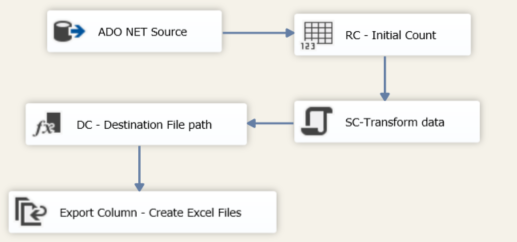
ADO.NET Source
SELECT DocumentId, [FileName], [ContentType], [FileStreamCol]
FROM [dbo].[Document]
WHERE 1=1
SC-Transform data
This is a SSIS Transformation script component. This prepares the data that will be used later on in Export Column task;
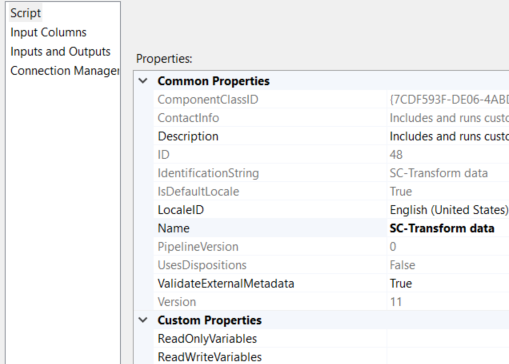
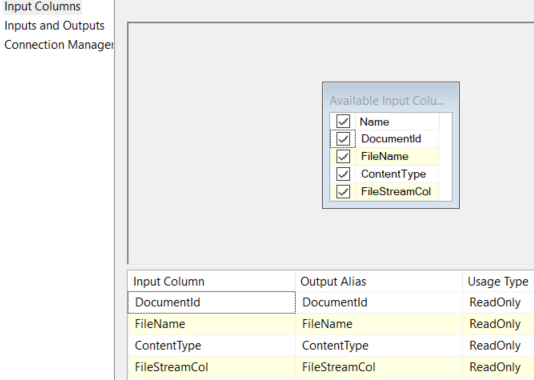
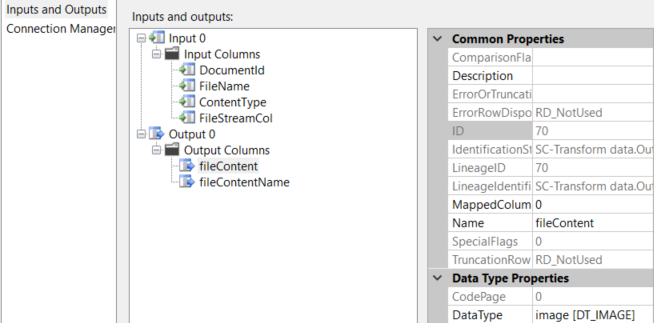
Here is the code block;
private byte[] fileContent = null;
private string fileExtension = String.Empty;

public override void Input0_ProcessInputRow(Input0Buffer Row)
{
        //determine content type
        switch (Row.ContentType)
        {
            case "application/vnd.openxmlformats-officedocument.spreadsheetml.sheet":
            case "application/vnd.ms-excel":
            case "application/msexcel":
                fileExtension = "xlsx";
                break;
            case "application/vnd.ms-excel.sheet.macroEnabled.12":
                fileExtension = "xlsm";
                break;
            default:
                break;
        }
Row.fileContentName = String.Concat(Row.DocumentId, ".", fileExtension);
//A VB6 application saves excel files as BLOB objects. For download it subtracts one element from
//byte array. Following same dance here
        var blobLength = Convert.ToInt32(Row.FileStreamCol.Length);
        fileContent = Row.FileStreamCol.GetBlobData(0, blobLength - 1);
        Row.fileContent.AddBlobData(fileContent);
}
Derived column transform;

Export column settings;
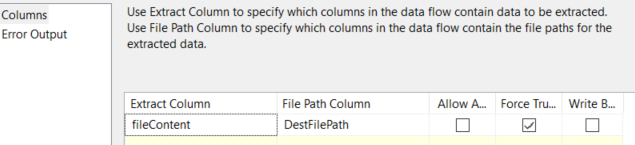
Checking Force Truncate overwrites extracted files.
Hope this will help.