ASP.NET Core comes with reasonable diagnostic logging; framework and application have access to API’s for structured logging. Log events are written out to handful providers including the terminal and Microsoft Application insights. One of the key sinks is the database logging that Microsoft API’s are lacking.
Serilog is an alternative logging implementation. It supports same structured logging API but adds a stock of features that makes it more appealing including logging to database.
We will need following packages from NuGet to configure Serilog for different sinks;
$ dotnet add package Serilog.ASPNetCore		<version 3.2.0>
$ dotnet add package Serilog.Settings.Configuration	<version 3.1.0>
$ dotnet add package Serilog.Sinks.Console		<version 3.1.1>
$ dotnet add package Serilog.Sinks.File			<version 3.2.0>
$ dotnet add package Serilog.Sinks.MSSqlServer		<version 5.1.3>
All types are in Serilog namespace.
using Serilog;
Initialization and top-level try/catch block
Exceptions thrown during application startup are some of the most challenging one. The very first line of code in a Serilog-enabled application will be in our program class main method;
Using Serilog
public static void Main(string[] args)
        {
            Log.Logger = new LoggerConfiguration()
                .Enrich.FromLogContext()
                .WriteTo.Console()      //this needs to be file system
                .CreateLogger();

            try
            {
                Log.Information("Starting up");
                CreateWebHostBuilder(args).Build().Run();
            }
            catch (Exception ex)
            {
                Log.Fatal(ex, "Application start-up failed");
            }
            finally
            {
                Log.CloseAndFlush();
            }
        }
Note that we have added .Enrich.FromLogContext() to the logger configuration. There are some features that requires this for example some of the properties like RequestId.
Plugging into ASP.NET Core
We have decided to have all log events processed through Serilog logging pipeline and we don’t want ASP.NET Core’s logging.
ASP.NET Core 2.1
public class Program
    {
        public static void Main(string[] args)
        {
            Log.Logger = new LoggerConfiguration()
                .Enrich.FromLogContext()
                .WriteTo.Console()
                .CreateLogger();
            try
            {
                Log.Information("starting up");
                BuildWebHost(args).Run();
            }
            catch (Exception ex)
            {
                Log.Fatal(ex, "Application start-up failed");
            }
            finally
            {
                Log.CloseAndFlush();
            }
        }

        public static IWebHost BuildWebHost(string[] args) =>
            WebHost.CreateDefaultBuilder(args)
                .UseStartup<Startup>()
                .UseSerilog()
                .Build();
    }
ASP.NET Core > 3.1
      public class Program
    {
        public static void Main(string[] args)
        {
            Log.Logger = new LoggerConfiguration()
               .Enrich.FromLogContext()
               //.MinimumLevel.Debug()
               .WriteTo.Console()
               .CreateLogger();

            try
            {
                Log.Information("Application starting up");
                CreateHostBuilder(args).Build().Run();
            }
            catch (Exception ex)
            {
                Log.Fatal(ex, "Application start-up failed");
            }
            finally
            {
                Log.CloseAndFlush();
            }
        }

        public static IHostBuilder CreateHostBuilder(string[] args) =>
            Host.CreateDefaultBuilder(args)
            .UseSerilog()
            .ConfigureWebHostDefaults(webBuilder =>
            {
                webBuilder.UseStartup<Startup>();
            });
    }
Cleaning up default logger
There are few spots in the application that tracks default logger. Serilog is a complete implementation of the .NET Core logging APIs. The benefit of removing default logger is that you are not running two different logging framework where they overlap in functionality.
The “Logging” section in appSettings.json is not used by Serilog so it can be removed;
{
  "Logging": {
    "LogLevel": {
      "Default": "Information",
      "Microsoft": "Warning",
      "Microsoft.Hosting.Lifetime": "Information"
    }
  },
  "AllowedHosts": "*"
}
After cleaning appSettings.Development.json, the configuration would be;
{
  "AllowedHosts": "*"
}
Writing your own log events
We have used Serilog Log class directly in Program.cs file to write event. This works well in ASP.NET Core apps and can be used with standard Serilog interfaces like Log, ILogger and LogContext.
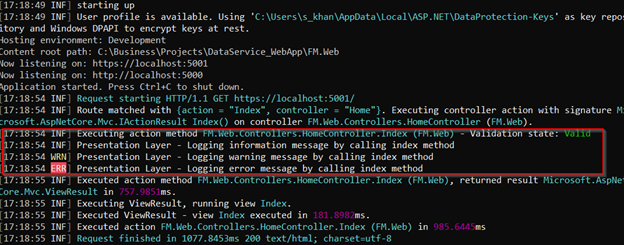
Here is the simple log message that I can write in an action method;
Logger.LogInformation("Presentation Layer - Logging information message by calling index method");
Logger.LogWarning("Presentation Layer - Logging warning message by calling index method");
Logger.LogError("Presentation Layer - Logging error message by calling index method");
Navigate to your UI project and do this;
dotnet run
Serilog output will be;
Logging with File System
You will need following additional package from NuGet;
$ dotnet add package Serilog.Sinks.File <version 3.2.0>Add this line to Program.cs file Main method;
.WriteTo.File("Logs/log-.txt", rollingInterval: RollingInterval.Day,
                   outputTemplate: "{Timestamp:yyyy-MM-dd HH:mm:ss.fff zzz} [{Level:u3}] {Message:lj}{NewLine}{Exception}")

        public static void Main(string[] args)
        {
            Log.Logger = new LoggerConfiguration()
                .Enrich.FromLogContext()
                .WriteTo.File("Logs/log-.txt", rollingInterval: RollingInterval.Day,
                   outputTemplate: "{Timestamp:yyyy-MM-dd HH:mm:ss.fff zzz} [{Level:u3}] {Message:lj}{NewLine}{Exception}")
                .WriteTo.Console()
                .CreateLogger();
A Logs folder and file with timestamp will be crated automatically. You will be able to see log in your project root directory;

Logging with SQL Server
You will need following additional package from NuGet;
$ dotnet add package Serilog.Settings.Configuration	<version 3.1.0>
$ dotnet add package Serilog.Sinks.MSSqlServer		<version 5.1.3>
We need to add following configuration in appSettings.json file for the Serilog;
//Logging configuration here
    "Serilog": {
        "ColumnOptions": {
            "addStandardColumns": [ "LogEvent" ],
            "removeStandardColumns": [ "MessageTemplate", "Properties" ],
            "timeStamp": {
                "columnName": "Timestamp",
                "convertToUtc":  false
            }
        },
        "ConnectionStrings": {
            "LogDatabase": "Data Source=MyDBServer;Initial Catalog=MyDb;Persist Security Info=True;Integrated Security=True"
        },
        "SchemaName": "dbo",
        "TableName": "MyLog"
    },
Refactor Program.cs file Main method;
public static void Main(string[] args)
        {
            var configuration = new ConfigurationBuilder()
                .SetBasePath(Directory.GetCurrentDirectory())
                .AddJsonFile("appsettings.json", optional: false, reloadOnChange: true)
                .AddJsonFile($"appsettings.{Environment.GetEnvironmentVariable("ASPNETCORE_ENVIRONMENT") ?? "Production"}.json", optional: true)
                .Build();

            Log.Logger = new LoggerConfiguration()
                .WriteTo.MSSqlServer(
                connectionString: configuration.GetSection("Serilog:ConnectionStrings:LogDatabase").Value,
                tableName: configuration.GetSection("Serilog:TableName").Value,
                appConfiguration: configuration,
                autoCreateSqlTable: true,
                columnOptionsSection: configuration.GetSection("Serilog:ColumnOptions"),
                schemaName: configuration.GetSection("Serilog:SchemaName").Value)
                .CreateLogger();
We will be deploying this in multiple environments and would like to standardized connection string. We are going to remove connection string from Serilog and going to add in ConnectionString section.
"ConnectionStrings": {
        "LogDatabase": "Data Source=myDBServer;Initial Catalog=myDB;Persist Security Info=True;Integrated Security=True",
    },
We are going to make this change in Program.cs main method;
            //var logConnectionString = configuration.GetSection("ConnectionStrings:LogDatabase").Value;
            //OR
            var logConnectionString = configuration.GetConnectionString("LogDatabase");

            Log.Logger = new LoggerConfiguration()
                .MinimumLevel.Debug()
                .WriteTo.MSSqlServer(
                    //connectionString: configuration.GetSection("Serilog:ConnectionStrings:LogDatabase").Value,
                    connectionString: logConnectionString,
                    tableName: configuration.GetSection("Serilog:TableName").Value,
                    //appConfiguration: configuration,
                    autoCreateSqlTable: true,
                    columnOptionsSection: configuration.GetSection("Serilog:ColumnOptions"),
                    schemaName: configuration.GetSection("Serilog:SchemaName").Value)
                .CreateLogger();
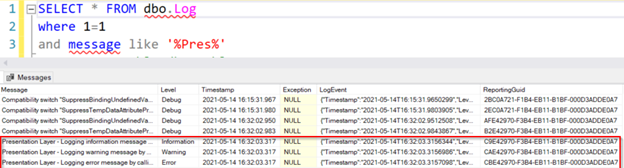
Let’s write simple message and view in Log table;
Logger.LogInformation("Presentation Layer - Logging information message by calling index method");
Logger.LogWarning("Presentation Layer - Logging warning message by calling index method");
Logger.LogError("Presentation Layer - Logging error message by calling index method");
Here is the result;
Let’s throw a divide by zero exception;
var a = 1; var b = 0;
var x = a / b;
Here is the result;

Adding Serilog to DataAccess Layer
Add Serilog core library from NuGet (Refer above)
Add Database sink from NuGet (Refer above)
Add following code to your DataAccess layer methods for logging;
using System.Reflection;
using Serilog;

protected T ExecuteCode<T>(Func<T> code)
{
   try
   {
        return code.Invoke();
   }
   catch (SqlException ex)
   {
       string error = $"Unhandled Exception in {this.GetType().Name} class while executing {MethodBase.GetCurrentMethod().Name} method";
       Log.Error(ex, "DataAccess Layer: " + error);
       throw new ApplicationException(string.Format("{0}: {1}", ex.Number, ex.Message));
    }
}
Check your database for the logging info. It should be there.
Working with DI Injection
We can consume ILogger<T> interface from the framework with the help of dependency injection without configuring it in Program.cs class. Here is an example;
public class HomeController : Controller
    {
        private readonly ILogger<HomeController> logger;

        public HomeController(ILogger<HomeController> Logger)
        {
            Logger = logger;
        }

        public IActionResult Index([FromQuery] string name)
        {
            logger.LogInformation($"Hello, {name}!", name);
        }
All we need to do is to append “?name=world” and we will have the usual output.
Minimum Logging
These are Serilog logging levels;
Verbose
Information is the noisiest level, rarely (if ever) enabled for a production app.
Debug
Debug is used for internal system events that are not necessarily observable from the outside, but useful when determining how something happened.
Information
Information events describe things happening in the system that correspond to its responsibilities and functions. Generally these are the observable actions the system can perform.
Warning
When service is degraded, endangered, or may be behaving outside of its expected parameters, Warning level events are used.
Error
When functionality is unavailable or expectations broken, an Error event is used.
Fatal
The most critical level, Fatal events demand immediate attention.
If we don’t want to log everything that framework generates, we exclude it by overriding;
using Serilog;
using Serilog.Events;

Log.Logger = new LoggerConfiguration()
                .MinimumLevel.Debug()
                .MinimumLevel.Override("Microsoft", LogEventLevel.Warning)
The effect would be to generate events only at or above the warning level when the logger is owned by a type in a “Microsoft.*” namespace. We can specify as many overrides as we needed by adding additional “MinimumLevel.Override” statements;
Log.Logger = new LoggerConfiguration()
      .MinimumLevel.Debug()
      .MinimumLevel.Override("Microsoft", LogEventLevel.Warning)
      .MinimumLevel.Override("System", LogEventLevel.Error)
This can also be configured in Json file as;
"Serilog": {
        "MinimumLevel": {
            "Default": "Debug",
            "Override": {
                "Microsoft": "Warning",
                "System":  "Error"
            }
        },
Calling Serilog.Settings.Configuration “JSON” support is a little bit misleading; it works with the Microsoft.Extensions.Configuration subsystem, so we could also control the minimum level through it by setting an environment variable called Serilog:MinimumLevel, or with overrides using Serilog:MinimumLevel:Default and Serilog:MinimumLevel:Override:Microsoft.
Following block could be the easiest way to read and override configuration;
var logConnectionString = configuration.GetConnectionString("LogDatabase");
Log.Logger = new LoggerConfiguration()
.ReadFrom.Configuration(configuration)      //read values from config file
       .WriteTo.MSSqlServer(
       	  connectionString: logConnectionString,
          tableName: configuration.GetSection("Serilog:TableName").Value,
          autoCreateSqlTable: true,   //will create table if table doesn't exists
          columnOptionsSection: configuration.GetSection("Serilog:ColumnOptions"),
       	  schemaName: configuration.GetSection("Serilog:SchemaName").Value)
 .CreateLogger();
There is a logging switch support available. Some time later in the code, if we want minimum level to be information or something else, we can get that by;
using Serilog.Core;

var loggingLevelSwitch = new LoggingLevelSwitch();
loggingLevelSwitch.MinimumLevel = LogEventLevel.Information;
Resources
https://github.com/serilog-mssql/serilog-sinks-mssqlserver
https://github.com/serilog/serilog/wiki/Getting-Started
https://stackoverflow.com/questions/64308665/populate-custom-columns-in-serilog-mssql-sink
https://benfoster.io/blog/serilog-best-practices/
https://nblumhardt.com/2016/07/serilog-2-minimumlevel-override/
https://nblumhardt.com/2014/10/dynamically-changing-the-serilog-level/
https://www.connectionstrings.com/store-and-read-connection-string-in-appsettings-json/
https://nblumhardt.com/2016/03/reading-logger-configuration-from-appsettings-json/