UDM Pro commands

List of commands to troubleshoot UDM Pro;

The best command for packet related issues is tcpdump

tcpdump <interface> -w <filename.pcap>

Most of the commands are just Linux commands. However some are unique to the UDM/UDM-P.

Cisco/EdgeOS/VyOs Command/Best descriptionUDM/UDM-P SSH Command
show versioninfo
show system hardware and installed softwareubnt-device-info summary
show cpu tempetureubnt-systool cputemp
show fan speedubnt-fan-speed
show uptimeuptime
show ip routenetstat -rt -n
show tech-support (dump a file for tech support)ubnt-make-support-file <file.tar.gz>
show ppp summerypppstats
show current userwhoami
show logcat /var/log/messages
show interface summaryifstat
show interfacesifconfig
show other Ubiquiti devices on local LAN segment (ubnt-discovery)ubnt-tools ubnt-discover
show config (wireless)cat /mnt/data/udapi-config/unifi
show DHCP leases (to NSname)cat /mnt/data/udapi-config/dnsmasq.lease
packet capturetcpdump
shutdownpoweroff
reloadreboot
show ipsec saipsec statusall
factory resetfactory-reset.sh
show system burnt in MAC addressubnt-tools hwaddr
Unifi Server commands (logs files)
show unifi server logscat /mnt/data/unifi-os/unifi/logs/server.log
show unifi server setttingscat /mnt/data/unifi-os/unifi-core/config/settings.yaml
show unifi server http logscat /mnt/data/unifi-os/unifi-core/logs/http.log
show unifi server http logs (errors)cat /mnt/data/unifi-os/unifi-core/logs/errors.log
show unifi server discovery logcat /mnt/data/unifi-os/unifi-core/logs/discovery.log
show unifi system logscat /mnt/data/unifi-os/unifi-core/logs/system.log

Tested with 1.8.3-5

To restart UDM Pro to release memory pressure without restarting, SSH and enter this;

unifi-os restart

To update udm pro software;

Start unifi shell = “unifi-os shell” and then apt update && upgrade

Resource

Click this link to see the reference.

Cloud key upgrade

Upgrading cloud key sucks but works. After upgrade log in to unifi ui. You would see blue lights back on. Disable system-d. Check if dnsmasq is working, if not try to install resloveconf package.

Enable systemd using these commands;

sudo systemctl enable systemd-resolved
sudo systemctl start systemd-resolved
sudo systemctl status systemd-resolved

Login to your cloud key and make sure its working (blue lights :))

DNS resolution will not work. The problem is pihole unbound resolution. Add these lines to /etc/resolveconf.conf

nameserver 8.8.8.8
nameserver 8.8.4.4

check the status of dnsmasq;

#disable systemd-resolved first
sudo systemctl stop systemd-resolved
sudo systemctl disable systemd-resolved
sudo systemctl status dnsmasq

If dnsmasq is running, proceed. don’t restart. reinstall pihole and restore from backup. Follow these after pihole installation (couldn’t find an easier solution);

#Reconfigure lighttpd port (for example 8080)
nano /etc/lighttpd/lighttpd.conf
#Restart lighttpd
/etc/init.d/lighttpd restart
#Change the pi-hole random password to your liking
pihole -a -p

Pi-hole has dnsmasq embedded in pihole-FTL, and a separate dnsmasq on the host is not required and causes problems as you have discovered.

sudo netstat -nltup | grep 'Proto\|:53 \|:5053 \|:5353 \|:5335 \|:8953 \|:67 \|:80 \|:471'

sudo service dnsmasq stop

sudo systemctl disable dnsmasq

sudo apt-get remove dnsmasq-base

sudo service pihole-FTL start

Pihole somehow keep existing configuration. Navigate to the URL and it should be up and running.

To re-purpose cloud key, follow this link.

Resources

https://stackoverflow.com/questions/24967855/curl-6-could-not-resolve-host-google-com-name-or-service-not-known

Setting Traefik on unRAID

This is a basic Traefik setup. Follow these steps to setup Traefik as reverse proxy on unRAID.

We will be using Traefik 2.x as reverse proxy on unRAID v 6.9.x. we will be setting up unRAID ui and Traefik dashboard to show traffic can be routed to any container running on unRAID.

DNS records configuration

We need to create DNS records, all pointing to unRAID box. We will be using unRAID default “local” domain running on 192.168.1.20. Since we own foo.com domain so our DNS records would be;

tower.local.foo.com -> 192.168.1.20
traefik-dashboard.local.foo.com -> 192.168.1.20

How and where to configure these depends on the DNS server, for example PI-HOLE etc.

Reconfiguring unRAID HTTP Port

unRAID web ui is using port 80 but Traefik will be listening on port 80. We need to reconfigure this port.

Go to Settings -> Management Access, and change HTTP port to 8080 from 80.

In case Traefik container is not working, we can always access unRAID server at http://192.168.1.20:8080.

Traefik configuration

In order to configure Trafik we will be using a mix of dynamic configuration (via Docker labels), and static configuration (via configuration files).

Place the following yml configuration files in your appdata share.

appdata/traefik/traefik.yml

api:
  dashboard: true
  insecure: true

entryPoints:
  http:
    address: ":80"

providers:
  docker: {}
  file:
    filename: /etc/traefik/dynamic_conf.yml
    watch: true

appdata/traefik/dynamic_conf.yml

http:
  routers:
    unraid:
      entryPoints:
      - http
      service: unraid
      rule: "Host(`tower.local.foo.com`)"
  services:
    unraid:
      loadBalancer:
        servers:
        - url: "http://192.168.1.20:8080/"

Make sure yml has two space indentation.

Setup Traefik Container

Go to the Docker tab in unRAID and ADD CONTAINER.
We need to fill in the following configuration:

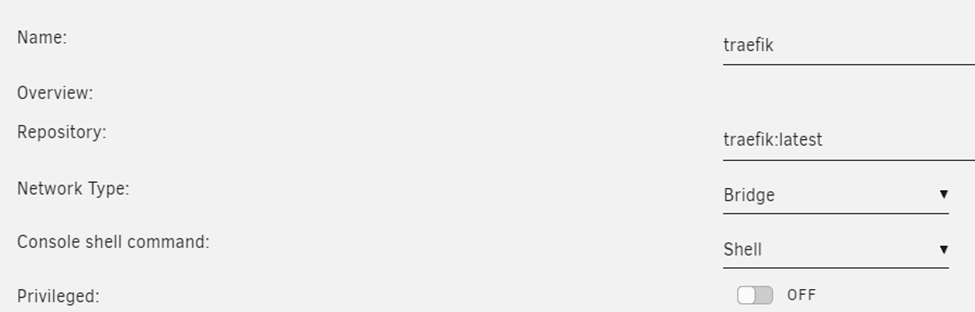
Name: traefik
Repository: traefik:latest
Network Type: bridge

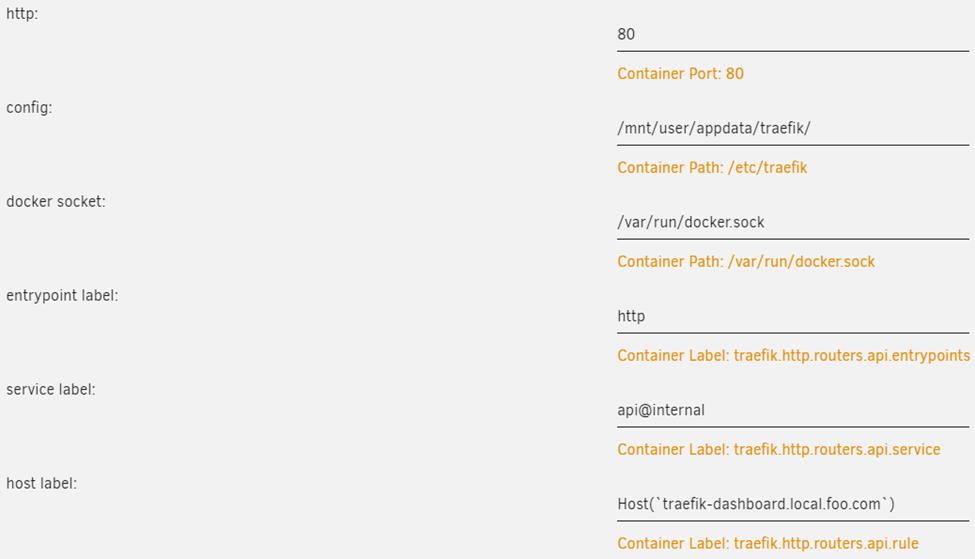
Add a port mapping from 80 → 80, so that Traefik can listen for incoming HTTP traffic.

Add a path where we mount our /mnt/user/appdata/traefik to /etc/traefik so that Traefik can actually read our configuration.

Add another path where we mount our Docker socket /var/run/docker.sock to /var/run/docker.sockRead-only is sufficient here.

This is required so Traefik can listed for new containers and read their labels, which is used for the dynamic configuration part. We are using this exact mechanism to expose the Treafik dashboard now.

Add a label
• key = traefik.http.routers.api.entrypoints
• value = http

Add another label
• key = traefik.http.routers.api.service
• value = api@internal

And a final label
• key = traefik.http.routers.api.rule
• value = Host(`traefik-dashboard.local.foo.com`)

Our container configuration should look like this;

Run container, and view container log to make sure its running. You will see something like this;

The screen will scroll with new logs. Traefik is up and running.

Open browser, we are able to access unRAID at http://tower.local.foo.com, and the Traefik dashboard at http://traefik-dashboard.local.foo.com.

Proxying any Container

In order to add another container to our Traefik configuration we simply need to add a single label to it.

Assuming we have a Portainer container running we can add a label with

  • key = traefik.http.routers.portainer.rule
  • value = Host(`portainer.local.foo.com`)

If our container is only exposing a single port, Traefik is smart enough to pick it up, and no other configuration is required.

If Portainer container would expose multiple ports, but the webUI is accessible on port 3900 we would need to add an additional label with

  • key = traefik.http.services.portainer.loadbalancer.server.port
  • value = 8080

For external hosts to take advantage of terafik, point their DNS entry to traefik host. Obviously we have to define router and services in traefik dynamic file.

Resources

https://datosh.github.io/post/unraid_reverse_traefik/

Reddit reference

DNS – NSLOOKUP what is the meaning of the non-authoritative answer?

Non-authoritative answer simply means the answer is not fetched from the authoritative DNS server for the queried domain name.

First you have to understand how DNS system works. DNS system can be divided into three tiers. They are:

  • root DNS servers
  • top-level domain DNS servers
  • authoritative DNS servers

There’s another class of DNS Server usually called local DNS server whose IP address is specified on your operating system.

When your browser connects to a website say example.com, the browser first queries your local DNS server to get the IP address of example.com.

  • If the local DNS server doesn’t have the A record of example.com, it will query one of the root DNS servers.
  • The root DNS server will say: I don’t have the A record but I know the top-level domain DNS server which is responsible for .com domains.
  • Then your local DNS server query the top-level domain DNS server which is responsible for .com domains. The TLD DNS server will respond: I don’t know either but I know which DNS server is authoritative for example.com.
  • So your local DNS server queries the authoritative DNS server. Because the actual DNS record is stored on that authoritative DNS server, so it will give your local DNS server an answer.

Then this query result is cached on your local DNS server but it can be outdated. When the TTL time has expired, your local DNS server will update the query result from the authoritative DNS server. Whenever you query a DNS record on your local DNS server, it returns a non-authoritative (unofficial) answer. If you want an authoritative answer, you must explicitly specify the authoritative DNS server when you use nslookup or other utilities. I think a local DNS server should be called caching DNS server.

When someone registers a domain name, he/she can specify which DNS server is the authoritative DNS server. This information is called an NS record. The NS record will tell a top-level domain DNS server which nameserver holds the domain’s A record, MX record, etc.

run nslookup and enter this;

The authoritative name servers for this domain are in red block.

Resource

https://serverfault.com/questions/413124/dns-nslookup-what-is-the-meaning-of-the-non-authoritative-answer