
Re-Create ESPHome encryption key

Save a text copy of your ESPHome device’s YAML source code – you’ll need it later

a) open a terminal/command-line session into your HA instance
b) cd to the esphome directory
c) cd to the .storage directory
d) remove the esphome.abcdefg123456 file corresponding to your device

e) use the grep utility to find the name of your device within the Home Assistant core.* files
f) edit the core.* files to remove the entire section corresponding to that device from these files (should be one instance in each of two or three files). save the files, exit the text editor.
g) synchronize the file system. command is ‘sync; sync;’ (not strictly necessary, just habit)

Then, in the Home Assistant web GUI:

  1. use the ESPHome page, and delete your device
  2. use the Configuration / Integrations page, remove the device from the ESPHome Integration
  3. restart your instance of Home Assistant
  4. re-create your ESPHome device

Reference

https://community.home-assistant.io/t/api-encryption-where-to-update-in-home-assistant/344576/7
Zigbee Network Analyzer

The 2.4ghz flavor of Zigbee specifically operates between 2400 – 2483.5 MHz.

Someone else on this thread said the channel width looked too big for it to be Zigbee, here’s a visual representation of what that means: https://imgur.com/a/jHVMRRd

I’ve used the WiFi Analyzer and WiFi Man apps for years and I’ve never seen either of them display any Zigbee stuff. It’s possible that there is co-channel interference with 802.11 stuff. Zigbee uses the 802.15.4 protocol though. I’d imagine that either of the apps you mentioned would need to be specifically written to look for that protocol, and run on a chipset that supports 802.15.4 communication.

If you can get a pcap of the traffic you’re seeing that you think is Zigbee, then run it through Wireshark and it should be able to tell you what protocol you’re seeing.

Read more on this link

Manually Change Home Assistant IP Address

Here is how;

Enter “Login” on HA console and press Enter.

nmcli connection show to list your connections

nmcli con show "Your Connection Name" to list the current properties of that connection

nmcli con edit "Your Connection Name" to enter edit mode for that connection

nmcli> print ipv4 will show you the ipv4 properties of that connection

To add your static IP address (select ‘yes’ for manual method);

Copy to clipboard

nmcli> set ipv4.addresses 192.168.1.10/24
Do you also want to set 'ipv4.method' to 'manual'? [yes]:

If you like, you can also edit set the dns server and local gateway while you’re here. This is important to do if you are making use of the Adguard add-on:

Copy to clipboard

nmcli> set ipv4.dns 1.1.1.1
nmcli> set ipv4.gateway 192.168.1.1
nmcli> save
nmcli> quit

Finally, you should follow this with a full reboot using

hassio ho reboot

ALTERNATIVE #1

Use this command on ha prompt;

network update enp6s18 --ipv4-method static --ipv6-method disabled --ipv4-gateway "172.16.10.1" --ipv4-address "172.16.10.10/24"

network vlan enp6s18 10 --ipv4-method static --ipv6-method disabled --ipv4-gateway "172.16.10.1" --ipv4-address "172.16.10.10/24" 

ALTERNATIVE #2

Open up the HassOS console, it won’t work thru the sandboxed ssh container.
Log in as “root”
At the ha> prompt type “login” to get to the REAL hassos
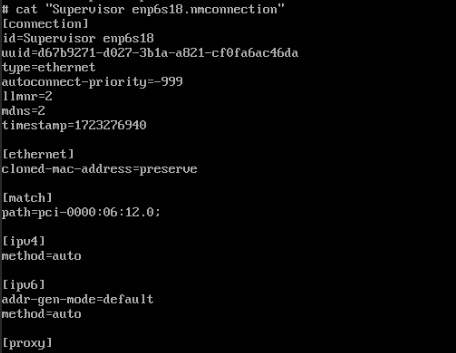
At the # prompt, cd to /etc/NetworkManager/system-connections

Then, using vi or nano editor (it only has the most basic editor it seems) you can modify the config files. I put the “original” in a folder called “hold” in case I messed up.

Reference

https://community.home-assistant.io/t/setup-vlan-and-ha-tutorial/87705/12

https://community.home-assistant.io/t/how-to-change-ip-adresse-in-cli/332205/4

How MATTER (Smart home standard) works?

All Matter-certified devices in your local area network (LAN) will work smoothly even when your home internet goes offline. Matter allows effective communication directly between devices, without the need for a specific ‘forwarding’ device. For example, a Matter smart switch or sensor can turn on/off a Matter bulb directly without being connected to a cloud service, or other specific action. Once configured, communication and control between Matter devices can be achieved directly on the local network.

https://www.wired.com/story/what-is-matter