The 2.4ghz flavor of Zigbee specifically operates between 2400 – 2483.5 MHz.
Someone else on this thread said the channel width looked too big for it to be Zigbee, here’s a visual representation of what that means: https://imgur.com/a/jHVMRRd
I’ve used the WiFi Analyzer and WiFi Man apps for years and I’ve never seen either of them display any Zigbee stuff. It’s possible that there is co-channel interference with 802.11 stuff. Zigbee uses the 802.15.4 protocol though. I’d imagine that either of the apps you mentioned would need to be specifically written to look for that protocol, and run on a chipset that supports 802.15.4 communication.
If you can get a pcap of the traffic you’re seeing that you think is Zigbee, then run it through Wireshark and it should be able to tell you what protocol you’re seeing.
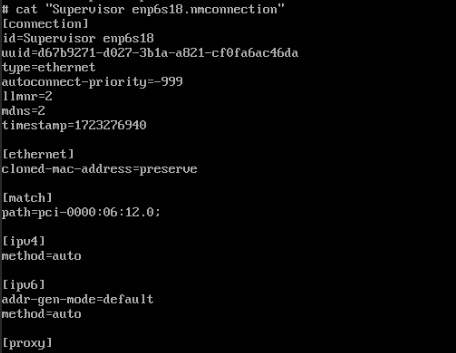
nmcli con show "Your Connection Name" to list the current properties of that connection
nmcli con edit "Your Connection Name" to enter edit mode for that connection
nmcli> print ipv4 will show you the ipv4 properties of that connection
To add your static IP address (select ‘yes’ for manual method);
Copy to clipboard
nmcli> set ipv4.addresses 192.168.1.10/24
Do you also want to set 'ipv4.method' to 'manual'? [yes]:
If you like, you can also edit set the dns server and local gateway while you’re here. This is important to do if you are making use of the Adguard add-on:
Copy to clipboard
nmcli> set ipv4.dns 1.1.1.1
nmcli> set ipv4.gateway 192.168.1.1
nmcli> save
nmcli> quit
Finally, you should follow this with a full reboot using
Open up the HassOS console, it won’t work thru the sandboxed ssh container. Log in as “root” At the ha> prompt type “login” to get to the REAL hassos At the # prompt, cd to /etc/NetworkManager/system-connections
Then, using vi or nano editor (it only has the most basic editor it seems) you can modify the config files. I put the “original” in a folder called “hold” in case I messed up.
All Matter-certified devices in your local area network (LAN) will work smoothly even when your home internet goes offline. Matter allows effective communication directly between devices, without the need for a specific ‘forwarding’ device. For example, a Matter smart switch or sensor can turn on/off a Matter bulb directly without being connected to a cloud service, or other specific action. Once configured, communication and control between Matter devices can be achieved directly on the local network.
ESPHome is a platform developed for ESP32/ESP8266 and is mainly used for Smart Home devices. ESPHome has tons of ready made configurations, libraries and examples. In 2021 Nabu Casa (Home Assistant developer company) acquired ESPHome and integrated the whole ESPHome system more deep into the Home Assistant Core. These days ESPHome can be installed directly from Home Assistant Add-On store and configured from Home Assistant UI!
Bluetooth Proxy is a gateway software that listens for ‘all’ Bluetooth traffic and forwards them to the Home Assistant instance. Basically BLE to WiFi gateway.