
We can use port 25, 465 or 587 to send emails. Azure VM port 25 is blocked by Microsoft and can only be unblocked by a request.
Tag: Labs / Experiments
How to check computer specs
On a window machine
Bring up computer Run window = Windows + R
Type this command;
systeminfo > specs.txt
Open specs.txt file in notepad.
Backup calendars and contacts in outlook
Recently I had an issue where I need to clean up my inbox in outlook. I lost all of my calendars, schedules and contacts. sometime you learn it hard way 🙂
My emails were sync with exchange service provider so they stay the safe. All I wanted to do is to backup calendars and contacts. Here is a step by step guide;
Click on File -> Open & Export -> Import/Export.
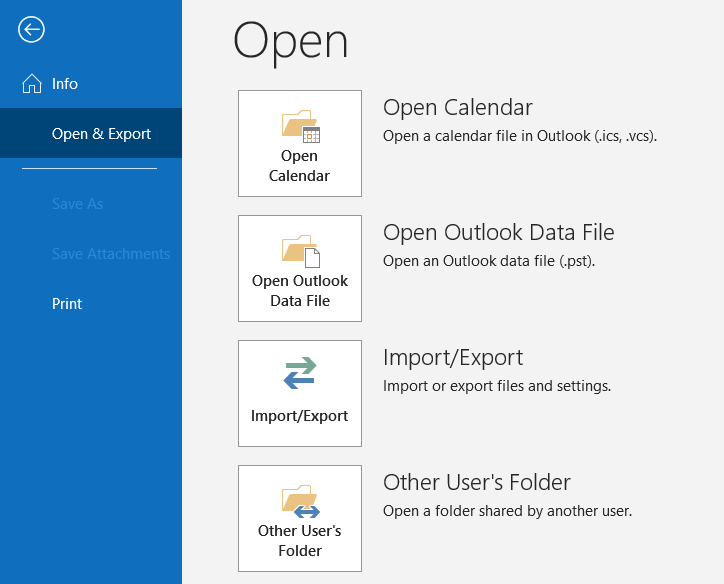
Select “Export to a file” and Click Next.
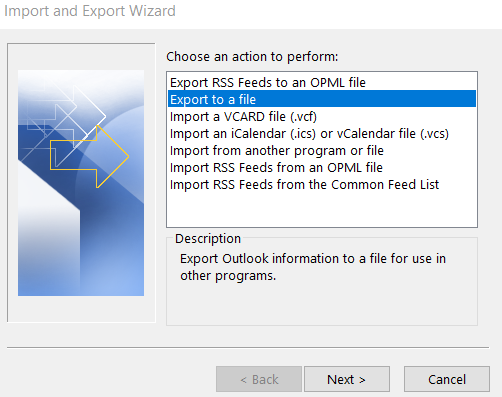
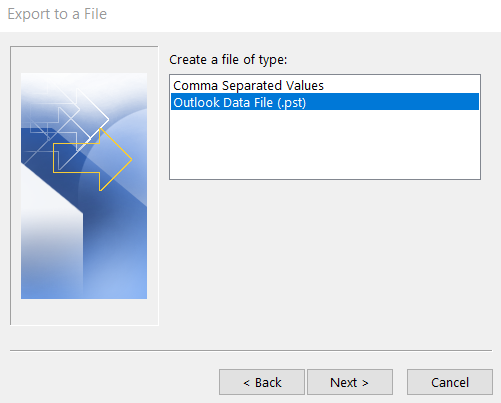
Select “Outlook Data File (.pst)” and Click Next.
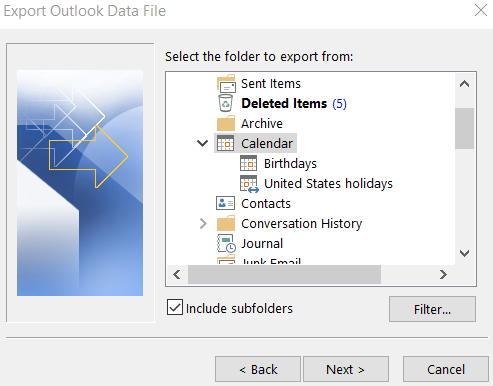
Select “Calendar” and click Next.
Select location and filename for exported file;
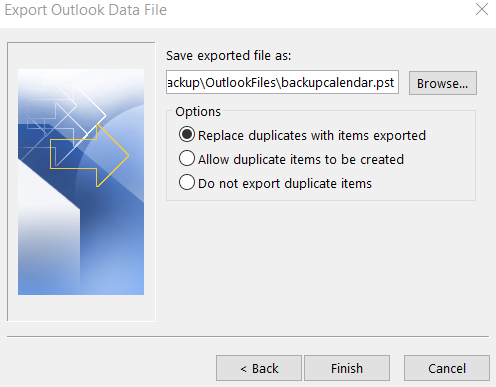
You can do the same with contacts.
Login with RDP to a Windows Azure VM using Azure AD
There are no Azure domain services provisioned. We would like to use Azure Active Directory to authenticate users in VM.
If a VM is joined by using Azure Domain Services then you don’t need to follow this article. If not, then read on.
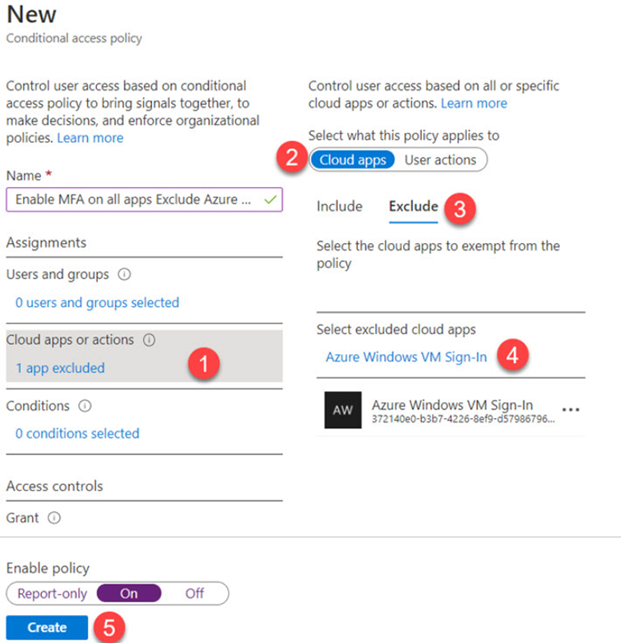
If MFA is enabled, we will need Azure AD conditional access policy that’s available in Azure Active Directory Premium P2 license. Otherwise, Azure AD login to VM from external wouldn’t work.
Why do we need Azure AD Logins?
We use Microsoft Integrated Azure Active Directory (AAD) authentication to improve the security of Windows and Linux virtual machines in Azure. This helps us to centrally control and enforce policies that allow or deny access to the VMs. Available tools on Azure like Azure role-based access control (RBAC) and Azure AD conditional Access allows to control who can access a VM remotely.
Azure VMs provisioning is simple but the challenges is how to securely manage the accounts and credential used to log in to those VMS. People often follow the risky practice of sharing admin account and password among group of people. This makes it really hard to protect production windows VM.
Microsoft has a new feature Azure AD authentication that can be used to connect Windows VM in Azure. We are going to setup a VM that can be used to access via Remote Desktop using Azure Active Directory.
I am assuming that you have;
- Azure subscription
- Azure VM running Windows Server 2019 Datacenter edition or Windows 10 version 1809 and later
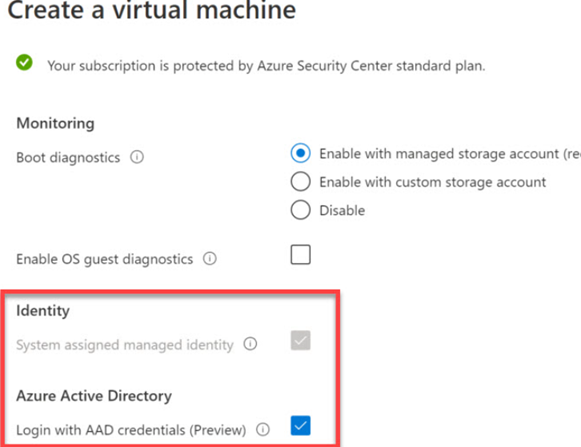
- When you create a windows virtual machine in Azure, make sure you have selected “Login with AAD credentials” in the Management blade. Once you select Login with AAD credentials, the “system assigned managed identity” will be automatically selected as shown in the figure below;
To verify that Windows virtual machine does support Azure AD Login, make sure that AAD Login extension is provisioned successfully from the virtual machine blade under Settings -> Extensions.
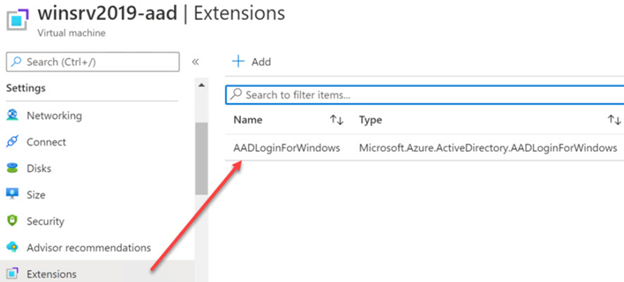
If you don’t see the extension, you can download it using Azure CLI;
az vm extension set \
    --publisher Microsoft.Azure.ActiveDirectory \
    --name AADLoginForWindows \
    --resource-group database-stg-vm-rg \
    --vm-name {yourVMName}
You can create a new Conditional Access Policy to exclude MFA requirements on Azure Windows VM Sign-in;
You need Windows 10 PC that is;
- Either Azure AD registered (starting Windows 10 20H1)
- Or Azure AD joined
- Or Hybrid Azure
- Or stored credentials in windows credential manager
to the same directory as the VM in Azure.
Following steps are needed to finalize Azure and Azure VM configuration;
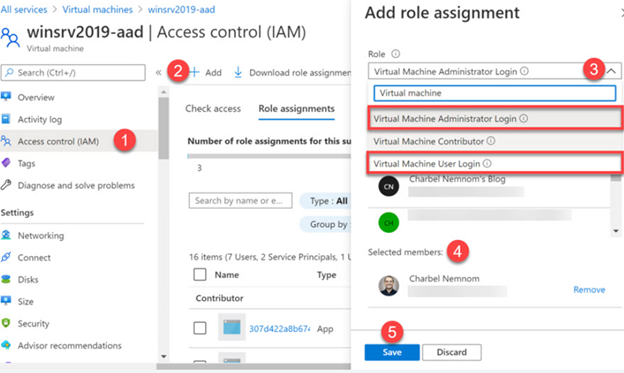
- Select Virtual machine’s blade in Azure Portal -> Windows VM -> Access Control (IAM).
- Select Role assignments -> Add -> Add role assignment
- Using Add role assignment blade, choose one role (Virtual Machine Administrator Login, Virtual Machine User Login, Virtual Machine Contributor Login).
- Choose Azure User that will have this role. You can add a Azure security group if you have multiple user’s
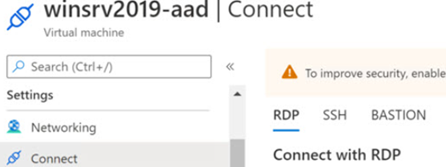
- Go to Azure VM in the Azure Portal and click Connect button. This will allow you to download RDP file. This file has Public IP address of virtual machine.
- Login to your VM using RDP file. Open Command Prompt in elevated mode and type following command;
dsregcmd /status
This command will output device and SSO state. You can read more about it here;
The output say that SSOS State for AzureADPrt is No, and the Device State for AzureAdJoined is set to YES. However the SSO State for AzureADPrt should be set to YES and not NO.

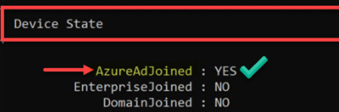
As per Microsoft, upgrade to the latest windows version will switch AzureAdPrt to YES. This did not work in this case.
A workaround. modify downloaded RDP file and add these two lines;
enablecredsspsupport:i:0
authentication level:i:2
The first command will disable CredSSP support and the next on to set the authentication level to 2. This tell the server if server authentication fails, show a warning and allow to connect/refuse.
- Open Control Panel -> System ->Remote Settings and uncheck this;
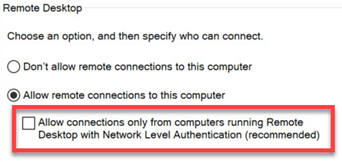
- Add Azure Users to Remote Desktop Users group in VM. This step can not be done through GUI because VM is not joined through Azure Domain Services or simply put Azure Active Directory does not exits. Open command prompt in elevated permission mode and run following command to add user/group to VM Remote Desktop users group;
net localgroup “remote desktop users” /add AzureAdusername@domain.com
You can verify Azure Users by going to Remote Desktop Users group on VM.
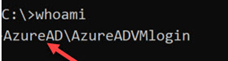
- You are ready to test your VM using RDP. Once logged-in to VM, verify its you;
whoami
Resources
https://docs.microsoft.com/en-us/azure/active-directory/devices/howto-vm-sign-in-azure-ad-windows
https://charbelnemnom.com/log-in-with-rdp-to-a-windows-azure-vm-using-azure-ad/
Manage another user (service account) credentials for network access
I have a Windows account that is used for running services (i.e. it’s not intended that any person should log in as that account). Turns out one of the services needs to access a remote network share that’s on a machine in a different Windows domain, and so needs to supply remote credentials to get to that share.
Now if it was me needing to access the remote share, I would simply open Credential Manager, and save the required credentials. But it’s not me, and my understanding of credential manager is it only saves credentials to be used by the logged in user.
I can of course solve this problem. I temporarily elevate the privileges of the service account to allow interactive logins, then I login as that user and use credential manager to store the correct remote credentials. Then I remove the interactive login privileges. But that feels very hacky and not the kind of thing I ought to be doing.
The work around is to log in with your normal user account and then run following in an elevated command prompt;
runas /user:serviceaccountname "%windir%\system32\cmdkey.exe /add:server.domain.com /user:username /pass:password"For example, if service account need permission on Azure storage then;
runas /user:yourUserName.onmicrosoft.com "%windir%\system32\cmdkey.exe /add:{storageAccountName}.file.core.windows.net /user:Azure\{storageAccountName} /pass:sharedkeyofthestorageaccount=="You will be prompted for credential. Put in your service account name and password. The credential for the service account will be stored in credential manager and you will be good to go;
Resource
https://superuser.com/questions/537697/manage-another-users-credentials-for-network-access