Angular13 and .NET 6 – Getting started

We would need to install Visual Studio 2022.

https://visualstudio.microsoft.com/

Install .NET 6 SDK

This can be downloaded either from Microsoft official URL;

https://dotnet.microsoft.com/en-us/download/dotnet/6.0

Or from the GitHub official release page;

https://github.com/dotnet/core/tree/main/release-notes/6.0

Check the SDK version by opening a command prompt;

> dotnet –help
> dot net –version

Install NVM

If we need to work with different Node.js version, we would need to install nvm.

To prepare for angular development, we would need following components;

  1. Nvm – Node Version Manager. Its is a tool that allows us to download install Node.js. It allows us to pick and choose the Node.js version.
  2. Node.js – Its is a platform for running Javascript applications.

To install node version manager for windows (nvm), click here;

https://github.com/coreybutler/nvm-windows/releases

Scroll to Assets tab and download either nvm-setup.zip or nvm-setup.exe.
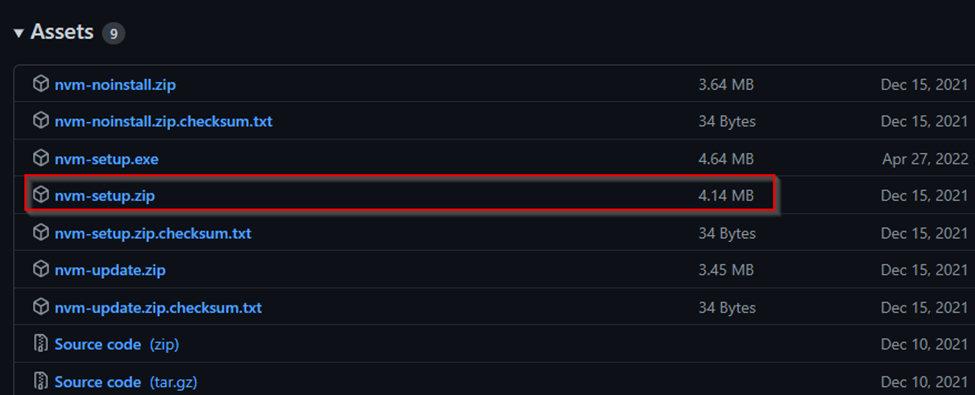
If download is for nvm-setup.zip, Unzip download zip file and run nvm-setup.exe. Select Symlink for Node.js. When finished, run this command;

> nvm –version
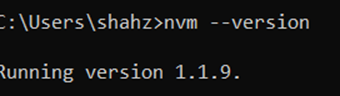
To install node.js, use this;

//installs the latest version of node.js
> nvm install latest              

//this will install specific version of node.js
> nvm install <<version number>> 

If we have multiple versions of node.js and wanted to use a specific version in our environment, try this in elevated command prompt;

> nvm use 18.8.0

Install Angular CLI;

npm is alredy installed with Visual Studio 2022 installation. Time to install Angular CLI;

> npm install -g @angular/cli@13.0.1

To install latest version of angular cli, use this;
> npm install -g @angular/cli

If there are Cert error like this;

npm error code SELF_SIGNED_CERT_IN_CHAIN
npm error request to https://registry.npmjs.org/@types%2Fjquery failed, reason: self-signed certificate in certificate chain

Then disable Strict SSL mode by running this comand (make it true when done if you want to keep strict SSL mode with Github);

npm set strict-ssl false

https://stackoverflow.com/questions/29141153/nodejs-npm-err-code-self-signed-cert-in-chain

When finished, run following command to check the version;

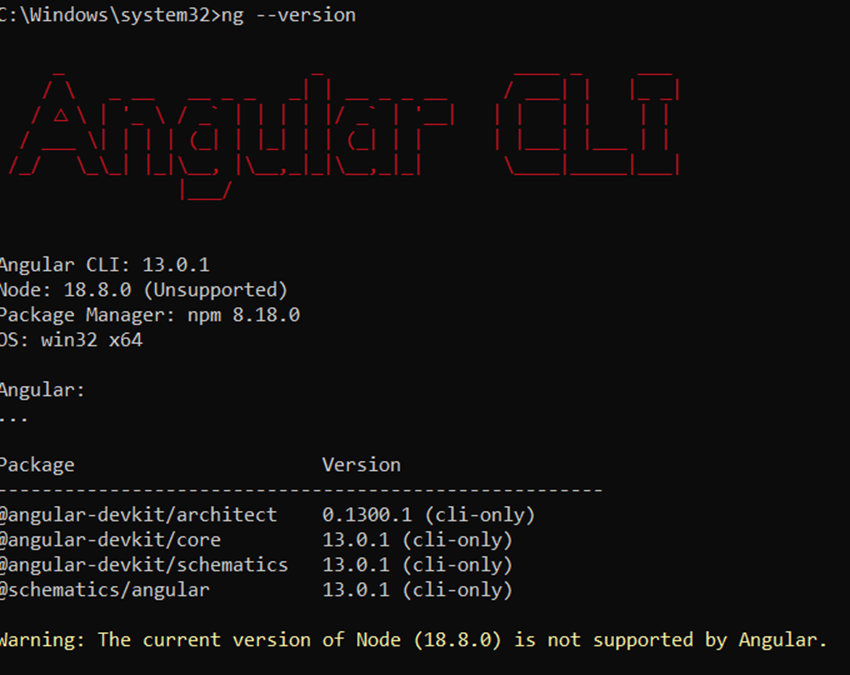
> ng –version

In my case, I got this error message;

Since I have installed node.js latest version v18.8.0 but Angular 13 doesn’t’ support this. To resolve, head to this link;
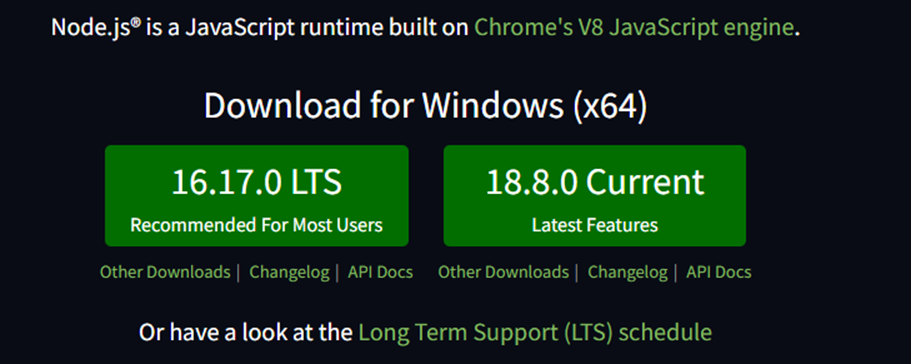
https://nodejs.org/en/

So version 16.17.0 is the LTS version. Download and use this version using nvm;

> nvm install 16.17.0
> nvm use 16.17.0

I tried to use ng –version command on my computer but it didn’t work. I needed to re-run this command for angular cli installation;

> npm install -g @angular/cli@13.0.1

restart your computer and run this command again to check Angular CLI version;

> ng --version

This time installation is successful with this message;
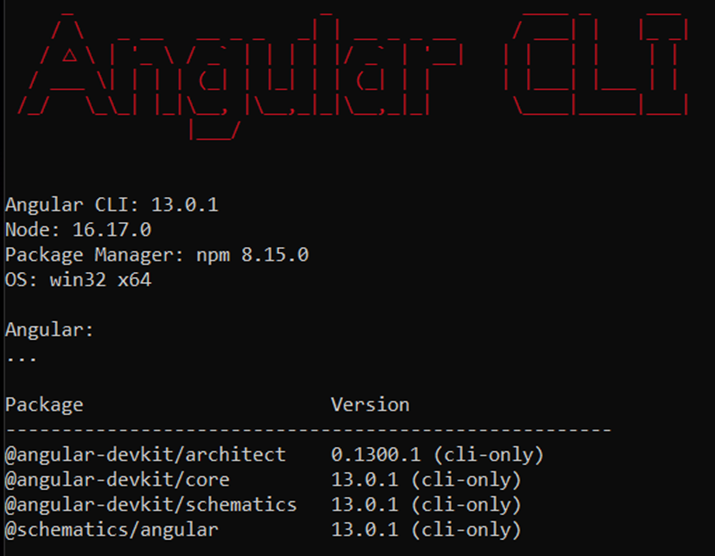
Path Variables

If nvm doesn’t work, add it to the environment variable. Press win+I on windows 11. Under About -> “Device specifications” box, click on “Advanced system settings” and select environment variables.

Add nvm.exe to “User variables for admin” section. Here are the values;
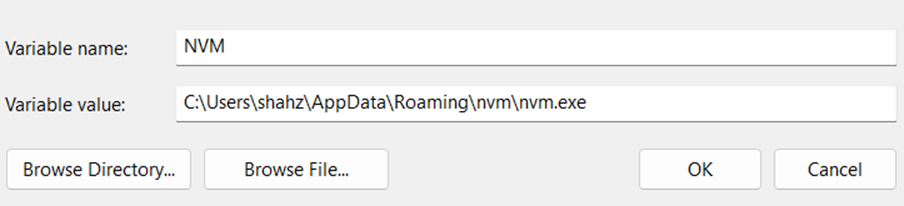
Restart your computer. Open command window and run following command any where;

> nvm --version

This should work.

Check All versions

> nvm –-version
> npm –-version
> node –version
> ng –version</p>

If all commands run successfully, We are ready to rock-n-roll with Angular 13 and .NET 6.

Creating test project using Visual Studio 2022

Microsoft has a template, ASP.NET Core with Angular, to create .NET core project with Angular. It’s a single project template with front-end and back-end project. We will not be using this template for our test project. We will create two projects, front-end and back-end and connect those projects.

Create front-end project, e.g. Foo, using “Standalone Typescript Angular Project” template. Create back-end web API project, e.g. FooAPI, within same solution. Double click on launchsettings.json file and change ports to 5001 for https and 5000 for http.

On front-end project, under /src/proxy.conf.js, make sure the port is configured to be 5001. This is the port kestrel web server is listening for incoming requests.

const PROXY_CONFIG = [
  {
    context: [
      "/weatherforecast",
    ],
    target: "https://localhost:5001",
    secure: false
  }
]

module.exports = PROXY_CONFIG;

Angular development port configuration are in /.vscode/launch.json file. If you don’t see it, it might be hidden. Usually it’s mapped to HTTPS on port 4200.

Last step is to setup startup project for this multi-project solution. Right click on solution and click on “Set startup project”. Change startup project from “single startup project” to “multiple startup projects” and select “start” for each project. Move FooAPI project on top so it can start first.

Do a quick test run of these multi-projects in Debug mode by pressing F5. Visual Studio will launch 3 process;

  1. ASP.NET Core Server (Kestral or IIS Express)
  2. Angular Live Development Server (using “ng serve” command from the Angular CLI)
  3. Web Server (Google or Edge)

We will be seeing this basic page;
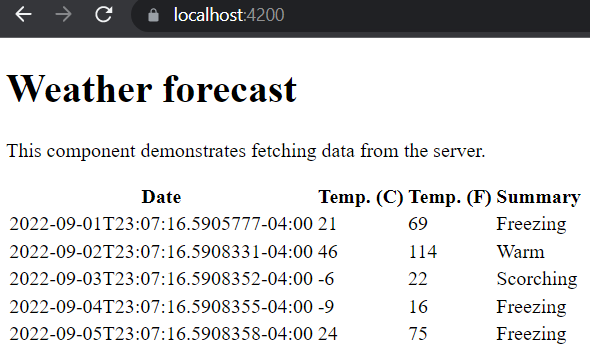
Angular component performing a simple data fetching task from ASP.NET Core Web API project. A small but good working example without any boilerplate code / extra fluff.

A sample diagram how these 3 process interact with each other;
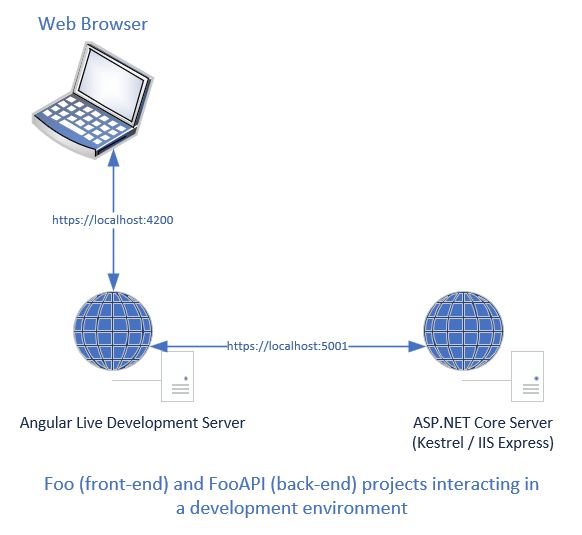
All components are working as expected.

Update Angular Version

To update angular version within project workspace, run this;

ng update @angular/core@17 @angular/cli@17

Angular version information is located in package.json. To see which application is targeting which Angular project, refer to package.json file.

If you want to uninstall Angular, follow this

Handle back-slash “\” in Razor View and JavaScript

We are passing following view bag value;

ViewBag.Alphabets = "a\\b\\c";

We are retrieving this value in JavaScript in Razor view;

console.log('@ViewBag.Alphabets');

JS Output
console.log('a\b\c');

Console Output
a_c

Where did the “\” goes? Since this is a part of escape characters so JS automatically removes “\\” and replaced it with “_”. “\b” is a metacharacter so it’s gone as well.

We can fix it by using Replace command on ViewBag.

console.log('@ViewBag.Alphabets.Replace("\\", "\\\\")');

JS Output
console.log('a\\b\\c;');

Console Output
a\b\c

References

https://www.tutorialspoint.com/escape-characters-in-javascript

Pass data to controller using jQuery

We want to pass some data from jQuery to ASP.NET Core / MVC. We have an action method “AddEmployee” in Home controller and we want to pass input values to the controller.

$(document).ready(function () {
        $("#btnSave").click(function () {
            var formData = new FormData();
            //Reading text box values using Jquery)
            formData.append('Name', $("#txtName").val(); 
            formData.append('City',$("#txtAddress").val());
            formData.append('Address',$("#txtcity").val());
            $.ajax(
            {
                type: "POST", //HTTP POST Method
                url: "Home/AddEmployee", // Controller/View 
                //url: '@Url.Action("AddEmployee", "Home")',
                data: { //Passing data
                    formData
                },
                //cache: false,
                //processData: false,
                //contentType: false,

                success: function (data) {
                    alert("success...any incoming data");
                },
                failure: function (data) {
                    alert("failure....");
                }
            });
        });
    });

Alternatively we can have seperate functions for success and failure actions;

function btnSaveSuccess(data)
{
  alert('success');
}

function btnSaveFailure(data)
{
  alert('failure');
}

We can call these functions in btnSave main function sucess/failure blocks.

To work with jQuery we need to reference of jQuery library .You can use following CDN jQuery libraryfrom any provider such as Microsoft,Google or jQuery .

<script src="https://ajax.googleapis.com/ajax/libs/jquery/1.11.3/jquery.min.js"></script> 

To use jQuery library you need an active internet connection , You can download and use it as offline .You need to be add reference as like below.

<script src="~/Scripts/jquery-1.10.2.min.js"></script>

Access to XMLHttpRequest from origin has been blocked by CORS policy…

I did a Web API deployment in Azure Web API service. I was able to access the URL in browser and Postman. I started getting following error when I try to integrate in ASP.NET Web App in my local development environment;

Access to XMLHttpRequest at ‘https://xyz-dev.azurewebsites.net/api/Authentication/GetTestUser?name=testuser’ from origin ‘http://localhost:17686’ has been blocked by CORS policy: Response to preflight request doesn’t pass access control check: No ‘Access-Control-Allow-Origin’ header is present on the requested resource.

jquery.js:9172          GET https://xyz-dev.azurewebsites.net/api/Authentication/GetTestUser?name=testuser net::ERR_FAILED

To solve the problem, I did this;

Here is server-side (Web API) code;

Add following to Web API ConfigureServices method;

public void ConfigureServices(IServiceCollection services)
{
    services.AddCors(op =>
    {
       op.AddPolicy("AllOrigin", builder => builder.AllowAnyOrigin().AllowAnyMethod().AllowAnyHeader());
    });
}

Add following to Web API Configure method;

public void Configure(IApplicationBuilder app, IWebHostEnvironment env, ILoggerFactory loggerFactory)
{
      //-------use cords
      app.UseCors("AllOrigin");
}

Here is client-side AJAX call.

<input type="button" id="btnWebApiCall" name=" btnWebApiCall" value="Test CORS" class=" btn btn-primary btn-lg justify-content-center" />

@section Scripts
    {

    <script>

        $(document).ready(function () {

            $("#btnAuthenticateSSO").click(function (e) {
                e.preventDefault();
                $.ajax({
                    type: "GET",
                    url: "https://xyzapi-dev.azurewebsites.net/api/Authentication/GetTestUser?name=testuser",
                    contentType: "application/json; charset=utf-8",
                    //crossDomain: true,
                    dataType: "json",
                    success: function (data, status, xhr) {
                        alert(JSON.stringify(data));
                        console.log(data);
                    }, //End of AJAX Success function
                    error: function (xhr, status, error) {
                        alert("Result: " + status + " " + error + " " + xhr.status + " " + xhr.statusText);
                    } //End of AJAX error function

                });
            });

        });

    </script>

}

The pain is gone.

If interested in learning more about this, read below;

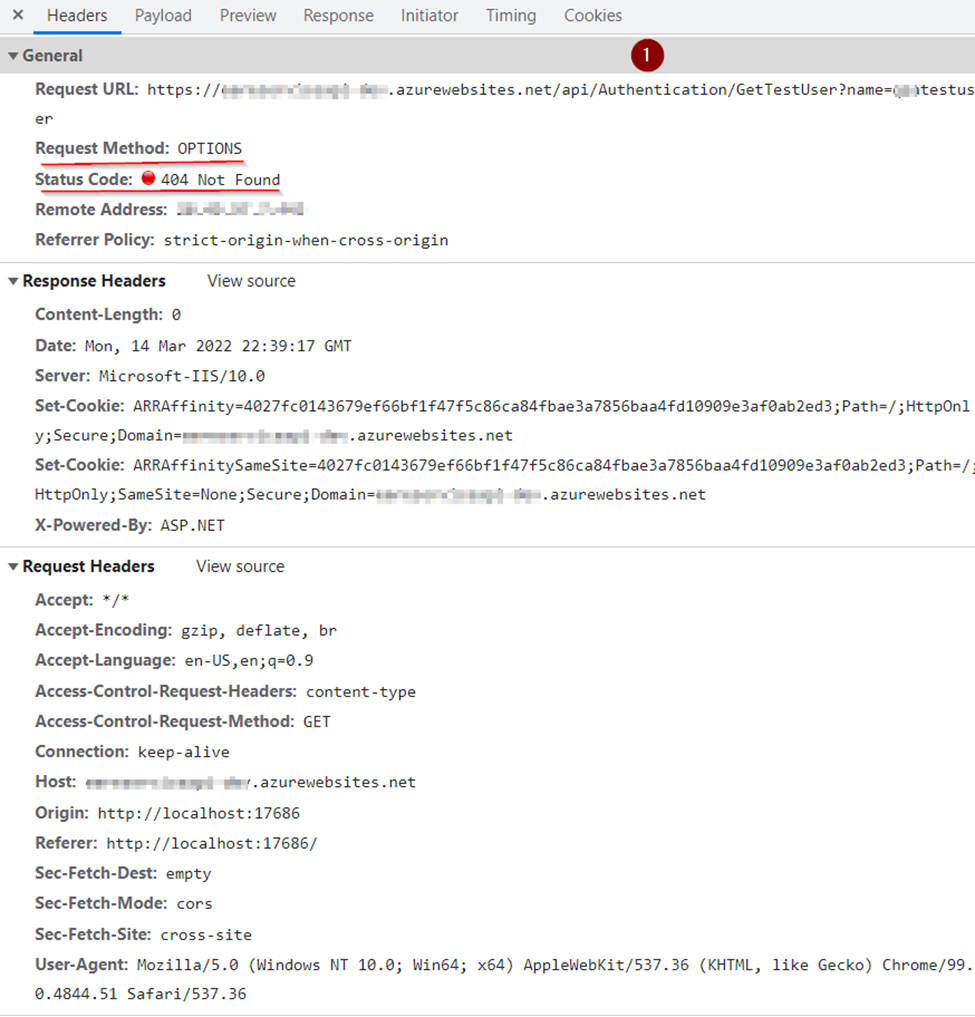
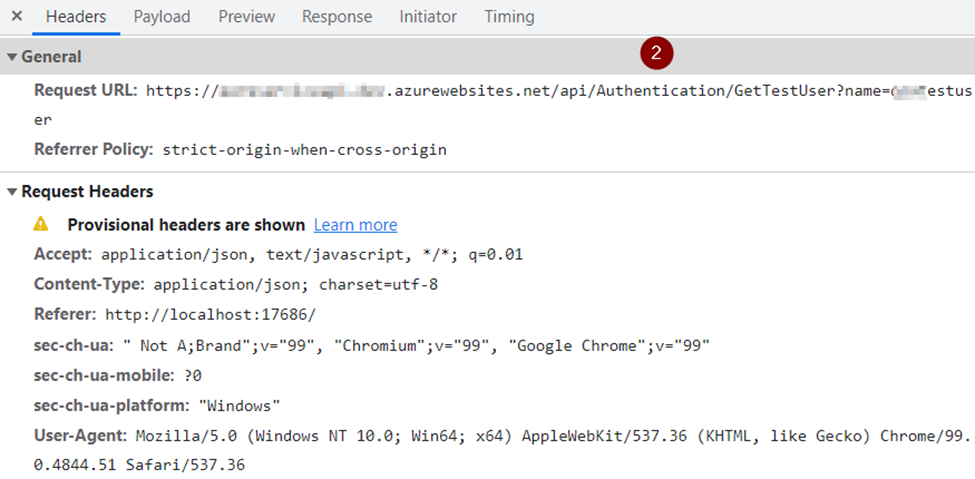
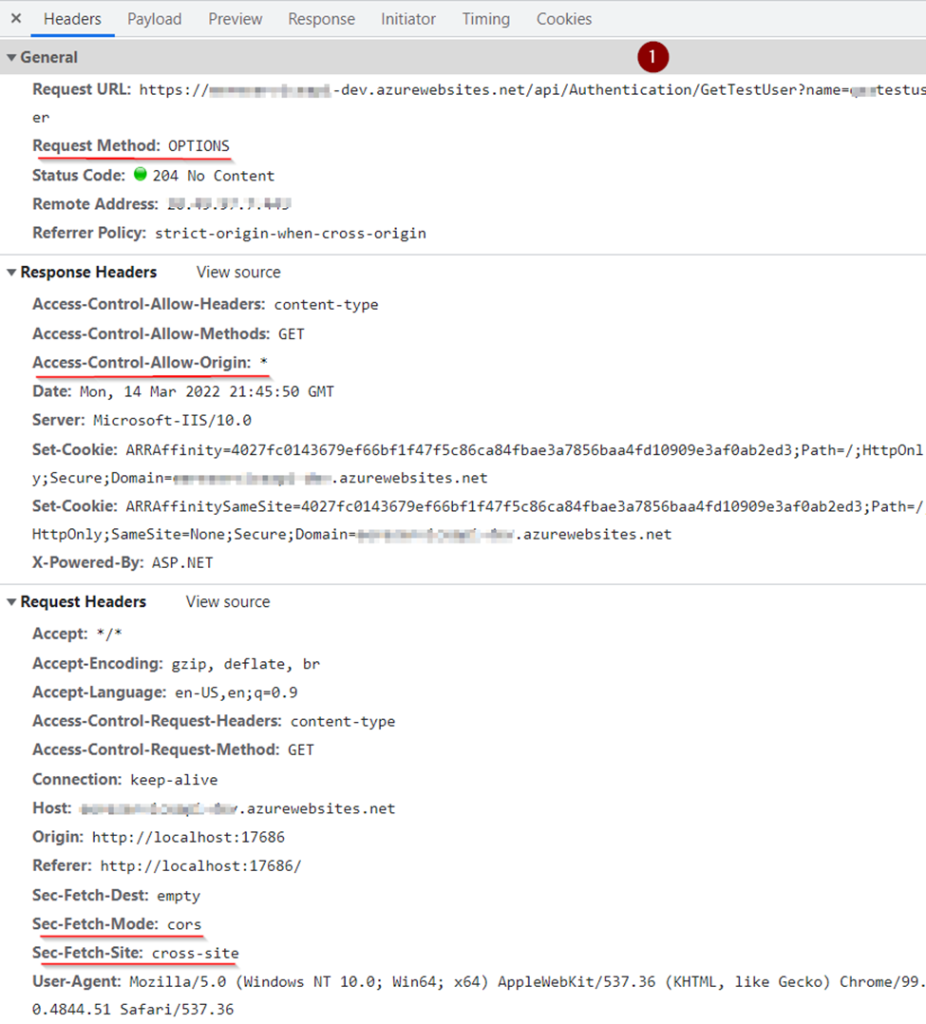
Researched and figured out that browser sends two requests to the server. Tiny request and actual request.

The browser sends a tiny request called a preflight request before the actual request. It includes details such as the HTTP method used and whether any custom HTTP headers are present. The preflight allows the server to see how the actual request would appear before it is sent. The server will then tell the browser whether or not to submit the request, or whether to return an error to the client instead.

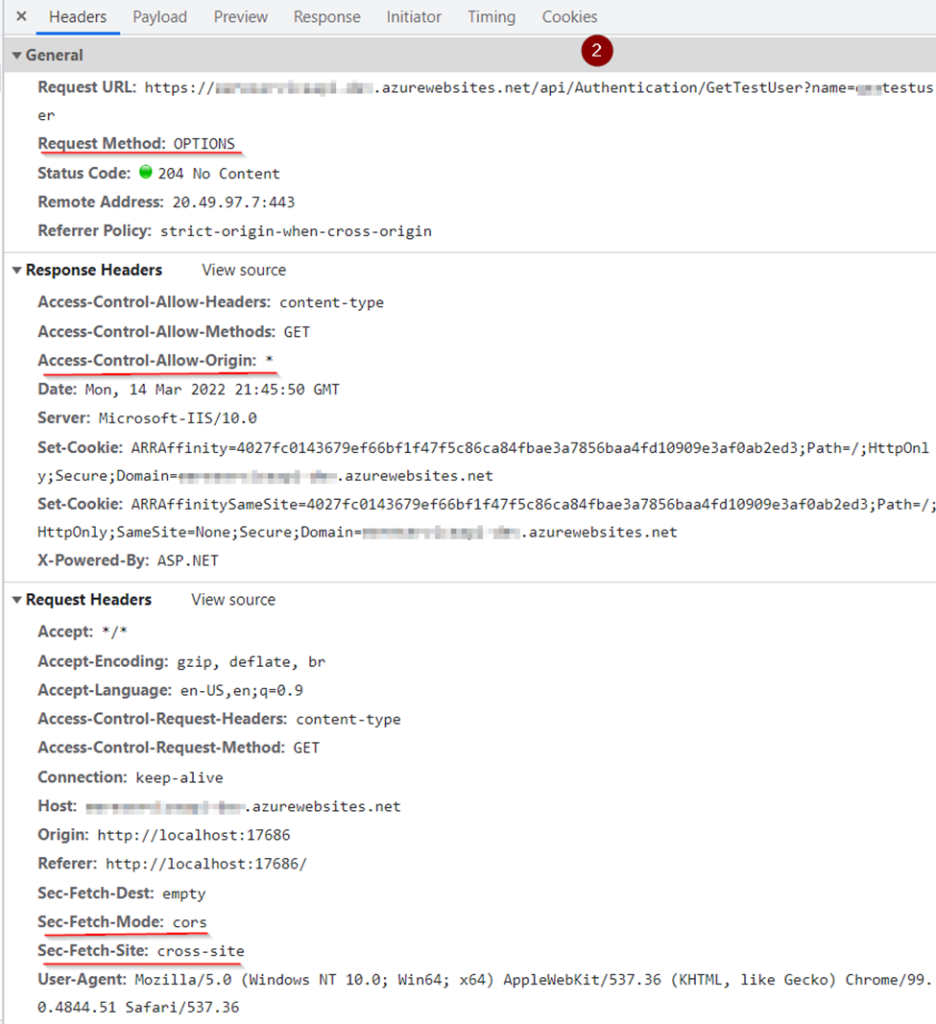
See below for problem header without CORS and with CORS in web API;

Headers without CORS implementation in Web API (Problem);

Headers with CORS implementation in Web API (Problem solved);

A simple Get request make these two requests;

Resources

https://medium.com/easyread/enabling-cors-in-asp-net-web-api-4be930f97a5c

https://stackoverflow.com/questions/31942037/how-to-enable-cors-in-asp-net-core

JavaScript frequently used functions

This is a handy reference for frequently used JavaScript functions;

Shorten the console log

Instead of writing console.log() again and again in code, we can bind it;

//tired of typeing console.log. shorten it
    const log = console.log.bind(document);
    log("does it works?");
    log("yes");

Merge two arrays into one

If you want to merge two arrays of any size into a single array you can use the concate JavaScript function.

//merge two arrays
    const array1 = ["one", "two", "three"]
    const array2 = ["four", "five", "six"]

    const merged = array1.concat(array2)
    console.log(merged)
    //Output:
    //(6) ['one', 'two', 'three', 'four', 'five', 'six']

Merge two objects into one

If you working with objects you can merge them together with this simple trick.

//merge two objects into one
    const user = {
        name: "Shahzad",
        gender: "Male"
    };
    const artcile = {
        title: "Born on the Fourth of July",
        publishDate: "12/14/2021"
    };
    const summary = {...user, ...artcile}
    console.log(summary)
    //Output:
    /*
    gender: "Male"
    name: "Shahzad"
    publishDate: "12/14/2021"
    title: "Born on the Fourth of July"
    */

Shorten an array

There exist an easy way for web developers to shorten an array. You need to use the length method and pass a number that is smaller than the actual array size.

//shorten an array
    const big_array = ["one", "two", "three", "four", "five", "six"]
    big_array.length = 3
    console.log(big_array)
    //Output:
    //(3) ['one', 'two', 'three']

Shuffle an array

Sometimes you want to randomize the values within an array. To achieve this you can use the Array.sort function with a random compareFunction.

//shuffle an array
    const array = ["one", "two", "three", "four", "five", "six"]
    array.sort( function(){ return Math.random() - 0.5})
    console.log('shuffling array')
    console.log(array)

Use isNum to verify a number

With this function, you can check whether a value or variable is a number (int, float, etc) or not.

//use isNum to verify Number
    function isNum(n) {return !isNaN(parseFloat(n)) && isFinite(n);}

    console.log(isNum(4125))        //true
    console.log(isNum(50))          //true
    console.log(isNum("jQuery"))    //false

Use isStr to verify a string

With this function, you can check whether a value or variable is in string format or not.

//use isStr to verify string
    const isStr = value => typeof value === 'string';

    console.log(isStr("jQuery"))    //true
    console.log(isStr(4125))        //false
    console.log(isStr(true))        //false

Use isNull

Often it is useful to check if a result or data is null.

//use isNull
    const isNull = value => value == null || value === undefined;

    console.log(isNull(null))   //true
    console.log(isNull())       //true
    console.log(isNull(123))    //false
    console.log(isNull("s"))    //false

Calculate the performance of a function

If you want to check how long a function runs you can use this approach in your program.

//Calculate the performance of a function
    const start = performance.now();
    //business program
    const end = performance.now();
    const total = start - end
    console.log("function takes " + total + " milisecond");

Remove duplicates from an array

We often encounter an array with duplicated data in it and use a loop to remove those duplicates. This function can remove duplicates in an easy way without using a loop.

//Remove duplicates from an array
    const duplicate_array = array => [...new Set(array)]
    console.log(duplicate_array([
        "One", "Two", "Three", "Two", "Four",
        "One", "Two", "Three", "Two", "Five",
        "Three", "One", "Four", "Two", "Five"]))

    //Output:
    //(5) ['One', 'Two', 'Three', 'Four', 'Five']

Use logical AND/OR for conditions

Instead of using an if-condition, you can use a logical AND/OR. This can be used within a function for executing commands.

//Use logical AND/OR for conditions
    const input = 2
    input == 4 && console.log("it is 4")
    input == 4 || console.log("it is not 4")

    //can also be used for assigning values
    function defaultTo4(arg) {
        arg = arg || 4; //arg will have 4 as a default value if not set
        console.log(arg)
    }
    let arg1 = 2
    let arg2 = null
    defaultTo4(arg1)    //2
    defaultTo4(arg2)    //4

Ternary operator

The ternary operator is just cool. You can avoid bad-looking nested conditional if..elseif..elseif with ternary operators.

//Ternary operator
    function temperature(temp){
        return (temp > 39 || temp < 35.5) ? 'Stay home'
        : (temp < 37.5 && temp > 36.5) ? 'Go out and play'
        : (temp <= 39 && temp >= 35.5) ? 'Take some rest'
        : ''
    }

    console.log(temperature(38))    //take some rest
    console.log(temperature(36))    //take some rest
    console.log(temperature(39.1))  //Stay home
    console.log(temperature(35.1))  //Stay home
    console.log(temperature(37))    //Go out and plan

Resources

https://docs.microsoft.com/en-us/javascript/