Azure Security and Encryption

Azure Active Directory is used for access controls. Azure AD can be used stand-alone. It offers Single sign-on, MFA, providing identities to services.

Encryption is the process of making data unreadable and unusable to unauthorized viewers. To read encrypted data, it must be decrypted, which requires the use of a secret key. There are two top-level types of encryption: symmetric and asymmetric. Symmetric encryption uses the same key to encrypt and decrypt the data.

Asymmetric encryption uses a public key and private key pair. Either key can encrypt but a single key can’t decrypt its own encrypted data. To decrypt, you need the paired key. Asymmetric encryption is used for things like Transport Layer Security (TLS), used in HTTPS.

By default, Azure encrypt/decrypt file storage data. It’s transparent to the user. Azure SQL Database used Transparent data encryption. It performs real-time encryption/decryption of the database at rest without requiring changes to the application. It’s enabled by default. TDE uses symmetric key called database encryption key. By default, Azure provides a unique encryption key per logical SQL server instance and handles all the details.

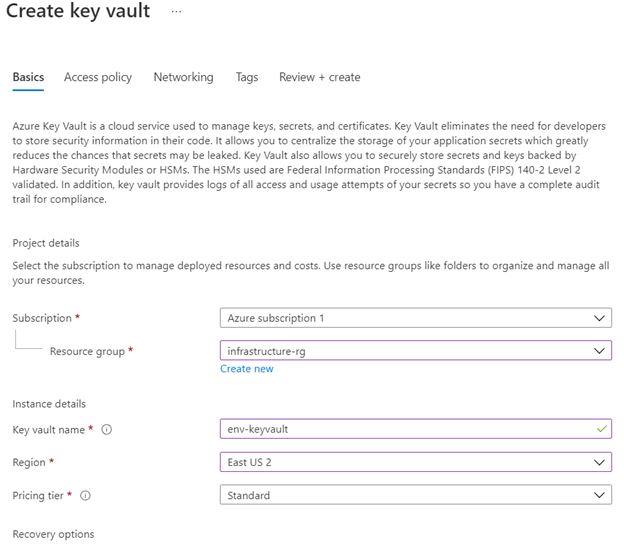
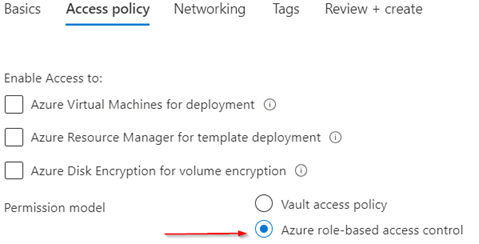
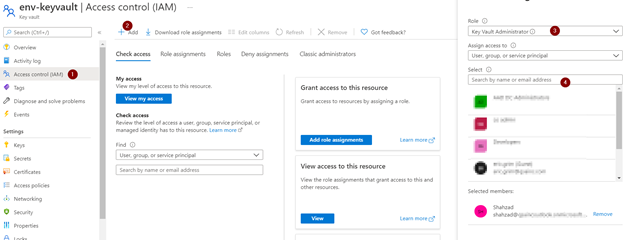
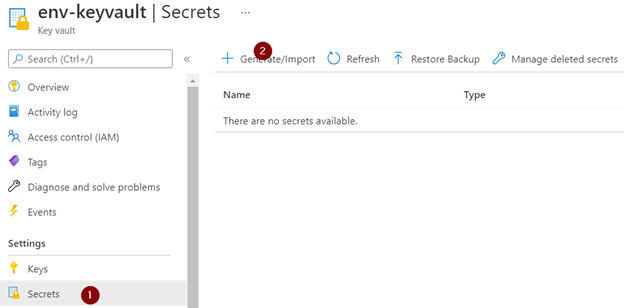
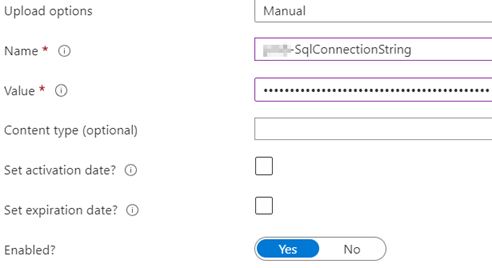
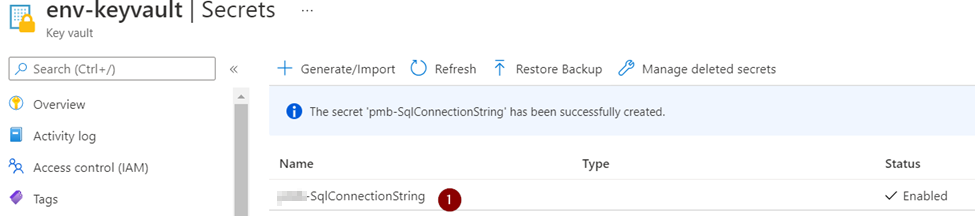
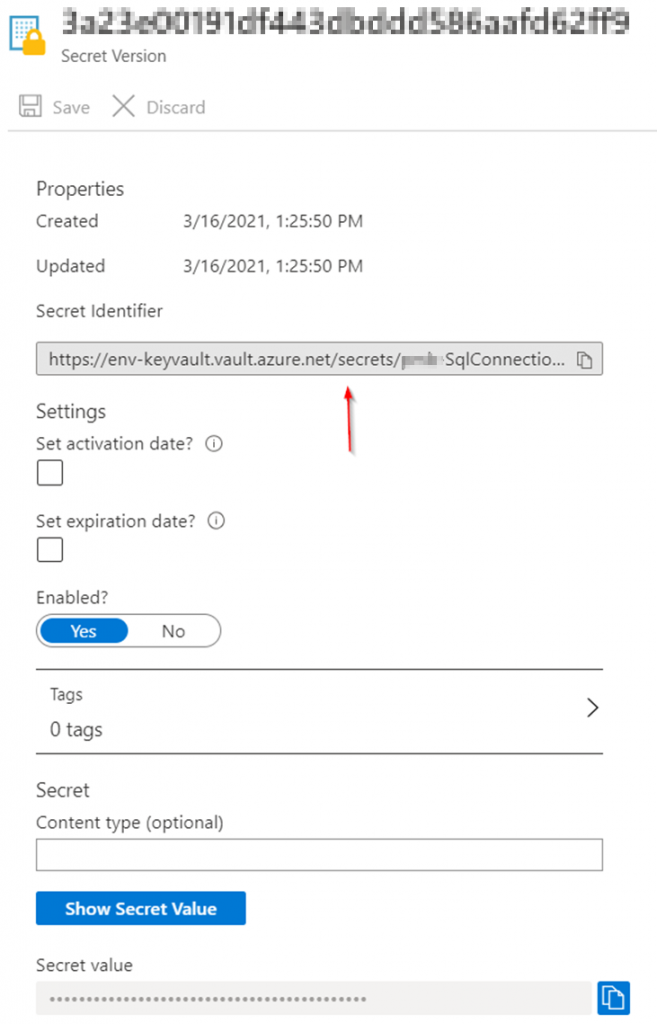
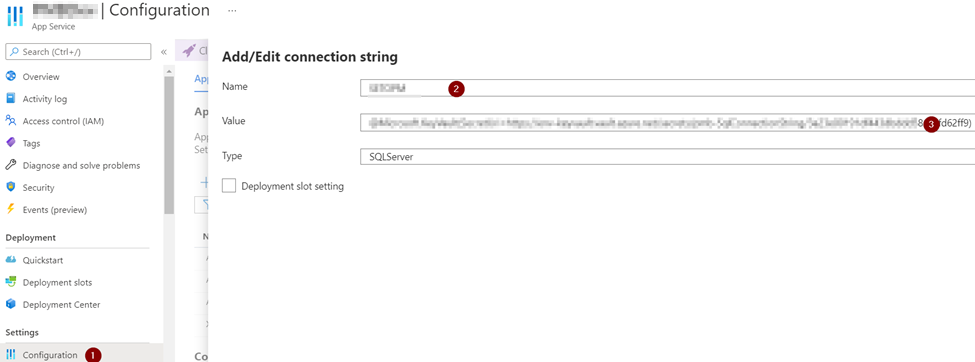
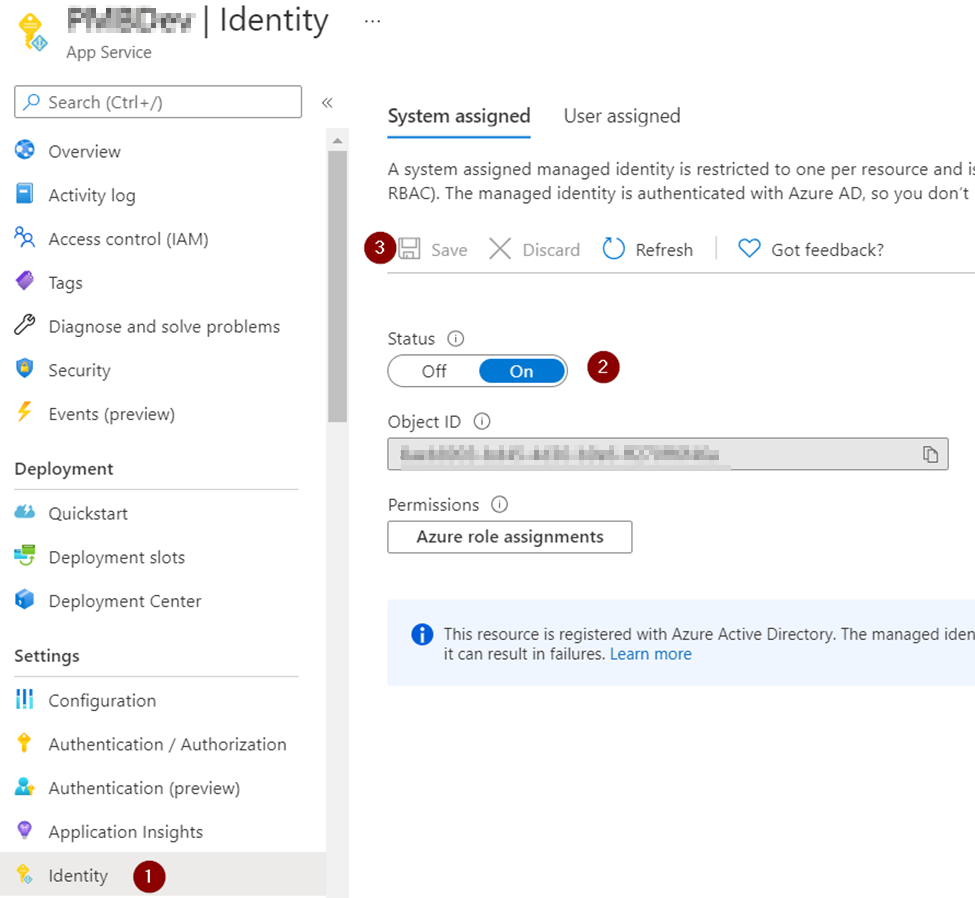
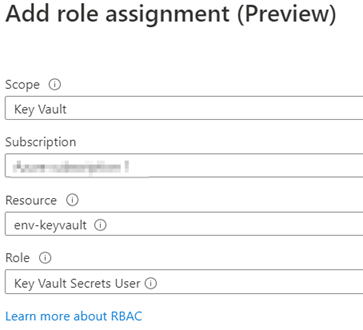
Azure key vault is used to keep application secrets.

Azure Security Monitor. Monitoring service that provides threat protection across all of your services. Azure Security Center is offered on Standard tier subscription. It’s $15 per node per month.

Does Azure commercial follow FEDRAMP guidelines?

This is the first question that will always be asked if you are setting up Azure for a client that works with government.

Both Azure and Azure Government uses same security controls. They are accessed and authorized at the FedRAMP high impact level. Azure Government provides an additional layer of protection to customers to screened US persons. This is used to store and process data subject to US export control regulation’s such as EAR, ITAR, and DoE 10 CFR Part 810.

Refer to this Microsoft article for details;

https://azure.microsoft.com/en-us/blog/all-us-azure-regions-now-approved-for-fedramp-high-impact-level/

Take time to see which environments meet your needs.  Many people are surprised at how robust the Azure [commercial] compliance space is.  https://www.microsoft.com/en-us/trustcenter/compliance/complianceofferings

Resources;

Single database and Managed Instance comparison

Just out of curiosity, here is top level comparison; first one is managed instance, second one is Single database;

Top level comparison;

Databases level comparison;

System level databases;

Single database has just master database;

master database object layout

System level security

Single database does not have these root level objects;

Server Objects, Replication, Management, SQL Server Agent, XEvent Profiler

Integration Services Catalogs doesn’t exists on both services. Azure Data Factory integration services need to be provisioned to create SSIS database under Integration Services Catalogs.

Reporting services does not exists here. Power BI integrated Reporting services needs to be provisioned.

Cheapest Development Environment for Azure Kubernetes Service

I am trying to setup cheapest development environment for Azure Kubernetes journey. I am provisioing this service in East US so all prices are in USD;

az aks create –name myakscluster

This will bring up Standard_DS2_v2 node that cost $106.58 at the time of this writing.

I like to drop it a smaller VM. AKS specification are that every AKS cluster will have at minimum one node pool and node pool require a VM SKU of at least 2 vCPUs and 4GM memory. The cheapest VM at that configuration is Standard_B2s that cost about $30.37.

–node-count 1 –node-vm-size Standard_B2s

AKS uses a Load Balancer and by default the Standard sku @ ~$30/month will be selected. The Basic sku is free, but the Load Balancer sku cannot be changed once the cluster has been created, so we must set it at time of creation.

–load-balancer-sku basic

Disk size defaults to 100GB which for this VM is a Premium SSD p10 @ 19.79/month. Minimum disk size is 30 so we’ll choose the 32GB p4 @ $1.54/month.

The cheapest cluster power shell is;
az aks create -n myakscluster \
–node-count 1 \
–node-vm-size Standard_B2s \
–load-balancer-sku basic \
–node-osdisk-size 32

Hope, this will save some money on compute, storage and networking during development.

How to Read blob file from Microsoft Azure Storage with .NET Core

In order to read a blob file from a Microsoft Azure Blob Storage, you need to know the following:

  • The storage account connection string. This is the long string that looks like this:
    DefaultEndpointsProtocol=https;
    AccountName=someaccounfname;
    AccountKey=AVeryLongCrypticalStringThatContainsALotOfChars==
  • The blob storage container name. This is the name in the list of “Blobs”.
  • The blob file name. This is the name of the blob inside the container. A file name can be in form of a path, as blobs are structured as a file structure inside the container. For ecample: folder/folder/file.extension

You also need this NuGet package:

Windows.Azure.Storage

The code is pretty simple:

using Microsoft.WindowsAzure.Storage;
using Microsoft.WindowsAzure.Storage.Blob;
 
public string GetBlob(string containerName, string fileName)
{
  string connectionString = $"yourconnectionstring";
 
  // Setup the connection to the storage account
  CloudStorageAccount storageAccount = CloudStorageAccount.Parse(connectionString);
   
  // Connect to the blob storage
  CloudBlobClient serviceClient = storageAccount.CreateCloudBlobClient();
  // Connect to the blob container
  CloudBlobContainer container = serviceClient.GetContainerReference($"{containerName}");
  // Connect to the blob file
  CloudBlockBlob blob = container.GetBlockBlobReference($"{fileName}");
  // Get the blob file as text
  string contents = blob.DownloadTextAsync().Result;
   
  return contents;
}

The usage is equally easy:

GetBlob(“containername”, “my/file.json”);