Secure Azure Key Vault

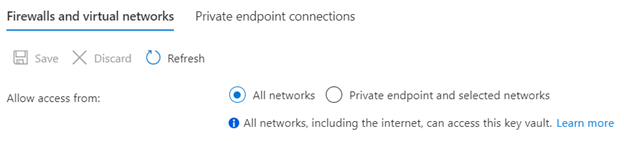
Security is key factor in your operational consistency. You might have a Azure Key Vault configured like this;

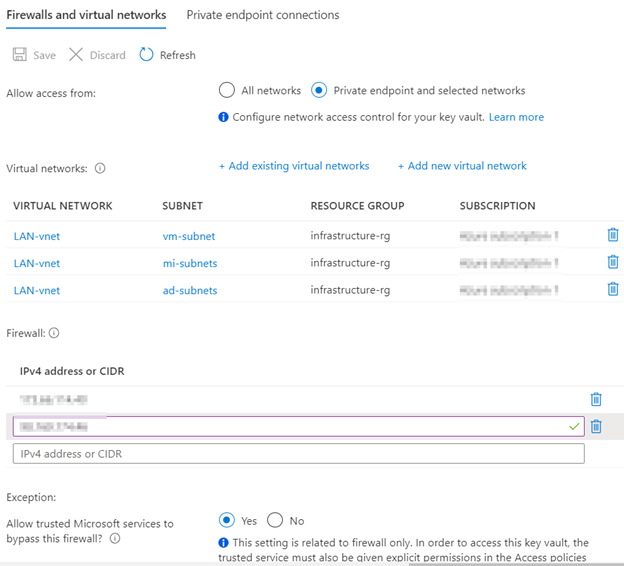
Click on “Private endpoint and selected networks”. Click on “Add existing virtual networks” to allow communication between internal network.

This setting will enable internal services to access key vault. The selected internet facing IPv4 addresses will have access to key vault resource.

Azure Key Vault with Azure Apps

I am going to create and configure Azure key vault in this demo. I am assuming that an app services has already been provisioned. We need to make a configuration change for SQL connection so that Key Vault secret can be used without touching the application code.

Provision the Azure Key Vault

For this demo, I am going to use new permission model that is based on Azure role-based access control (RBAC).

I am leaving it as Public endpoint to match the App service configuration.

Click on Review + Create button to start the deployment.

Once created, add yourself to the role “Key Vault Administrator” via the Access Control (IAM). Now you can start managing secrets.

Add the connection string to the Key Vault secrets.

Secret type (Upload options) “Manual”, give it a name and set the value to the SQL Database connection string to your Azure SQL or Azure SQL VM.

Click on Create. Once created, click on the secret to see the secret details, then click again on the current version.

Copy Secret Identifier to your clipboard.

Add the Secret identifier reference to the Azure App Service Settings

Open the App Service configuration settings, and ad a new Connection string setting.

Type the name of the connection string (“SqlConnectionString” for application) and set the value. You can use the same name that you have used in appsettings.json file. Set the value;

@Microsoft.KeyVault(SecretUri=VALUE_FROM_CLIPBOARD)

Click on Save to save the app settings.

Allow the App Service to access the Key Vault

On the App Service, click on Identity to enable the System Assigned identity. Click on save after turning “On” the status.

Click on the “Role Assignments” button and then click on the “Add role assignment”. In the role assignment, choose scope “Key Vault”, subscription the subscription where you created the Key Vault on previous steps and the name of the Key Vault resource. For the role just select “Key Vault Secrets User (preview)”

You can go to the appsettings.json/web.config file of your application and clear the connection string value;

Visit your website and see if it loads successfully. The connection string is safely stored in the Azure Key Vault, and it’s no longer stored on the file system.

Known issues

ERROR: You might get an error “Keyword not supported: ‘@microsoft.keyvault(secreturi'”. I have experienced that the RBAC permissions can take a one or two minutes to be applied, so try after a few minutes. Also try restarting the application thought the App Service portal so nothing is cached.

another error might be this;

ERROR: Format of the initialization string does not conform to specification starting at index 0.

Check your connection string. it has spaces or is not right.

Resources

https://docs.microsoft.com/en-us/azure/key-vault/general/security-overview

https://docs.microsoft.com/en-us/azure/key-vault/secrets/quick-create-portal

https://docs.microsoft.com/en-us/azure/key-vault/general/developers-guide

https://docs.microsoft.com/en-us/samples/azure-samples/key-vault-node-getting-started/quickstart-set-and-retrieve-a-secret-from-azure-key-vault-using-a-node-web-app/

Azure Virtual Network concepts and best practices

This article describes key concepts and best practices for Azure Virtual Network (VNet) .

VNet concepts

  • Address space: When creating a VNet, you must specify a custom private IP address space using public and private (RFC 1918) addresses. Azure assigns resources in a virtual network a private IP address from the address space that you assign. For example, if you deploy a VM in a VNet with address space, 10.0.0.0/16, the VM will be assigned a private IP like 10.0.0.4.
  • Subnets: Subnets enable you to segment the virtual network into one or more sub-networks and allocate a portion of the virtual network’s address space to each subnet. You can then deploy Azure resources in a specific subnet. Just like in a traditional network, subnets allow you to segment your VNet address space into segments that are appropriate for the organization’s internal network. This also improves address allocation efficiency. You can secure resources within subnets using Network Security Groups. For more information, see Network security groups.
  • Regions: VNet is scoped to a single region/location; however, multiple virtual networks from different regions can be connected together using Virtual Network Peering.
  • Subscription: VNet is scoped to a subscription. You can implement multiple virtual networks within each Azure subscription and Azure region.

Best practices

As you build your network in Azure, it is important to keep in mind the following universal design principles:

  • Ensure non-overlapping address spaces. Make sure your VNet address space (CIDR block) does not overlap with your organization’s other network ranges.
  • Your subnets should not cover the entire address space of the VNet. Plan ahead and reserve some address space for the future.
  • It is recommended you have fewer large VNets rather than multiple small VNets. This will prevent management overhead.
  • Secure your VNet’s by assigning Network Security Groups (NSGs) to the subnets beneath them.

Next steps

To get started using a virtual network, create one, deploy a few VMs to it, and communicate between the VMs. To learn how, see the Create a virtual network quickstart.

Resources;

https://docs.microsoft.com/en-us/azure/virtual-network/concepts-and-best-practices

Hosting multiple domains under one app service

I am looking at taking our product page gallery and hosting it under multiple domains but keeping it with one app service so it is easy to deploy updates across these multiple domains. The code for this site would handle the UI change based on the domain.

Would hosting a simple app service and just adding multiple CNAME records be the best option for this? How many CNAME records can you have for one app service and how many SSL certificates?

https://docs.microsoft.com/en-us/answers/questions/117338/hosting-multiple-domains-under-one-app-service.html

I understand how to add multiple domains to a web app. What if I have say 100+ other company domains that I want to reference to the same webapp. These companies would create their own subdomains to point to this website the example is.

https://discovery.company1.com
https://discovery.company2.com
https://discovery.company3.com
….

I would assume I would need to host a separate SSL for each company and connect each CNAME. I am more just concerned I would hit a block after so many of these added to the same web app or wondering if there is a better option I should use in Azure if anyone knows of.

Azure App service allows 500 Custom domains per app that will be over this limit.

Read about X.509 certificates

Azure SQL Databases

There are two core models when creating Azure SQL database as PaaS service; DTU and vCore.

DTU is a blend of CPU, Memory, Reads and Writes. A database with 5 DTU will perform better than a database with 1 DTU.

vCore is more robust and feels similar to the on-prem environments. Here you get the option of choosing the Cores.

Databases have varying requirements depending on the workload. Microsoft offers three different instance options;

Single Database deployment

The hosting option create a single database deployment, with dedicated management via an SQL Database server. Being Single, each database is fully isolated and portable across Azure platform.

Single database can also be moved in and out of “elastic pool”, allowing for better resource distribution with multiple database instances.

This instance uses DTU purchasing model for billing. A DTU is the convergence of vCores, RAM and IOPS into a standardized measure for benchmarking and billing database instances. They can be used to figure out the cost by using DTU calculator.

Single instances are best suited to businesses running applications that require a resource guarantee at the database level.

Elastic pool

An elastic pool offers a convenient, cost-effective option for maintaining multiple databases. With multiple databases, there is some unpredictability with how much computational power is needed. For this reason, pooled resources can offer better performance, and value for money.

There are four service tiers but I just looked at two; Serverless and DTU.

Serverless

The serverless compute tier for single database is an autoscaling and auto pause delay service. The cost is summation of compute and storage.

Auto pausing is trigger, if number of sessions = 0 or CPU = 0 for use workload running in the user pool. Auto resuming is triggered when a user login. Auto pausing delay could be 1 hour, max is 7 days.

This is only supported in the General-Purpose tier on Gen5 hardware in vCore purchasing model.

This tier is price-performance optimized with intermittent, unpredictable usage pattern that can afford some delay in compute warm-up after idle usage periods.

DTU (Database Transaction Units)

The most common one is a Single database option. DTU is a blend of CPU, Memory, Reads and Writes and a database having 5 DTUs will perform 5 times better than another database having just 1 DTU.. When selecting DTU, A normal conversation between Developer and IT Pro is;

Developer = I’d like a database server

IT Pro = ok, how much CPU do you need?

Developer = average…whatever the normal is

IT Pro = uh…ok, how many IOPS do you need?

Developer = what’s IOPS?

At the end, either too many or too few resources are provided and no one is happy. DTU take the metrics that determine the performance of a database and mush them together in a measure that we can use to abstract and compare performance.

What should I choose for dev/test?

We may be able to run our dev\test database on the Basic tier (5DTU $5/month) or the Standard S0 tier (10DTU $15/month), or maybe it would make more sense to put them all in a 50DTU elastic pool ($112/month). For production we’ll probably start out with a Standard S3 for our main DB and a Standard S0 or S1 for our auditing DB. Then depending on the loads scale them back or possibly put them in an Elastic Pool together.

The Basic tier is incredibly limited. It’s good for occasional/casual use, and it’s a cheap way to “park” your database when you aren’t using it. But if you’re running any real application, the Basic tier isn’t going to work for you.

The Standard Tier is pretty limited, too, but for small applications it’s capable of meeting your needs. If you have a 2-core server running a handful of databases, then those databases individually might fit into the Standard tier. Similarly, if you have a server with only one database, running 1 CPU core at 100% (or 2 cores running at 50%), it is probably just enough horsepower to tip the scale into the Premium-P1 service tier.

What is DTU? This simple way to understand DTU is;

When we build a SQL server box, we go with CPU count, some amount of RAM, storage configuration for enough IOPS for workload. When you jump to Azure, it’s call DTU. DTU is a blend of CPU, Memory, and Storage (Reads and Writes). A database with 5 DTU will perform better than a database with 1 DTU.

IOPS = Input/Output operations per second (IOPS)

Resources

https://dtucalculator.azurewebsites.net/

https://docs.microsoft.com/en-us/azure/azure-sql/database/serverless-tier-overview