
ChatGPT Answer to Home Assistant

This is funny;

So you decided to install Home Assistant, huh? Congratulations on your new full-time job as a “smart home systems integrator,” where your main responsibility is praying your Wi-Fi doesn’t decide to take a nap.

Welcome to the world where your light switches will now have more complicated relationships than your friends on Facebook. It’s like your house got a PhD in neediness, and now every single device has its own personality disorder.

You wanted a smart home, and instead, you got a *high-maintenance* home. Your lights flicker like they’re at a rave because the latest update decided your firmware wasn’t moody enough. Speaking of updates, every time there’s a new one, it’s like rolling the dice—will your home be smarter or will you spend the next 48 hours trying to figure out why your fridge thinks it’s a speaker?

Oh, and that dashboard you spent hours customizing? Hope you enjoy re-doing it from scratch every time Home Assistant decides to “improve” its interface. But hey, at least you’ll always know what your neighbor’s Wi-Fi signal is, because your automations will probably connect to that by mistake, just for fun.

But sure, it’s totally worth it, right? I mean, who wouldn’t want to control their lights from their phone in three extra steps instead of just flipping a switch like a normal person? Welcome to the future, where your house is smarter than you—and knows it.

So you’ve committed to Home Assistant, the one platform that turns your home into a glorified science project. You know, because life wasn’t already complicated enough. Now you get to explain to guests why your “smart” house has a nervous breakdown every time someone tries to turn on a light manually.

Home Assistant is like that friend who knows everything but never shuts up about it—constantly needing your attention for updates, bug fixes, or just because it decided to forget how to connect to your TV. Want to dim the lights? Better hope you remembered the exact YAML syntax, or you’ll be sitting in the dark, googling “why won’t my smart lights work?”

And speaking of YAML, who doesn’t love a configuration language where a single misplaced space can ruin your entire weekend? It’s like you’re coding for NASA, but the mission is just getting your thermostat to not go haywire at 3 AM. You’ve basically become a full-stack developer just to turn off your porch light.

Let’s not forget about the *joy* of adding new devices. Every time you introduce a new gadget, it’s like bringing home a new pet, except this one speaks a different language and might randomly decide to stop working out of sheer spite. But sure, it’s super convenient when it’s all working perfectly—which is approximately never.

So go ahead, pour another cup of coffee, because you’re going to need it to stay awake through another night of debugging automations that worked perfectly fine until you dared to breathe in the same room as your router. Your home may be smart, but you? You’re just tired.
Re-Create ESPHome encryption key

Save a text copy of your ESPHome device’s YAML source code – you’ll need it later

a) open a terminal/command-line session into your HA instance
b) cd to the esphome directory
c) cd to the .storage directory
d) remove the esphome.abcdefg123456 file corresponding to your device

e) use the grep utility to find the name of your device within the Home Assistant core.* files
f) edit the core.* files to remove the entire section corresponding to that device from these files (should be one instance in each of two or three files). save the files, exit the text editor.
g) synchronize the file system. command is ‘sync; sync;’ (not strictly necessary, just habit)

Then, in the Home Assistant web GUI:

  1. use the ESPHome page, and delete your device
  2. use the Configuration / Integrations page, remove the device from the ESPHome Integration
  3. restart your instance of Home Assistant
  4. re-create your ESPHome device

Reference

https://community.home-assistant.io/t/api-encryption-where-to-update-in-home-assistant/344576/7

Zigbee Network Analyzer

The 2.4ghz flavor of Zigbee specifically operates between 2400 – 2483.5 MHz.

Someone else on this thread said the channel width looked too big for it to be Zigbee, here’s a visual representation of what that means: https://imgur.com/a/jHVMRRd

I’ve used the WiFi Analyzer and WiFi Man apps for years and I’ve never seen either of them display any Zigbee stuff. It’s possible that there is co-channel interference with 802.11 stuff. Zigbee uses the 802.15.4 protocol though. I’d imagine that either of the apps you mentioned would need to be specifically written to look for that protocol, and run on a chipset that supports 802.15.4 communication.

If you can get a pcap of the traffic you’re seeing that you think is Zigbee, then run it through Wireshark and it should be able to tell you what protocol you’re seeing.

Read more on this link

Manually Change Home Assistant IP Address

Here is how;

Enter “Login” on HA console and press Enter.

nmcli connection show to list your connections

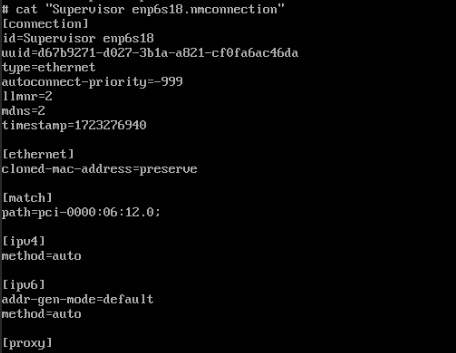
nmcli con show "Your Connection Name" to list the current properties of that connection

nmcli con edit "Your Connection Name" to enter edit mode for that connection

nmcli> print ipv4 will show you the ipv4 properties of that connection

To add your static IP address (select ‘yes’ for manual method);

Copy to clipboard

nmcli> set ipv4.addresses 192.168.1.10/24
Do you also want to set 'ipv4.method' to 'manual'? [yes]:

If you like, you can also edit set the dns server and local gateway while you’re here. This is important to do if you are making use of the Adguard add-on:

Copy to clipboard

nmcli> set ipv4.dns 1.1.1.1
nmcli> set ipv4.gateway 192.168.1.1
nmcli> save
nmcli> quit

Finally, you should follow this with a full reboot using

hassio ho reboot

ALTERNATIVE #1

Use this command on ha prompt;

network update enp6s18 --ipv4-method static --ipv6-method disabled --ipv4-gateway "172.16.10.1" --ipv4-address "172.16.10.10/24"

network vlan enp6s18 10 --ipv4-method static --ipv6-method disabled --ipv4-gateway "172.16.10.1" --ipv4-address "172.16.10.10/24" 

ALTERNATIVE #2

Open up the HassOS console, it won’t work thru the sandboxed ssh container.
Log in as “root”
At the ha> prompt type “login” to get to the REAL hassos
At the # prompt, cd to /etc/NetworkManager/system-connections

Then, using vi or nano editor (it only has the most basic editor it seems) you can modify the config files. I put the “original” in a folder called “hold” in case I messed up.

Reference

https://community.home-assistant.io/t/setup-vlan-and-ha-tutorial/87705/12

https://community.home-assistant.io/t/how-to-change-ip-adresse-in-cli/332205/4