Practical insights from real-world engineering experience
Category: DevOps & Cloud
All about code tracking and management for example, Azure DevOPS branching and merging, Release management, Continuous integration (CI) and Continuous deployment (CD).
Upgrading cloud key sucks but works. After upgrade log in to unifi ui. You would see blue lights back on. Disable system-d. Check if dnsmasq is working, if not try to install resloveconf package.
Login to your cloud key and make sure its working (blue lights :))
DNS resolution will not work. The problem is pihole unbound resolution. Add these lines to /etc/resolveconf.conf
nameserver 8.8.8.8
nameserver 8.8.4.4
check the status of dnsmasq;
#disable systemd-resolved first
sudo systemctl stop systemd-resolved
sudo systemctl disable systemd-resolved
sudo systemctl status dnsmasq
sudo systemctl status dnsmasq
If dnsmasq is running, proceed. don’t restart. reinstall pihole and restore from backup. Follow these after pihole installation (couldn’t find an easier solution);
#Reconfigure lighttpd port (for example 8080)
nano /etc/lighttpd/lighttpd.conf
#Restart lighttpd
/etc/init.d/lighttpd restart
#Change the pi-hole random password to your liking
pihole -a -p
Pi-hole has dnsmasq embedded in pihole-FTL, and a separate dnsmasq on the host is not required and causes problems as you have discovered.
This is a basic Traefik setup. Follow these steps to setup Traefik as reverse proxy on unRAID.
We will be using Traefik 2.x as reverse proxy on unRAID v 6.9.x. we will be setting up unRAID ui and Traefik dashboard to show traffic can be routed to any container running on unRAID.
DNS records configuration
We need to create DNS records, all pointing to unRAID box. We will be using unRAID default “local” domain running on 192.168.1.20. Since we own foo.com domain so our DNS records would be;
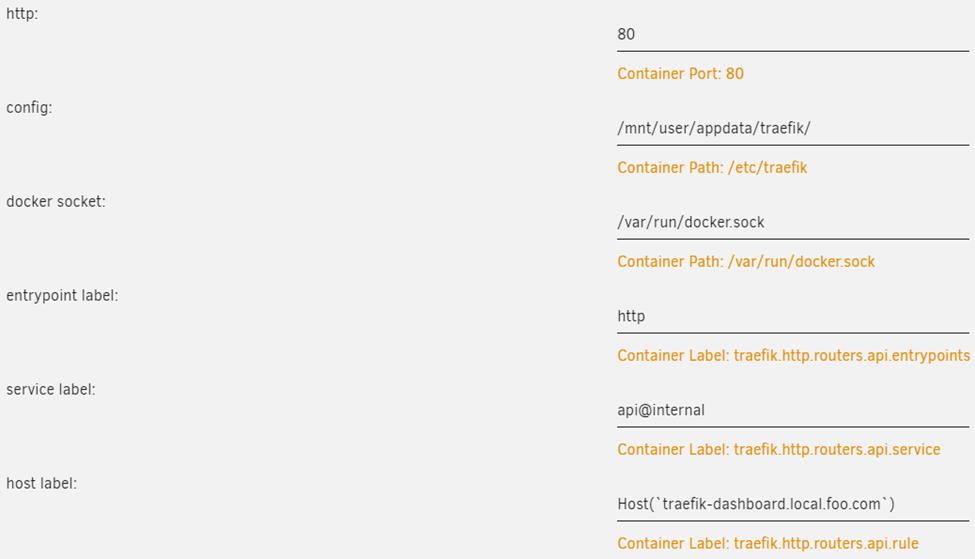
Add a port mapping from 80 → 80, so that Traefik can listen for incoming HTTP traffic.
Add a path where we mount our /mnt/user/appdata/traefik to /etc/traefik so that Traefik can actually read our configuration.
Add another path where we mount our Docker socket /var/run/docker.sock to /var/run/docker.sock. Read-only is sufficient here.
This is required so Traefik can listed for new containers and read their labels, which is used for the dynamic configuration part. We are using this exact mechanism to expose the Treafik dashboard now.
Add a label
• key = traefik.http.routers.api.entrypoints
• value = http

Add another label
• key = traefik.http.routers.api.service
• value = api@internal

And a final label
• key = traefik.http.routers.api.rule
• value = Host(`traefik-dashboard.local.foo.com`)
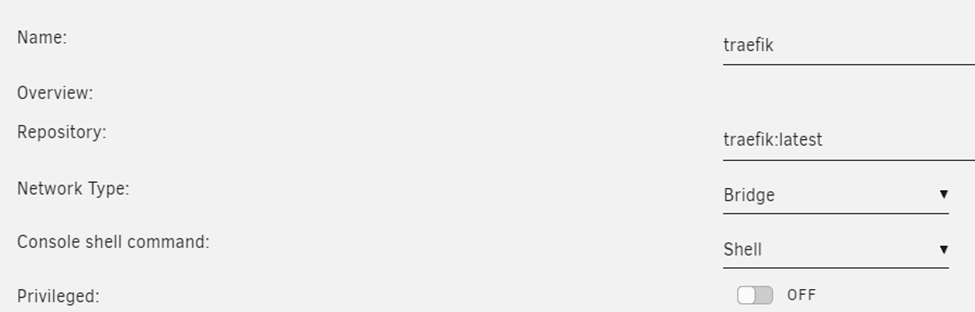
Our container configuration should look like this;
Run container, and view container log to make sure its running. You will see something like this;
The screen will scroll with new logs. Traefik is up and running.
For external hosts to take advantage of terafik, point their DNS entry to traefik host. Obviously we have to define router and services in traefik dynamic file.
# Pihole-FTL.db
# stop Pihole service
sudo service pihole-FTL stop
cp /etc/pihole/pihole-FTL.db /srv/pihole-data
chown pihole:pihole pihole-FTL.db
# rm /etc/pihole/pihole-FTL.db
# create link in /etc/pihole
ln -s /srv/pihole-db/pihole-FTL.db pihole-FTL.db
# change owner/group of symlinks
sudo chown -h pihole:pihole pihole-FTL.db

# start the service
sudo service pihole-FTL start
# check service status
# systemctl status pihole-FTL
Open browser, navigate to a site and see if pihole-FTL works.
Pihole-FTL started working. Let’s move others;
# gravity.db
sudo service pihole-FTL stop
cp /etc/pihole/gravity.db /srv/pihole-db
ls -l /srv/pihole-db
chown pihole:pihole /srv/pihole-db/gravity.db
rm /etc/pihole/gravity.db
# create symlink in /etc/pihole
ln -s /srv/pihole-db/gravity.db gravity.db
# change owner/group of symlinks
sudo chown -h pihole:pihole gravity.db

# verify
sudo service pihole-FTL start

# macvendor.db
sudo service pihole-FTL stop
cp /etc/pihole/macvendor.db /srv/pihole-db
ls -l /srv/pihole-db

chown pihole:pihole /srv/pihole-db/macvendor.db
rm /etc/pihole/macvendor.db
# create symlink in /etc/pihole
ln -s /srv/pihole-db/macvendor.db macvendor.db
sudo chown -h pihole:pihole macvendor.db
# verify
sudo service pihole-FTL start

# list.1.raw.githubusercontent.com.domains
sudo service pihole-FTL stop
cp /etc/pihole/list.1.raw.githubusercontent.com.domains /srv/pihole-db
ls -l /srv/pihole-db

rm /etc/pihole/list.1.raw.githubusercontent.com.domains
# create symlink in /etc/pihole
ln -s /srv/pihole-db/list.1.raw.githubusercontent.com.domains list.1.raw.githubusercontent.com.domains
# verify
sudo service pihole-FTL start
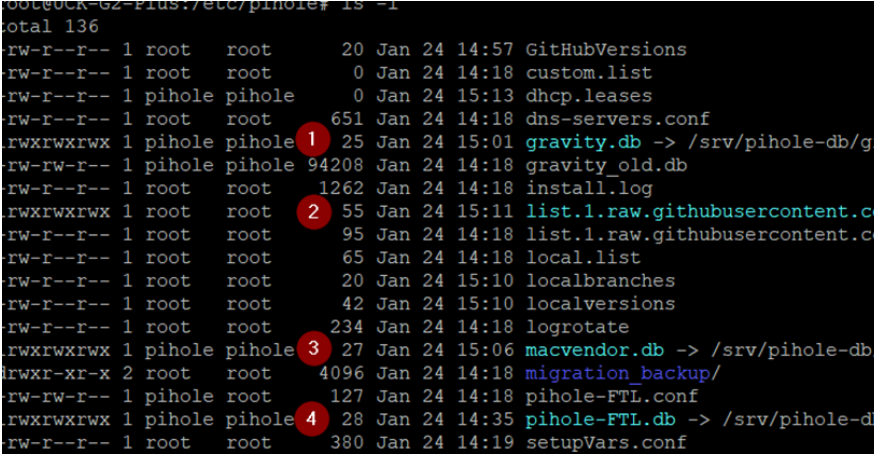
Make sure you have changed owner and group of sym(Symbolic) links of these databases.
server:
    # If no logfile is specified, syslog is used
    # logfile: "/var/log/unbound/unbound.log"
    verbosity: 0

    interface: 127.0.0.1
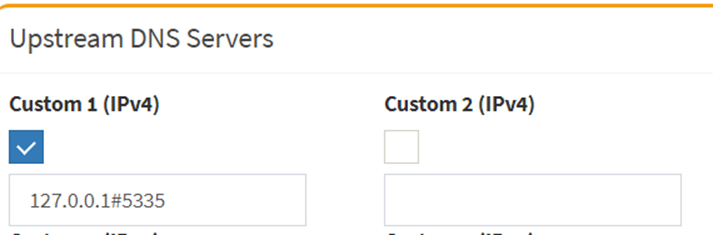
    port: 5335
    do-ip4: yes
    do-udp: yes
    do-tcp: yes

    # May be set to yes if you have IPv6 connectivity
    do-ip6: no

    # You want to leave this to no unless you have *native* IPv6. With 6to4 and
    # Terredo tunnels your web browser should favor IPv4 for the same reasons
    prefer-ip6: no

    # Use this only when you downloaded the list of primary root servers!
    # If you use the default dns-root-data package, unbound will find it automatically
    #root-hints: "/var/lib/unbound/root.hints"

    # Trust glue only if it is within the server's authority
    harden-glue: yes

    # Require DNSSEC data for trust-anchored zones, if such data is absent, the zone becomes BOGUS
    harden-dnssec-stripped: yes

    # Don't use Capitalization randomization as it known to cause DNSSEC issues sometimes
    # see https://discourse.pi-hole.net/t/unbound-stubby-or-dnscrypt-proxy/9378 for further details
    use-caps-for-id: no

    # Reduce EDNS reassembly buffer size.
    # IP fragmentation is unreliable on the Internet today, and can cause
    # transmission failures when large DNS messages are sent via UDP. Even
    # when fragmentation does work, it may not be secure; it is theoretically
    # possible to spoof parts of a fragmented DNS message, without easy
    # detection at the receiving end. Recently, there was an excellent study
    # >>> Defragmenting DNS - Determining the optimal maximum UDP response size for DNS <<<
    # by Axel Koolhaas, and Tjeerd Slokker (https://indico.dns-oarc.net/event/36/contributions/776/)
    # in collaboration with NLnet Labs explored DNS using real world data from the
    # the RIPE Atlas probes and the researchers suggested different values for
    # IPv4 and IPv6 and in different scenarios. They advise that servers should
    # be configured to limit DNS messages sent over UDP to a size that will not
    # trigger fragmentation on typical network links. DNS servers can switch
    # from UDP to TCP when a DNS response is too big to fit in this limited
    # buffer size. This value has also been suggested in DNS Flag Day 2020.
    edns-buffer-size: 1232

    # Perform prefetching of close to expired message cache entries
    # This only applies to domains that have been frequently queried
    prefetch: yes

    # One thread should be sufficient, can be increased on beefy machines. In reality for most users running on small networks or on a single machine, it should be unnecessary to seek performance enhancement by increasing num-threads above 1.
    num-threads: 1

    # Ensure kernel buffer is large enough to not lose messages in traffic spikes
    so-rcvbuf: 1m

    # Ensure privacy of local IP ranges
    private-address: 192.168.0.0/16
    private-address: 169.254.0.0/16
    private-address: 172.16.0.0/12
    private-address: 10.0.0.0/8
    private-address: fd00::/8
    private-address: fe80::/10
save file CTRL+X.
Start local recursive server and test that it’s operational;
sudo service unbound restart
dig pi-hole.net @127.0.0.1 -p 5335
The first query may be quite slow, but subsequent queries, also to other domains under the same TLD, should be fairly quick.
You should also consider adding
edns-packet-max=1232
to a config file like /etc/dnsmasq.d/99-edns.conf to signal FTL to adhere to this limit.