Continue Foreach loop after task failure in SSIS

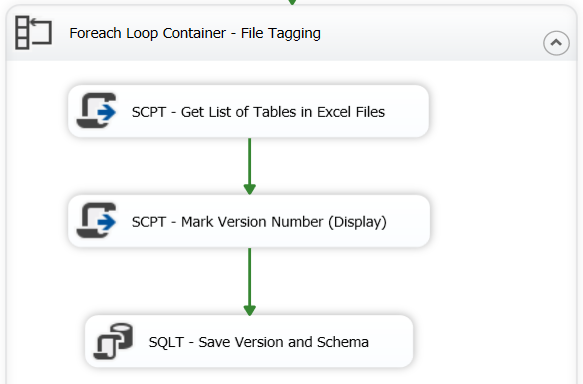
I would like to continue a Foreach loop container even if a task, for example, script task fails. Here is a quick fix;

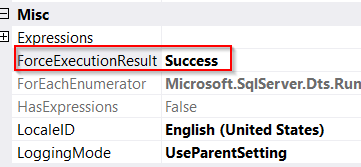
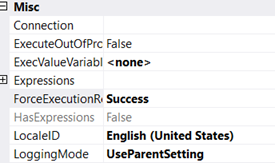
Press F4, this will bring up Properties window. Change “ForceExecutionResult” property to “Success”.

Foreach loop will continue even if script task inside fails.

The recommended way to get a good error message from script task, decorate them with try/catch block. Here is an example;

try
{
   var x = 1/0;
}
catch (Exception ex)
            {
                var message = $"my error. ERR: {ex.Message.ToString()}";
                Dts.Events.FireError(1, ex.TargetSite.ToString(), message, "", 0);
                Dts.TaskResult = (int)ScriptResults.Failure;        
            }

These are good references on the topic;

https://www.mssqltips.com/sqlservertip/3575/continue-a-foreach-loop-after-an-error-in-a-sql-server-integration-services-package/

https://richardswinbank.net/ssis/errors_in_script_tasks_and_components

Cross Apply and Outer Apply

Microsoft has introduced APPLY operator in SQL Server 2005. It allows joining between two table expressions, for example joining left/outer table expression with right/inner table expression. The way it works is that we have a table-valued expression on the right side and we want this table-valued expression to be evaluated for each row from the left table expression.

An ideal use case would be where we are unable to form any kind a join between two tables. For example a project table and calendar table.

(Left Side Table – Project Table)

ProjectKey           ProjectEndDate

XX-ABC10            2018-10-31

XX-ABC11            2018-11-30

XX-ABD12            2019-01-31

XX-ABC13

(Right Side Table – Calendar Table)

FiscalQuarterStartDate   FiscalQuarterEndDate

2018-10-01                        2018-12-31

2019-01-01                        2019-03-31

Each ProjectEndDate falls between a FiscalQuarter. We need to append a new column in our result set that will be FiscalQuarterEndDate.

Here is the query;

SELECT p.ProjectKey, p.ProjectEndDate, dates.FiscalQuarterEndDate 
FROM Project p
CROSS APPLY
(
	SELECT FiscalQuarterEndDate 
	FROM FiscalCalendar calendar
	WHERE 1=1
	AND p.ProjectEndDate 
	BETWEEN calendar.FiscalQuarterStartDate AND calendar.FiscalQuarterEndDate
) dates
WHERE 1=1

Here is the result;

ProjectKey           ProjectEndDate                 FiscalQuarterEndDate

XX-ABC10            2018-10-31                        2018-12-31

XX-ABC11            2018-11-30                        2018-12-31

XX-ABD12            2019-01-31                        2019-03-31

If we look at the result set, it returns only those rows that matches with the right table expression. Project Number XX-ABC13 is missing. CROSS APPLY is equivalent to an INNER JOIN. To be more precise its like a CROSS JOIN with a correlated sub-query).

If we want to return all rows from the left side then we need to apply OUTER APPLY which is equivalent to a LEFT OUTER JOIN.

Resources

https://www.mssqltips.com/sqlservertip/1958/sql-server-cross-apply-and-outer-apply/

C# component to read Excel data using OleDb in SSIS

This is how we can read data from Microsoft Excel using OleDb in SSIS;

public override void CreateNewOutputRows()
    {
        //Change this to your filename you do not need a connection manager
        string fileName = @"E:\SFTP\RSS\Results.xlsx";  
        string SheetName = "Sheet1";  
        string cstr = "Provider=Microsoft.ACE.OLEDB.12.0;Data Source=" + fileName + ";Extended Properties=\"Excel 12.0;HDR=YES;IMEX=1\"";

        using (System.Data.OleDb.OleDbConnection xlConn = new System.Data.OleDb.OleDbConnection(cstr))
        {
           xlConn.Open();
           System.Data.OleDb.OleDbCommand xlCmd = xlConn.CreateCommand();
           xlCmd.CommandText = "Select * from [" + SheetName + "$]"; //I assume this is the data you want
           xlCmd.CommandType = CommandType.Text;
           using (System.Data.OleDb.OleDbDataReader rdr = xlCmd.ExecuteReader())
           {
              while (rdr.Read())
              {
                 for (int i = 4; i < rdr.FieldCount; i++) //loop from 5th column to last
                 {
                    //The first 4 columns are static and added to every row
                    Output0Buffer.AddRow();
                    Output0Buffer.UniqueID = Int32.Parse(rdr[0].ToString());
                    Output0Buffer.Year = Int32.Parse(rdr[1].ToString());
                    Output0Buffer.ReportingWave = rdr.GetString(2);
                    Output0Buffer.SubmissionDate = rdr.GetString(3);
                    Output0Buffer.Question = rdr.GetName(i);
                    Output0Buffer.Answer = rdr.GetString(i);
                 }

            }
          }
          xlConn.Close();
       }
    }

We need to add output columns with correct data type. There is no need to setup connection manager because we are using it in the code.

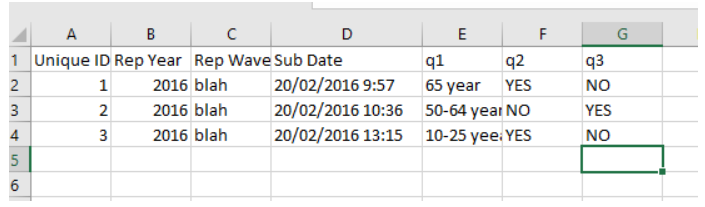
This code will successfully import a file that looks like this;

My recent experience with Excel Sheet.

Check the data type of the column. If the type is “General”, then ACE will determine data type based on first 8-10 rows. If those are numeric then it might ignore alpha-numeric data in the column. Try to change column data type to “Text” and see what happens. It will work. You would be able to see numeric and non-numeric data in your data pipe line.

Resources;

https://stackoverflow.com/questions/61514481/get-an-ssis-c-sharp-script-component-to-read-from-excel-via-oledb

https://docs.microsoft.com/en-us/sql/integration-services/extending-packages-scripting/data-flow-script-component/configuring-the-script-component-in-the-script-component-editor?view=sql-server-ver15

Don’t’ fail parent package if child package fails

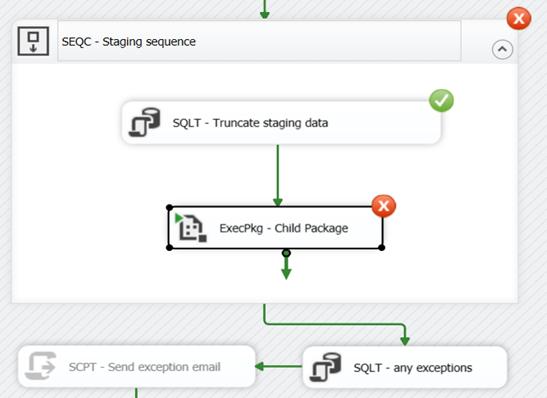
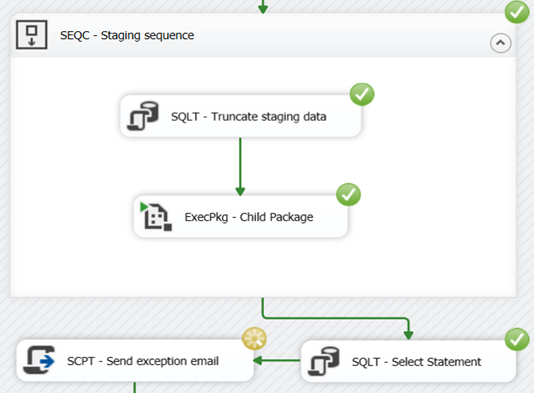
I like to keep running child packages inside sequence container even if one of them fails. Currently they are failing;

The work around is to set Sequence container “MaximumErrorCount” property to 2 from 1. After doing that, I am still getting failure error.

What we need to do is to fake the result assuming master and child packages have proper logging in place if they fail. Go to the Properties of “ExecPkg – Child Package” and set “ForceExecutionResult” to Success.

Do the same for master package. Run the package;

You can see that child package has no issues despite the fact that this has been failed. We can confirm that from log table if it’s enabled on package level.

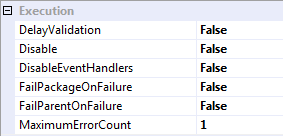
These are the default values for a new container.

Now lets stop and study. If we compare the package behavior against the property settings, this looks wrong. Here we have set FailPackageOnFailure=False, yet a Sequence Container failure is causing a Package failure. Why is this? Unintuitive attribute names. See this Microsoft Connect issue. You are not alone in your confusion. The official explanation from Microsoft is this.

Despite some pretty circular previous messages, we believe that the feature is behaving as designed. When you set FailParentOnFailure to false, the parent will not fail until the number of failures in the child exceeds the MaximumAllowedErrors threshold. When you set FailparentOnFailure to true, the parent will fail on the first occurence of an error regardless of the MaximiumAllowedErrors threshold.

SQL Date Conversion from different data types

When we receive data feed from outside vendors, the date values are often like this;

Purchase Date
2020-07-12
NULL
'n/a'
''

The challenge is how to parse these dates and load them in SQL server table. Here is one work around;

DECLARE @purchaseDate nvarchar(10) = '9/30/2020 12:00:00 AM'
--DECLARE @purchaseDate nvarchar(10) = ''
--DECLARE @purchaseDate nvarchar(10) = 'n/a'
--DECLARE @purchaseDate nvarchar(10) = NULL

SELECT 
	CASE 
	WHEN ISDATE(ISNULL(@myDate, NULL)) = 1 THEN TRY_PARSE(@myDate AS date)
	END PurchaseDate

We are basically checking whether value is of date, if yes then we apply transformation logic.