
Recently I came across an issue where existing projects were showing .vs folder checked-in and being tracked. Developers were having code conflict problems and were not able to create PR request.
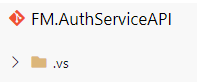
Here is the work around to add gitignore file in existing solution using Visual Studio.
Remove .vs folder from main branch and working branch. If there are PR policy in place, disable that for fixing this. After .vs folder removal, enable PR policy.
Open Visual Studio and make sure it’s connected to Git branch. Click on Git->Settings.
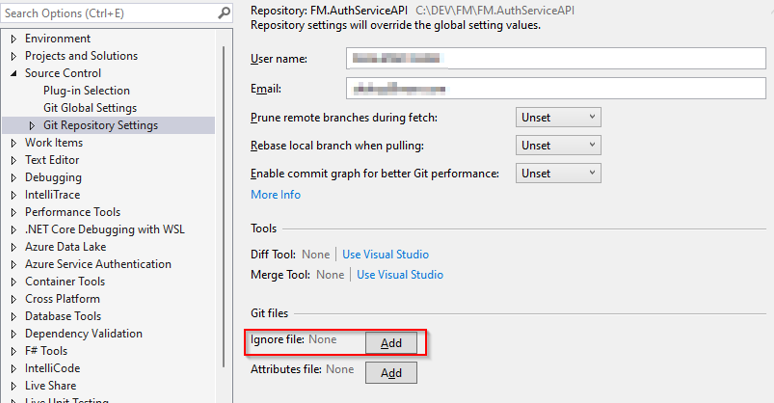
This will add gitignore file in the root of project folder. Switch to Git changes window in your working branch and commit / sync your changes.
Now we need to stop tracking all .vs folder changes that’s been created on developer machines to build and run the project. Use these magic commands, one time only;
git rm -r –cached .
git add .
git commit -am “remove ignored files”
For added piece of mind, sync your main branch and do a merge from main branch to work branch locally. Resolve any cache files and conflicts. You might need to run above three command again.
After this, Create PR and it should merge with main branch. This will take your pain away.
I hope this will help.
Standard Practice to Create Repository
Stop tracking the files that should be ignored in Git

 Add to favorites
