
A resource lock prevents resources from being accidentally deleted or changed.
You can manage resource locks from the Azure portal, PowerShell, the Azure CLI, or from an Azure Resource Manager template.
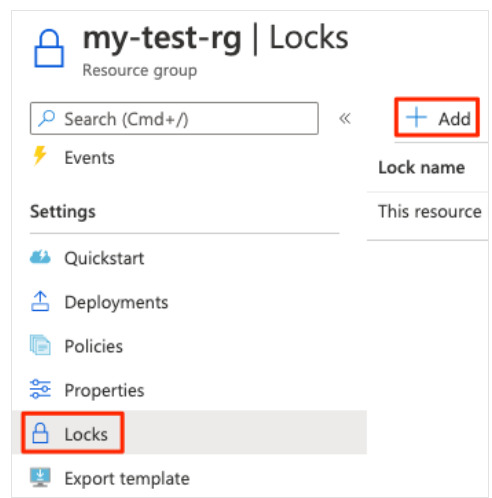
To view, add, or delete locks in the Azure portal, go to the Settings section of any resource’s Settings pane in the Azure portal.
Here’s an example that shows how to add a resource lock from the Azure portal. You’ll apply a similar resource lock in the next part.
You can apply locks to a subscription, a resource group, or an individual resource. You can set the lock level to CanNotDelete or ReadOnly
Resource locks apply regardless of RBAC permissions
To make the protection process more robust, you can combine resource locks with Azure Blueprints. Azure Blueprints enables you to define the set of standard Azure resources that your organization requires. For example, you can define a blueprint that specifies that a certain resource lock must exist. Azure Blueprints can automatically replace the resource lock if that lock is removed.
Follow this for an example;
Reference

 Add to favorites
